Visão Geral
Este guia mostra como usar etiquetas de tarefas no Morgen para organizar e planear o seu trabalho. Você aprenderá como adicionar, editar e colorir etiquetas, e como usá-las para agrupar, filtrar e planear tarefas por contexto, área ou energia, sem adicionar listas extras ou outra camada de complexidade.
Por Que Usar Etiquetas de Tarefas?
- Agrupar tarefas em múltiplas listas
- Filtrar e planear por contexto, área ou energia
- Adicionar estrutura sem criar mais listas de tarefas
Como Adicionar Etiquetas em Tarefas

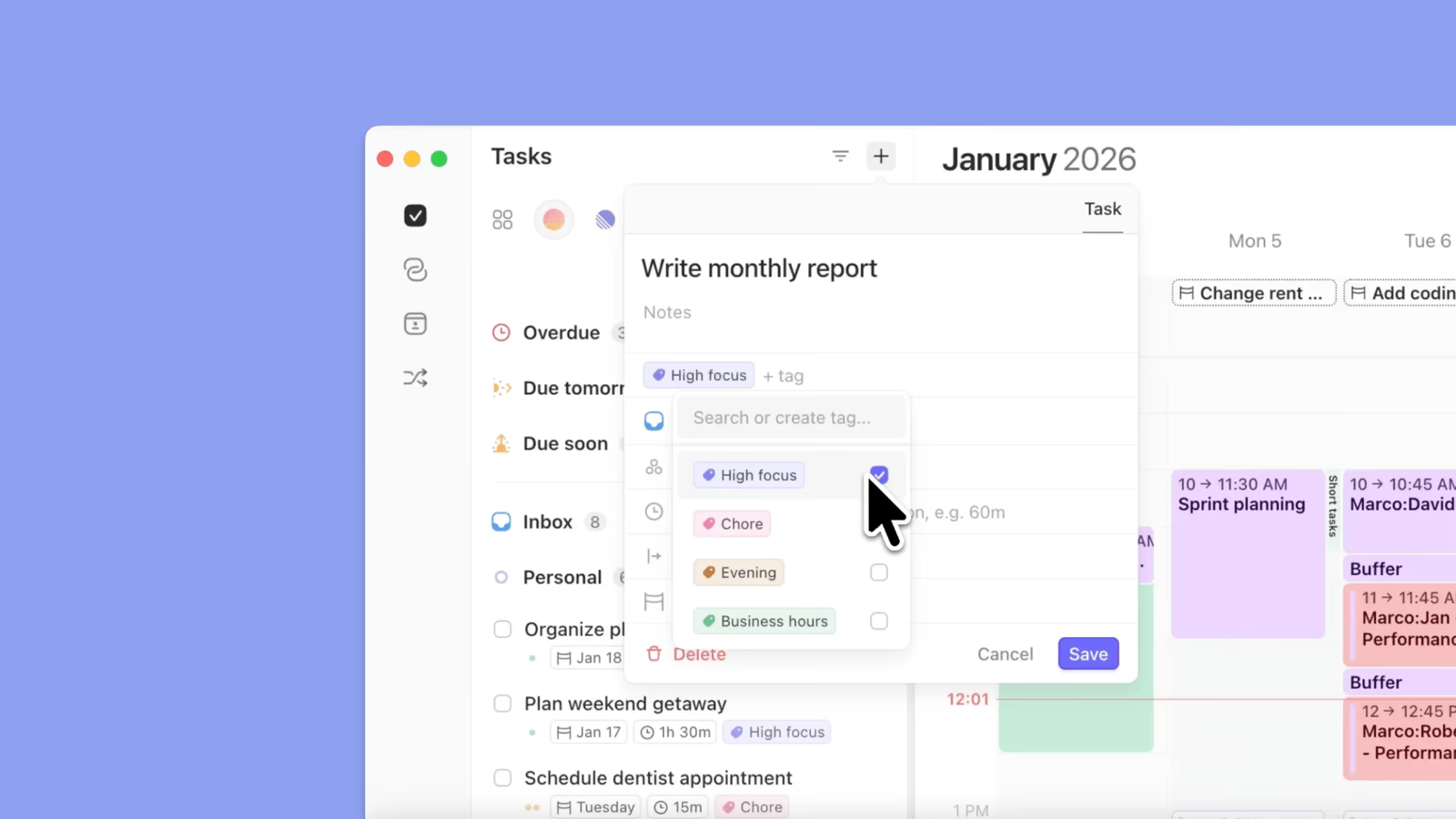
- Abra uma tarefa
- Clique no campo de etiqueta
- Selecione uma etiqueta existente ou crie uma nova digitando
- Adicione múltiplas etiquetas se necessário
Como Adicionar Etiquetas na Barra de Comandos

- Abra a barra de comandos ⌘ + K
- Crie uma tarefa e digite
# - Selecione uma etiqueta existente ou digite uma nova
- Adicione múltiplas etiquetas se necessário
Editar Etiquetas

Ao clicar numa etiqueta, pode:
- Renomear a etiqueta
- Alterar a sua cor
- Removê-la da tarefa
- Eliminá-la completamente
Usar Etiquetas para Planeamento
Pode:
- Agrupar tarefas por etiqueta
- Ordenar tarefas por etiqueta
- Filtrar listas de tarefas e frames do planeador por etiqueta
Exemplos comuns de etiquetas:
- Área: Admin, Trabalho, Pessoal
- Energia: Alta, Média, Baixa
- Tipo: Email, Chamada, Trabalho Profundo
Dicas do Morgen
💡 Mantenha as Etiquetas Simples: Use um conjunto pequeno e significativo em vez de dezenas de etiquetas.
💡 Combine com Frames: Filtre frames do planeador por etiqueta para planear o tipo certo de trabalho na hora certa.
Precisa de Ajuda?
💬 Ainda tem dúvidas? Contacte-nos, temos prazer em ajudar!