Panoramica
Questa guida ti mostra come usare i tag delle attività in Morgen per organizzare e pianificare il tuo lavoro. Imparerai ad aggiungere, modificare e colorare i tag, e come usarli per raggruppare, filtrare e pianificare le attività per contesto, area o energia, senza aggiungere ulteriori elenchi o un altro livello di complessità.
Perché Usare i Tag delle Attività?
- Raggruppa attività da più elenchi
- Filtra e pianifica per contesto, area o energia
- Aggiungi struttura senza creare più elenchi di attività
Come Aggiungere Tag alle Attività

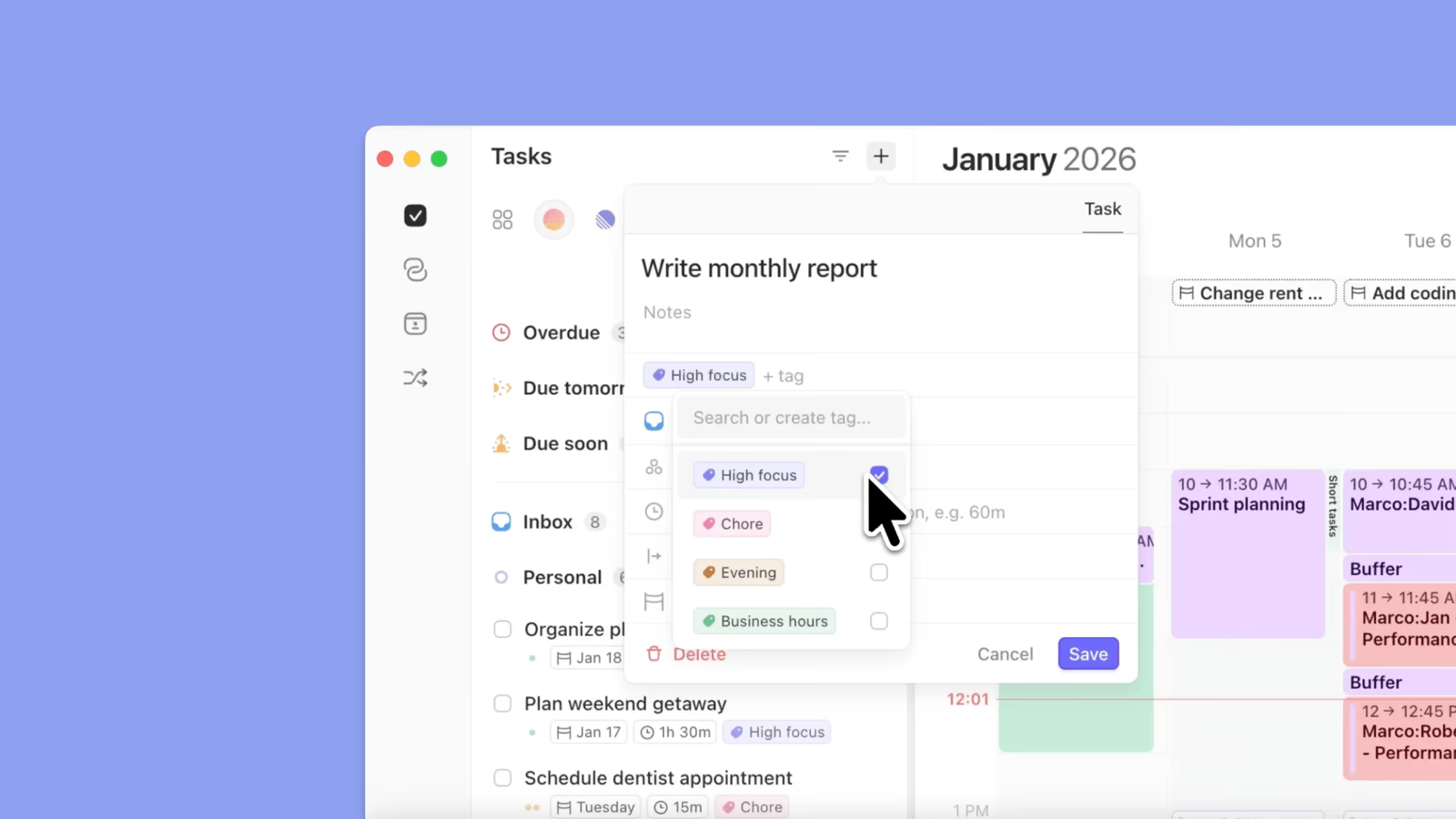
- Apri un'attività
- Fai clic sul campo tag
- Seleziona un tag esistente o creane uno nuovo digitando
- Aggiungi più tag se necessario
Come Aggiungere Tag nella Barra dei Comandi

- Apri la barra dei comandi ⌘ + K
- Crea un'attività e digita
# - Seleziona un tag esistente o digita uno nuovo
- Aggiungi più tag se necessario
Modifica dei Tag

Quando fai clic su un tag, puoi:
- Rinominare il tag
- Cambiare il suo colore
- Rimuoverlo dall'attività
- Eliminarlo completamente
Usare i Tag per la Pianificazione
Puoi:
- Raggruppare attività per tag
- Ordinare attività per tag
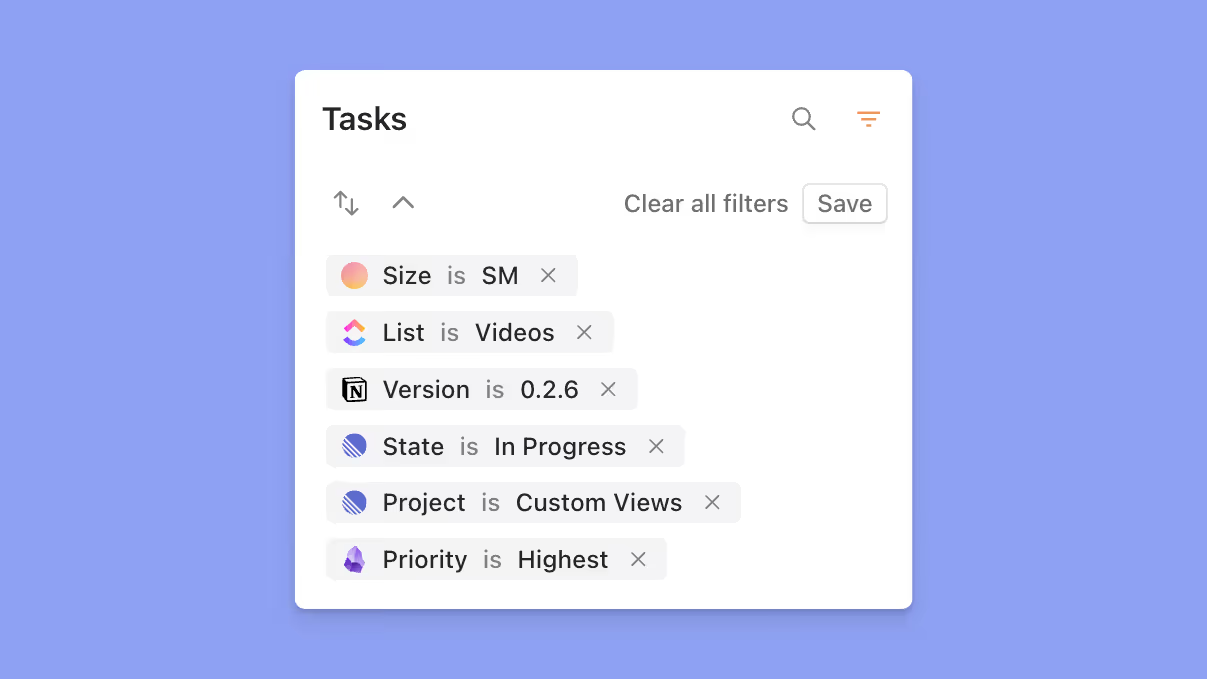
- Filtrare elenchi di attività e frame del planner per tag
Esempi comuni di tag:
- Area: Admin, Lavoro, Personale
- Energia: Alta, Media, Bassa
- Tipo: Email, Chiamata, Lavoro Profondo
Suggerimenti di Morgen
💡 Mantieni i Tag Leggeri: Usa un piccolo set significativo piuttosto che dozzine di tag.
💡 Combina con i Frame: Filtra i frame del planner per tag per pianificare il tipo giusto di lavoro al momento giusto.
Hai Bisogno di Aiuto?
💬 Hai ancora domande? Contattaci, siamo felici di aiutarti!