Aperçu
Ce guide vous montre comment utiliser les couleurs et les tags dans Morgen pour comprendre comment vous passez votre temps. Vous apprendrez quand utiliser les couleurs du calendrier, les couleurs des tâches planifiées et des événements, et les couleurs des tags, pour repérer les modèles en un coup d'œil, planifier avec plus de confiance et garder votre calendrier clair et apaisant.
Pourquoi utiliser les couleurs ?
En utilisant les couleurs dans Morgen, vous pouvez :
- Voir instantanément comment vous passez votre temps (réunions vs travail approfondi vs routines vs temps personnel)
- Prendre des décisions plus éclairées lors de la planification de votre semaine
- Repérer les déséquilibres, comme trop de réunions ou trop peu de temps de récupération
- Créer un calendrier qui n'est pas seulement fonctionnel, mais aussi visuellement clair et apaisant
Couleurs du calendrier

Chaque calendrier (travail, personnel, partagé, etc.) a une couleur principale. Cette couleur est utilisée comme indicateur de base pour les événements et les tâches de ce calendrier.
Vous pouvez :
- Utiliser les couleurs du calendrier pour distinguer les domaines majeurs de votre vie (par exemple, travail vs personnel)
- Garder les couleurs du calendrier larges et stables, et utiliser les couleurs des tâches ou des tags pour une signification plus spécifique
Comment modifier les couleurs du calendrier :
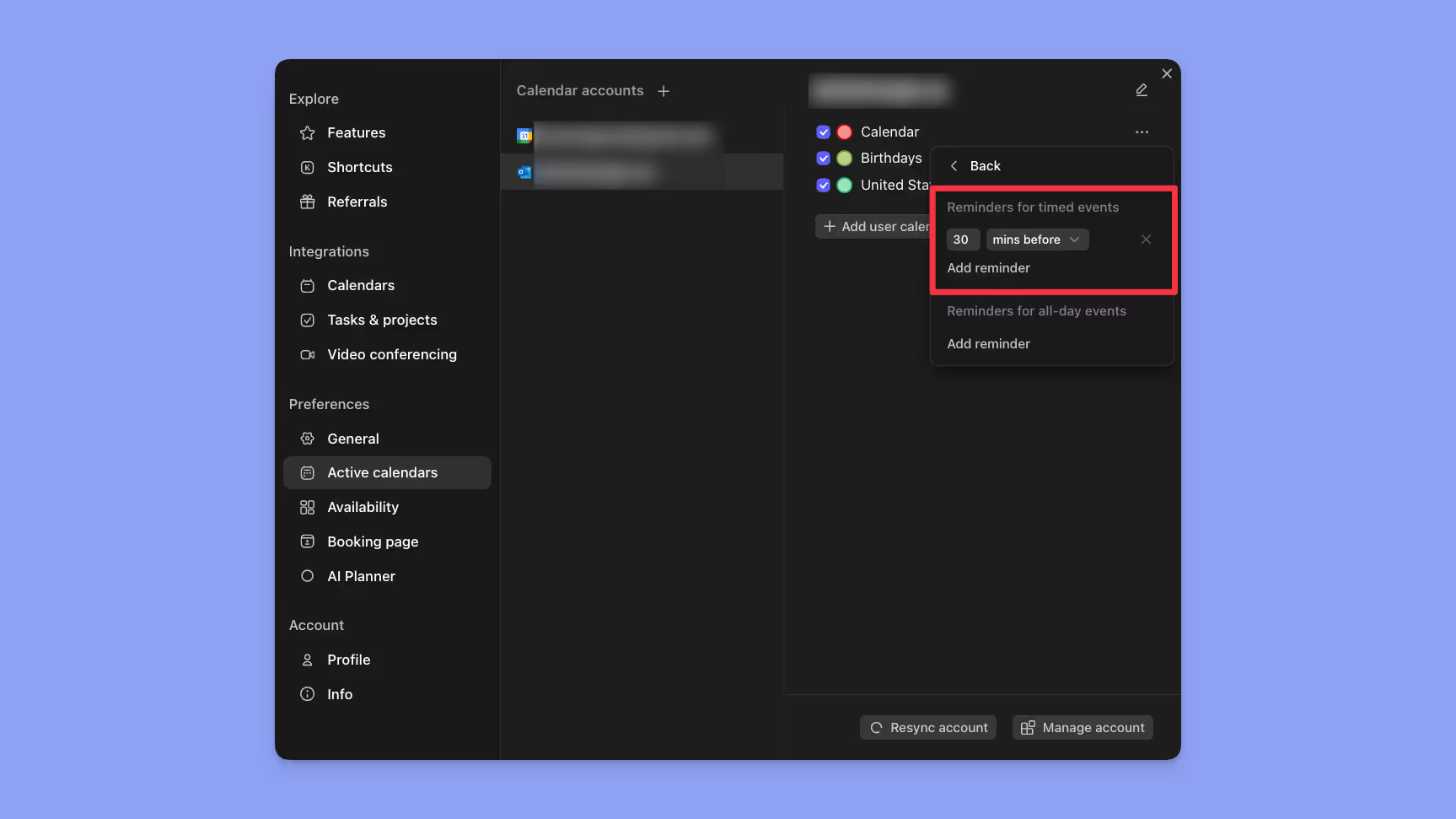
- Allez à votre profil et cliquez sur « Préférences »
- Sous Préférences, choisissez « Calendriers actifs »
- Choisissez votre compte de calendrier
- Cliquez sur les trois points à côté de l'ensemble de calendriers
- Choisissez une couleur ou créez-en une nouvelle avec le sélecteur de couleurs
Couleurs des tâches planifiées, routines et événements

Vous pouvez remplacer la couleur du calendrier pour les tâches planifiées, routines ou événements individuels.
C'est particulièrement utile pour :
- Mettre en évidence les tâches importantes
- Donner aux routines une identité visuelle cohérente
- Faciliter le repérage des sessions de tâches sur les calendriers chargés
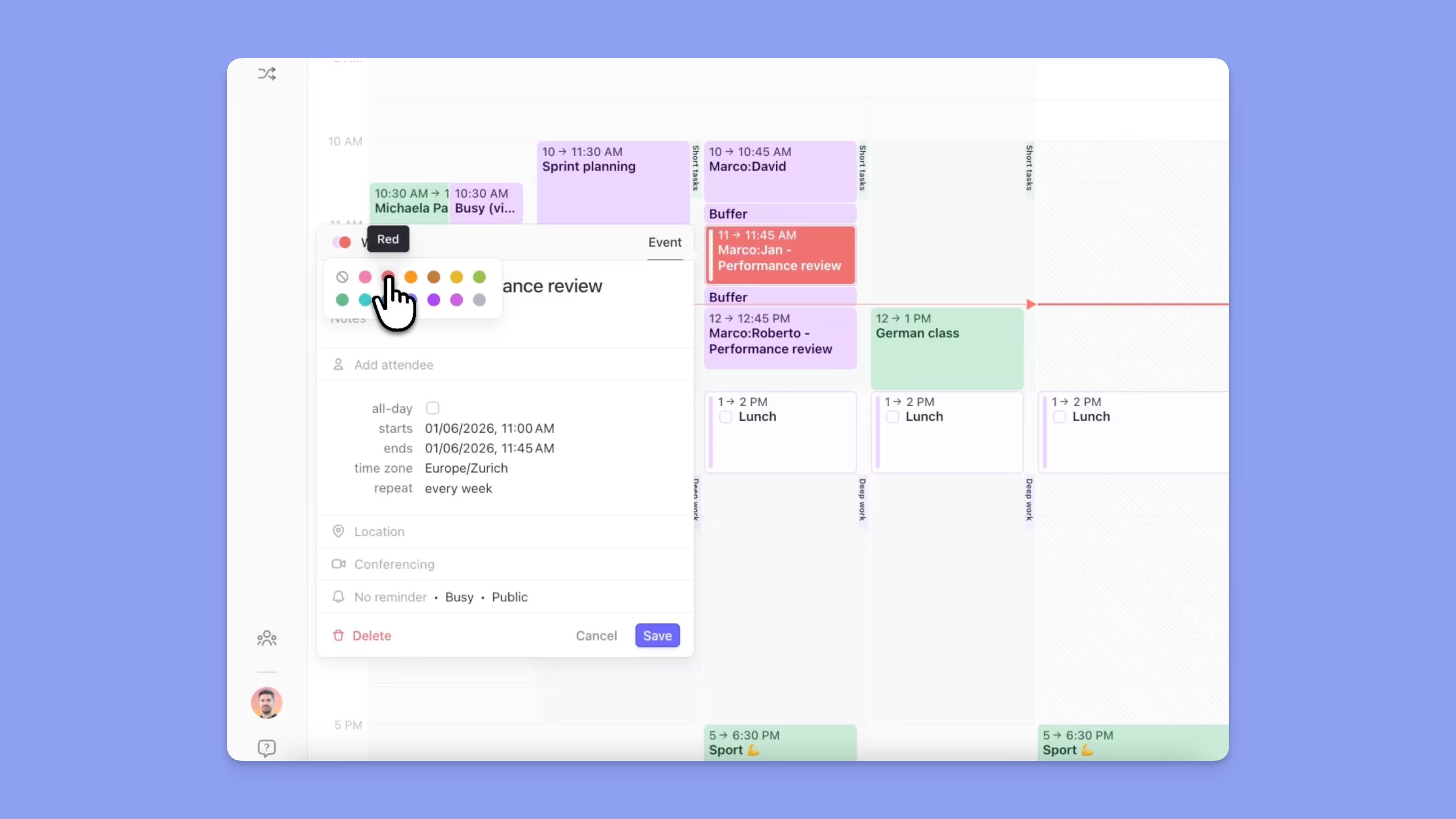
Comment modifier les couleurs des tâches, routines ou événements :
- Ouvrez ou créez une tâche, une routine ou un événement
- Cliquez sur les icônes de couleur à côté du nom du calendrier
- Choisissez n'importe quelle couleur dans la sélection de couleurs
Couleurs des tags de tâches

Les tags de tâches peuvent également avoir leurs propres couleurs :
- Les couleurs des tags s'appliquent partout où le tag est affiché (listes de tâches, suggestions du planificateur, cadres, sessions de calendrier)
- Modifier la couleur d'un tag met à jour toutes les tâches utilisant ce tag
- Les couleurs des tags n'affectent que les tags. Pour modifier la couleur globale d'une tâche, suivez les étapes « Couleur des tâches et événements ».
Les couleurs des tags sont idéales pour :
- Les domaines de responsabilité (Admin, Travail, Personnel)
- Les niveaux d'énergie (Élevé / Moyen / Faible)
- Les contextes (Email, Appels, Travail approfondi)
👉 Consultez le Guide des tags de tâches pour plus de détails sur la création et la gestion des tags.
Conseils Morgen
💡 Examinez l'allocation du temps : Utilisez les couleurs pour vérifier rapidement si votre semaine correspond à vos priorités.
💡 Soyez cohérent : Utilisez la même couleur pour la même signification (par exemple, violet pour les routines, bleu pour le travail concentré).
Besoin d'aide ?
💬 Vous avez encore des questions ? Contactez-nous, nous serions heureux de vous aider !
.avif)