Standardmäßig integriert sich Morgen mit Outlook, um persönliche Kalender und freigegebene Kalender zu synchronisieren.
Allerdings erfordern Gruppenkalender (Microsoft 365 Groups, Teams, freigegebene Ressourcen) eine spezifische Berechtigung, die von Administratoren deiner Organisation gewährt werden muss.
Diese Anleitung führt dich durch die erforderlichen Schritte, um dir und deinem IT-Administrator zu helfen, die Zustimmung für Morgen zur Synchronisierung dieser Kalender erfolgreich zu erteilen.

Szenario 1: Admin-Genehmigung anfordern
Nach dem Klick auf „Mit Microsoft Outlook anmelden" könnte dir ein Dialog ähnlich dem unten gezeigten angezeigt werden, mit wichtigen Details wie:
- Der Titel „Genehmigung erforderlich"
- Eine Liste der Berechtigungen, die Morgen anfordert
- Ein Textfeld und eine Schaltfläche „Genehmigung anfordern"
Wenn das der Fall ist, kannst du einfach deine Begründung in das Textfeld eintragen und die Genehmigung anfordern.

Dein IT-Administrator sollte eine E-Mail über deine Anfrage erhalten.

Durch Klick auf „Anfrage überprüfen" gelangen sie zum folgenden Bildschirm, wo sie die Anfrage genehmigen können.
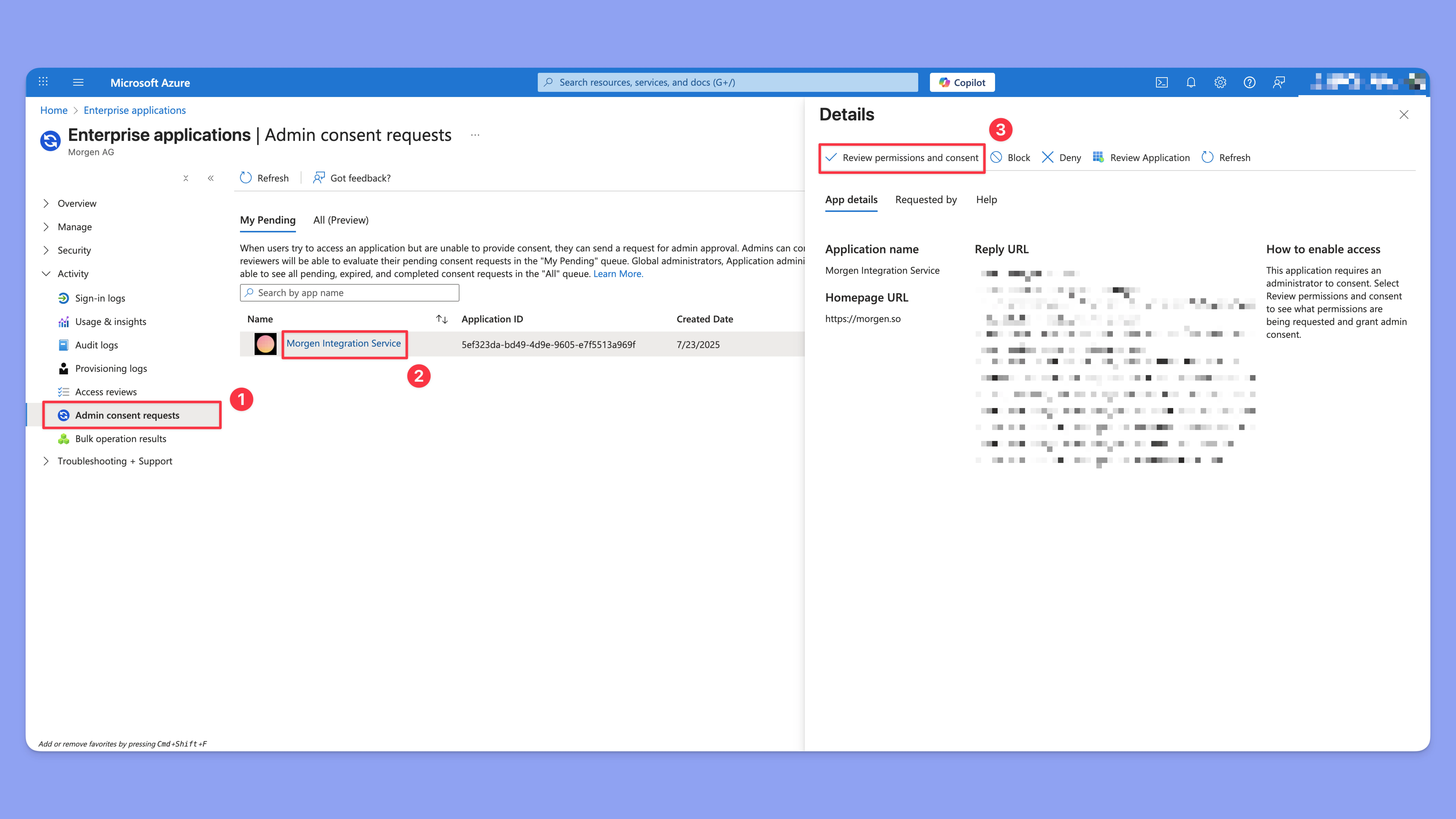
Szenario 2: Admin-Genehmigungsanfragen sind NICHT aktiviert
Einige Organisationen haben möglicherweise nicht konfiguriert, dass Anfragen für Admin-Genehmigung erlaubt sind.
Das ist der Fall, wenn du den folgenden Bildschirm siehst mit:
- Der Titel „Admin-Genehmigung erforderlich"
- Kein Textfeld oder Schaltfläche zum Anfordern einer Genehmigung

Lösung A: Admin-Zustimmungsanfragen zulassen
Wenn der Administrator es bevorzugt, Benutzern zu erlauben, Genehmigung anzufordern, kann er diese Option im Microsoft Entra Admin Center aktivieren:
- Aktiviere „Benutzer können Admin-Zustimmung für Apps anfordern, denen sie nicht zustimmen können"

Nach der Aktivierung sollte das erneute Verbinden deines Kontos dich zu Szenario 1 führen, wo du die Genehmigung für die App anfordern kannst.
Lösung B: Zugriff als Administrator für die Organisation gewähren
Wenn du ein Administrator in einer Organisation bist und nicht für jedes Mitglied den Zugriff manuell genehmigen möchtest, kannst du den Zugriff organisationsweit gewähren.
Zugriff über direkten Autorisierungslink gewähren
- Folge diesem Autorisierungslink
- Überprüfe die Berechtigungen und drücke „Akzeptieren"
ODER
Zugriff durch Verbindung von Morgen mit deinem Konto gewähren
Wenn du dein eigenes Outlook-Konto verbindest, wähle „Im Namen deiner Organisation zustimmen."

Benötigst du Hilfe?
💬 Wenn du Fragen hast, helfen wir dir gerne oder Administratoren beim Genehmigungsprozess 🤲.
✨ Wenn die Genehmigungsanfrage dich daran hindert, Morgen während deiner kostenlosen Testphase zu nutzen, kannst du uns kontaktieren, um deine Testphase neu zu starten.