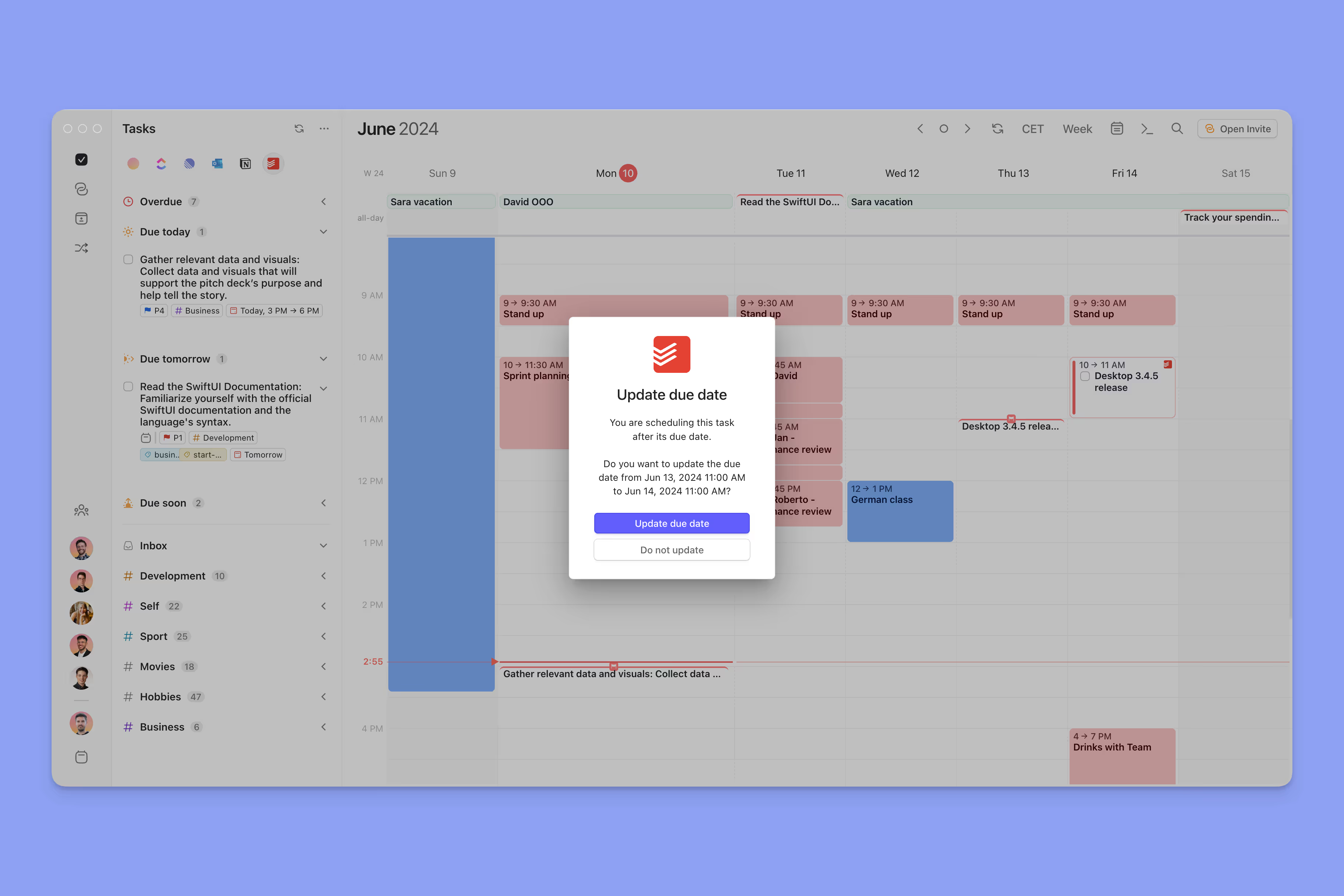
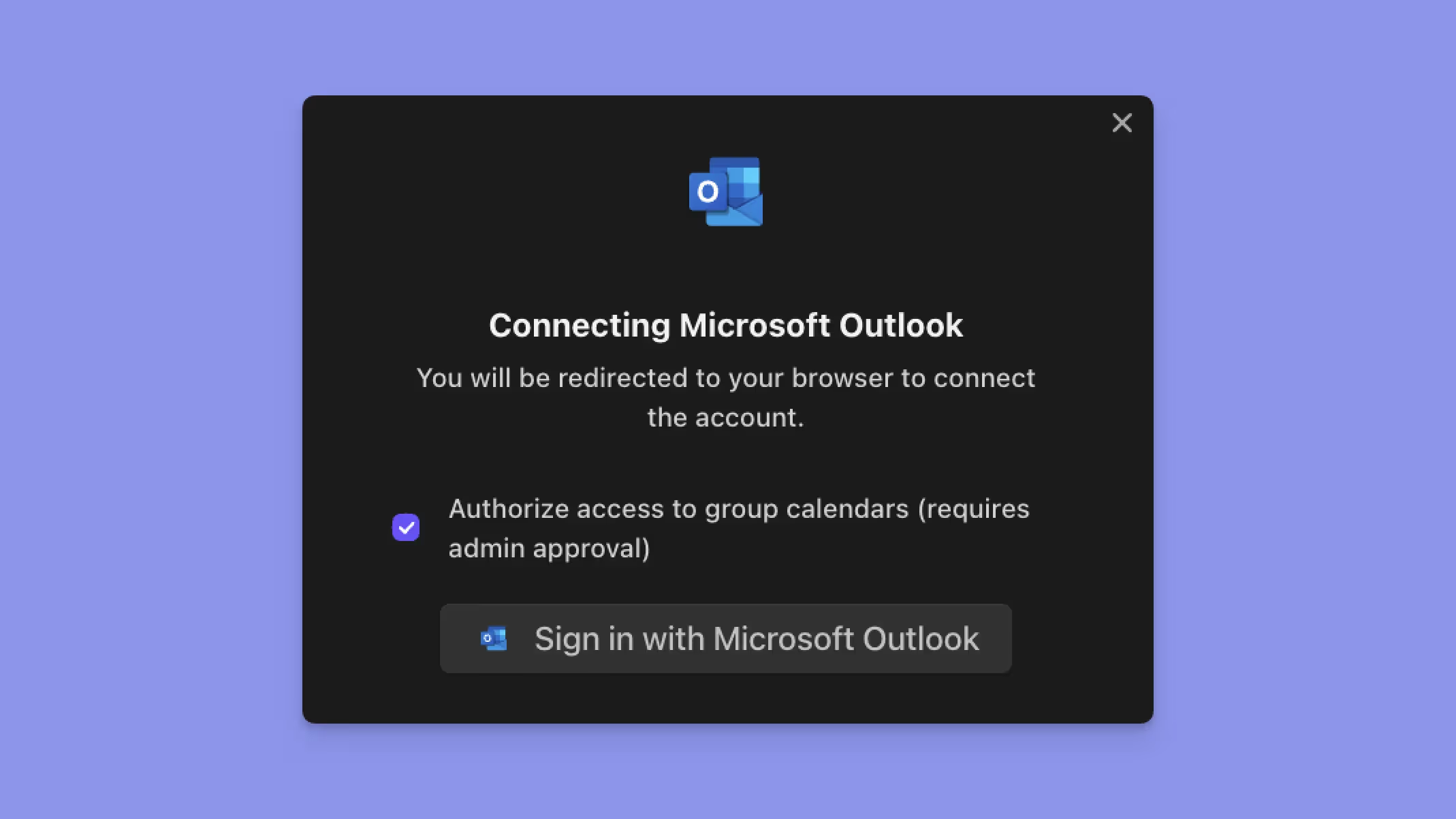
By default, Morgen integrates with Outlook to sync personal calendars and shared calendars.
However, group calendars (Microsoft 365 Groups, Teams, shared resources) require a specific permission that must be granted by admins of your organization.
This guide will walk through the steps required to help you and your IT admin successfully grant consent for Morgen to sync these calendars.
Scenario 1: Request admin approval
After clicking "Sign in with Microsoft Outlook", you might see a dialog similar to the one below, with key details like:
- The “Approval required" title
- A list of the permissions that Morgen will request
- A text field and "Request approval" button
If this is the case, then you can simply add your justification in the text field, and request approval.

Your IT admin should receive an email about your request.

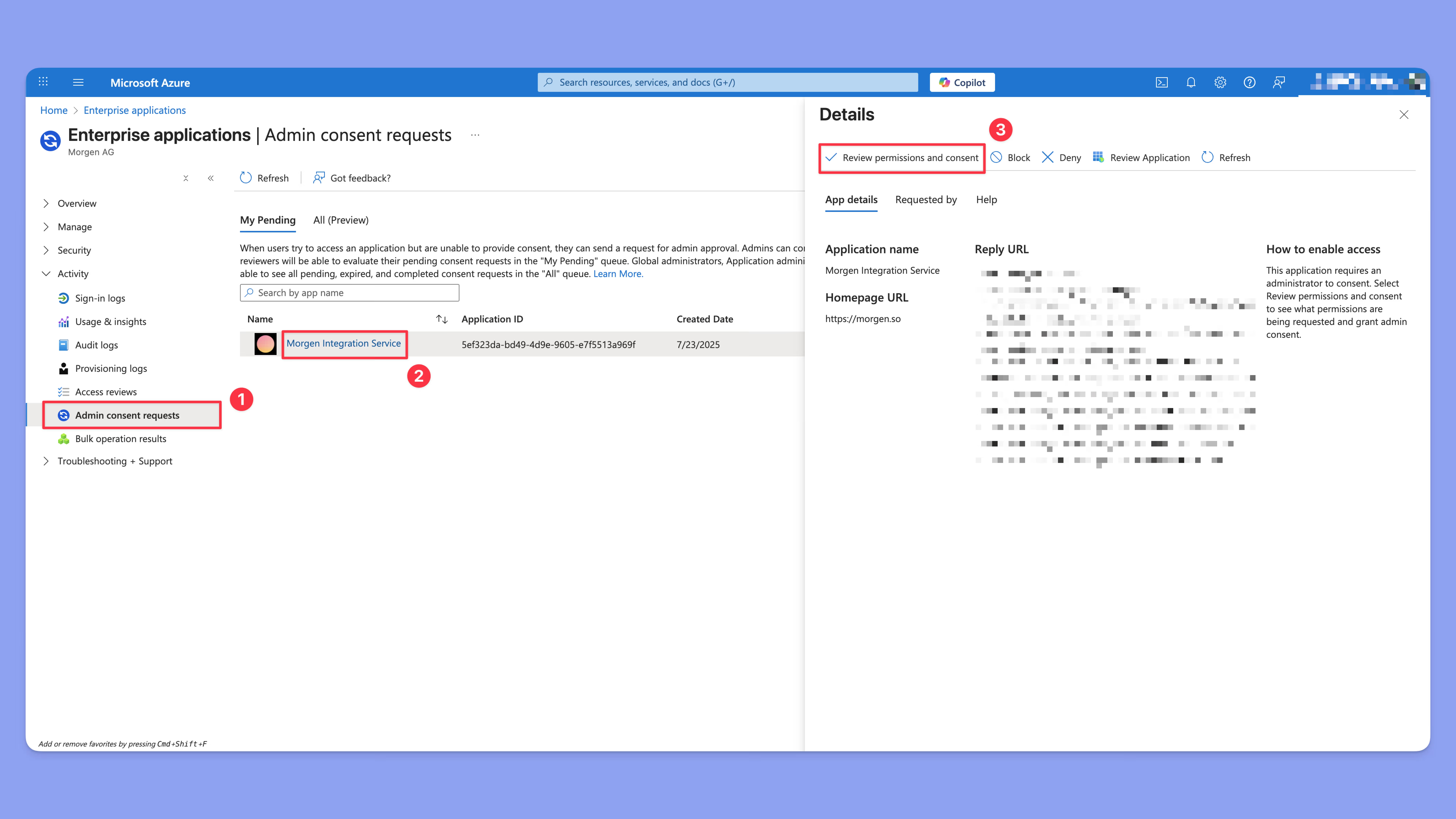
Clicking "Review request" will bring them to the screen below, where they can approve the request.
Scenario 2: Admin approval requests are NOT enabled
Some organizations may not have configured the organization to allow requests for admin approval.
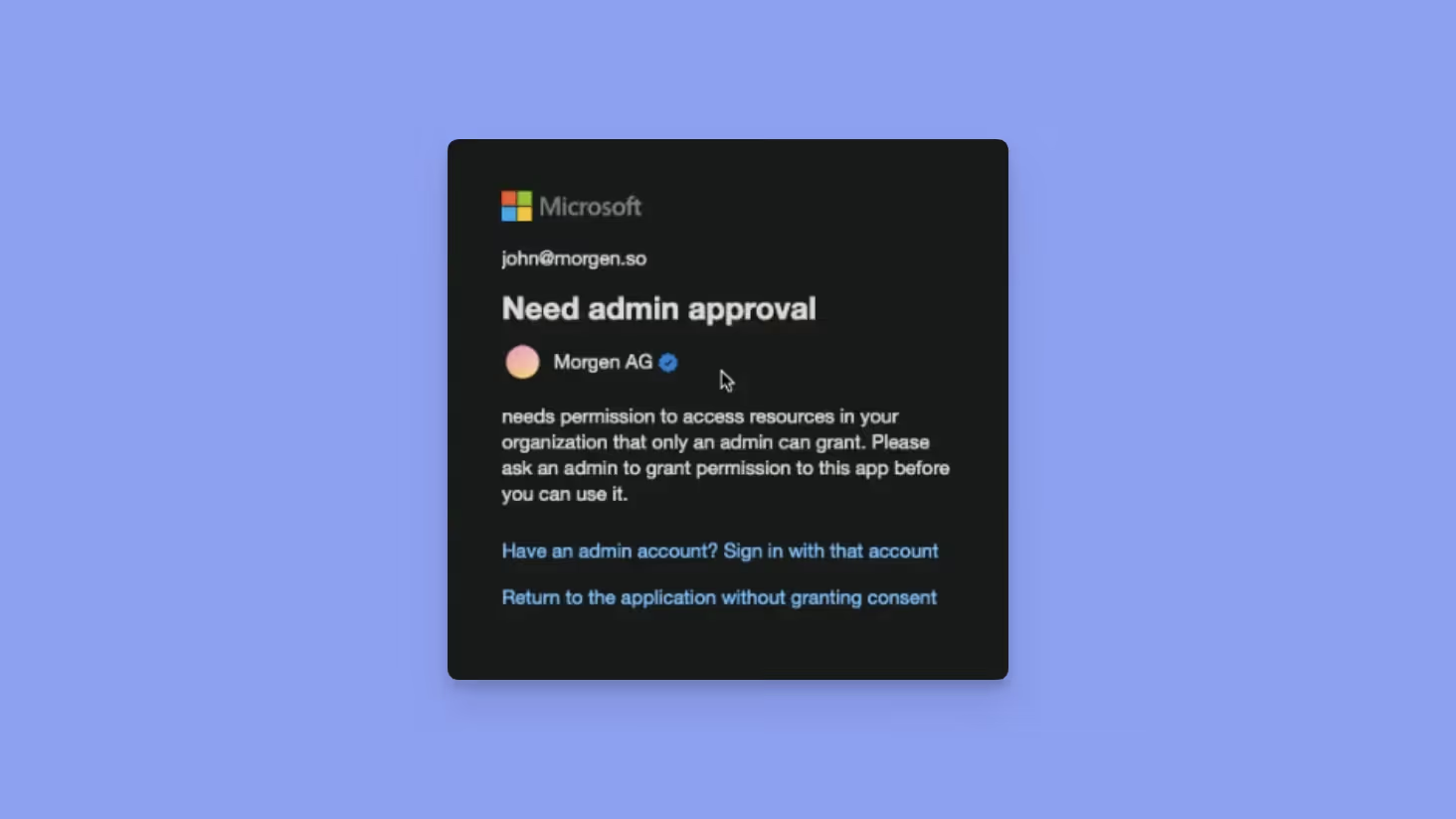
This is the case if you see the screen below with:
- “Need admin approval” title
- No text field or button to request approval
Solution A: Allow admin consent requests
If the admin prefers to allow users to request approval, they can enable this option in the Microsoft Entra admin center:
- Enable “Users can request admin consent to apps they are unable to consent to”
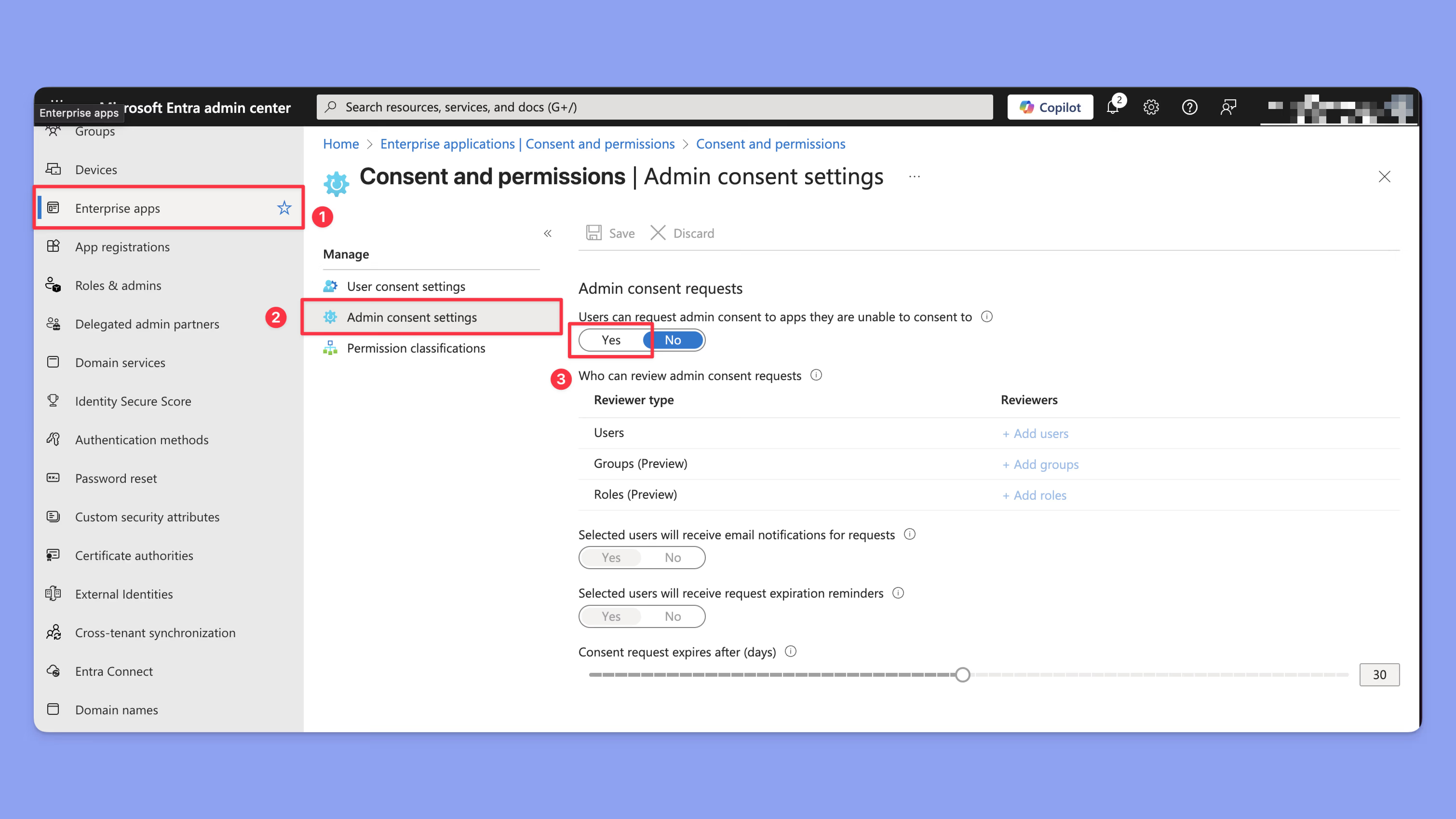
After this is enabled, reconnecting your account should bring you to Scenario 1, where you can request approval for the app.
Solution B: Granting access to the organization as an admin
If you are an admin in an organization and do not want to manually approve access for each member, you can grant access organization-wide.
Grant access via direct authorization link
- Follow this authorization link
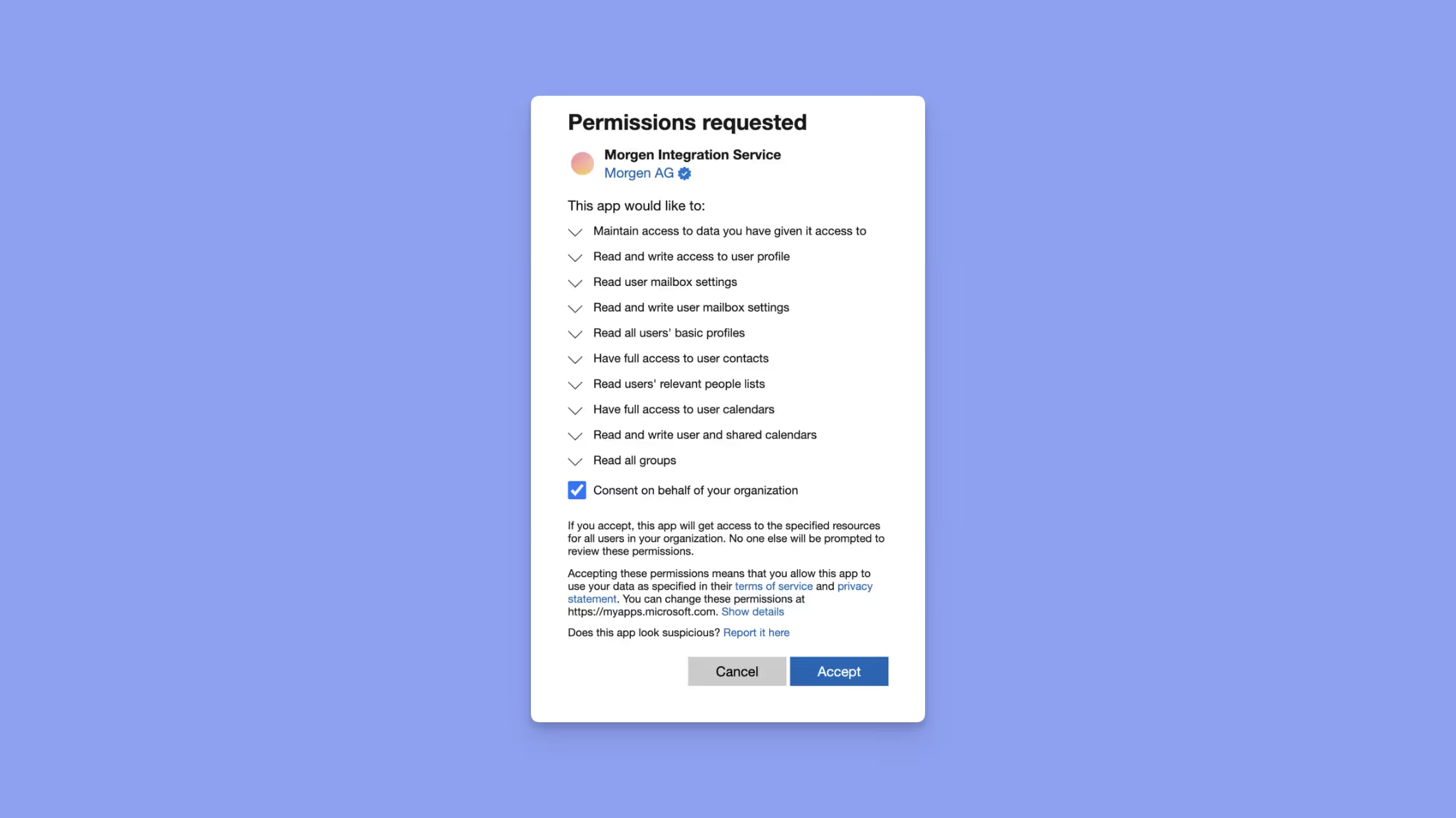
- Review the permissions and press "Accept"
OR
Grant access by connecting Morgen to your account
When connecting your own Outlook account, select “Consent on behalf of your organization.”
Need help?
💬 If you have questions, we’re happy to help you or admins walk through the approval process 🤲.
✨ If requesting approval is preventing you from using Morgen during your free trial period, you can contact us to restart your trial.