Par défaut, Morgen s'intègre à Outlook pour synchroniser les calendriers personnels et les calendriers partagés.
Cependant, les calendriers de groupe (Microsoft 365 Groups, Teams, ressources partagées) nécessitent une permission spécifique qui doit être accordée par les administrateurs de votre organisation.
Ce guide vous expliquera les étapes nécessaires pour vous aider, ainsi que votre administrateur IT, à accorder le consentement pour que Morgen synchronise ces calendriers.

Scénario 1 : Demander l'approbation de l'administrateur
Après avoir cliqué sur « Se connecter avec Microsoft Outlook », vous verrez peut-être une boîte de dialogue similaire à celle ci-dessous, avec des détails clés comme :
- Le titre « Approbation requise »
- Une liste des permissions que Morgen demandera
- Un champ de texte et un bouton « Demander l'approbation »
Si c'est le cas, vous pouvez simplement ajouter votre justification dans le champ de texte et demander l'approbation.

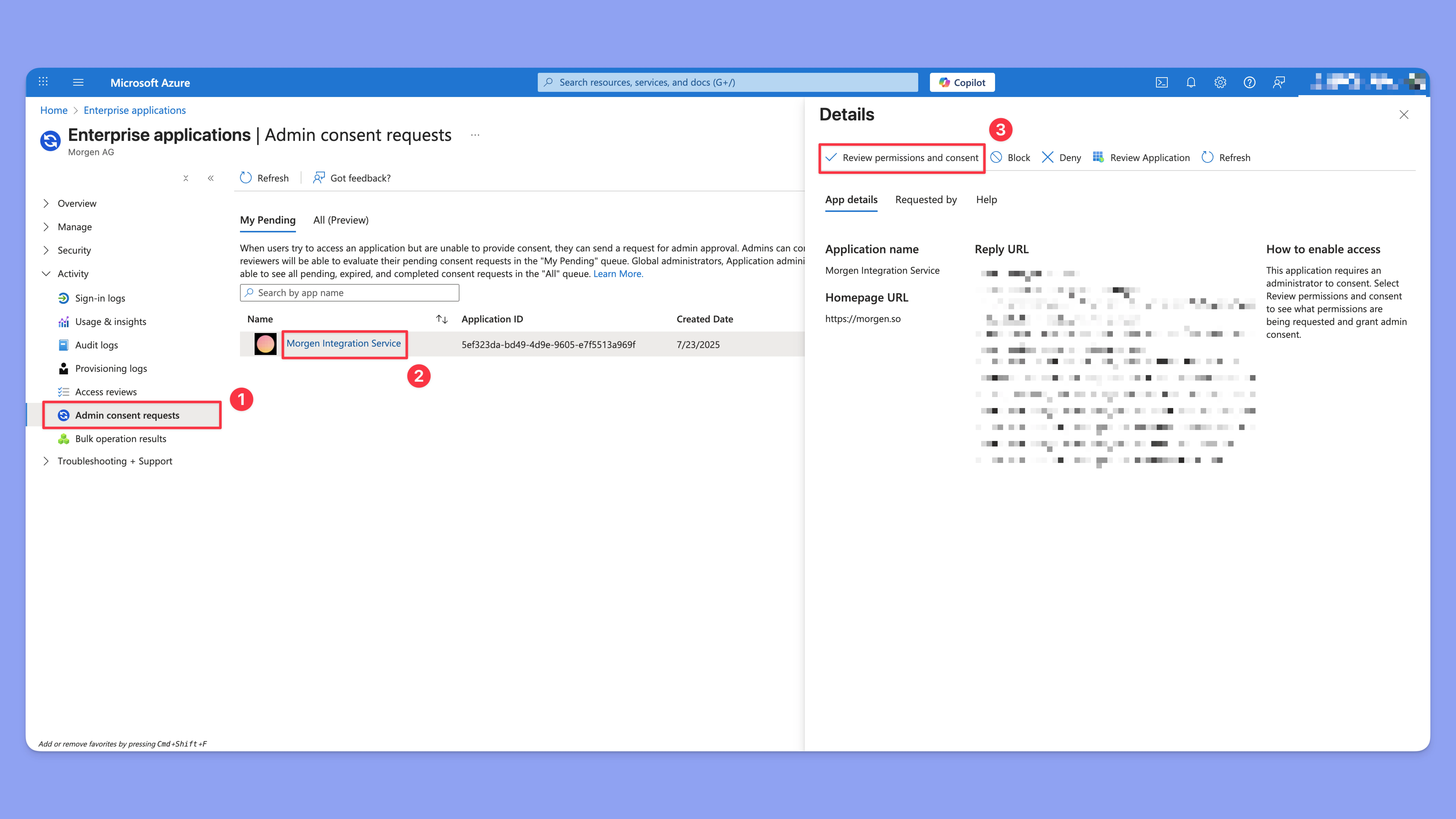
Votre administrateur IT devrait recevoir un e-mail concernant votre demande.

En cliquant sur « Examiner la demande », il accédera à l'écran ci-dessous, où il pourra approuver la demande.
Scénario 2 : Les demandes d'approbation administrateur ne sont PAS activées
Certaines organisations peuvent ne pas avoir configuré l'organisation pour permettre les demandes d'approbation administrateur.
C'est le cas si vous voyez l'écran ci-dessous avec :
- Le titre « Approbation administrateur requise »
- Aucun champ de texte ou bouton pour demander l'approbation

Solution A : Autoriser les demandes de consentement administrateur
Si l'administrateur préfère autoriser les utilisateurs à demander l'approbation, il peut activer cette option dans le centre d'administration Microsoft Entra :
- Activez « Les utilisateurs peuvent demander le consentement administrateur pour les applications auxquelles ils ne peuvent pas consentir »

Une fois cette option activée, la reconnexion de votre compte devrait vous amener au Scénario 1, où vous pourrez demander l'approbation pour l'application.
Solution B : Accorder l'accès à l'organisation en tant qu'administrateur
Si vous êtes administrateur dans une organisation et ne souhaitez pas approuver manuellement l'accès pour chaque membre, vous pouvez accorder l'accès à l'échelle de l'organisation.
Accorder l'accès via le lien d'autorisation direct
- Suivez ce lien d'autorisation
- Examinez les permissions et appuyez sur « Accepter »
OU
Accorder l'accès en connectant Morgen à votre compte
Lors de la connexion de votre propre compte Outlook, sélectionnez « Consentir au nom de votre organisation ».

Besoin d'aide ?
💬 Si vous avez des questions, nous serions heureux de vous aider, vous ou les administrateurs, à suivre le processus d'approbation 🤲.
✨ Si la demande d'approbation vous empêche d'utiliser Morgen pendant votre période d'essai gratuit, vous pouvez nous contacter pour redémarrer votre essai.