How to connect Claude, ChatGPT and other AI apps to Morgen (MCP)

The Morgen MCP server lets AI apps such as Claude, ChatGPT, Claude Code, Cursor and VS Code work with your Morgen calendars and tasks. MCP (Model Context Protocol) is the standard these apps use to connect to outside tools. Once an app is connected, you can ask it what's on your calendar this week, add a task or move an event, and the change happens in Morgen.
What you need
- A Morgen account on an active plan or trial. Without one, every tool answers
plan_required. - At least one calendar connected to Morgen. Tasks from Todoist, Notion, ClickUp, Linear and other task tools show up once that tool is connected in Morgen.
- To be signed in to Morgen at web.morgen.so in the browser you'll connect from. Morgen shows its approval screen there.
What a connected AI app can do in Morgen
- Calendars: read your schedule across the Google, Outlook, iCloud and other calendars connected to Morgen, and create, reschedule or delete events. Adding attendees sends them invitations, and deleting an event that has attendees sends them a cancellation, through your calendar provider.
- Morgen tasks and tags: see, create, update, complete, reopen and delete your Morgen tasks, and manage your tags.
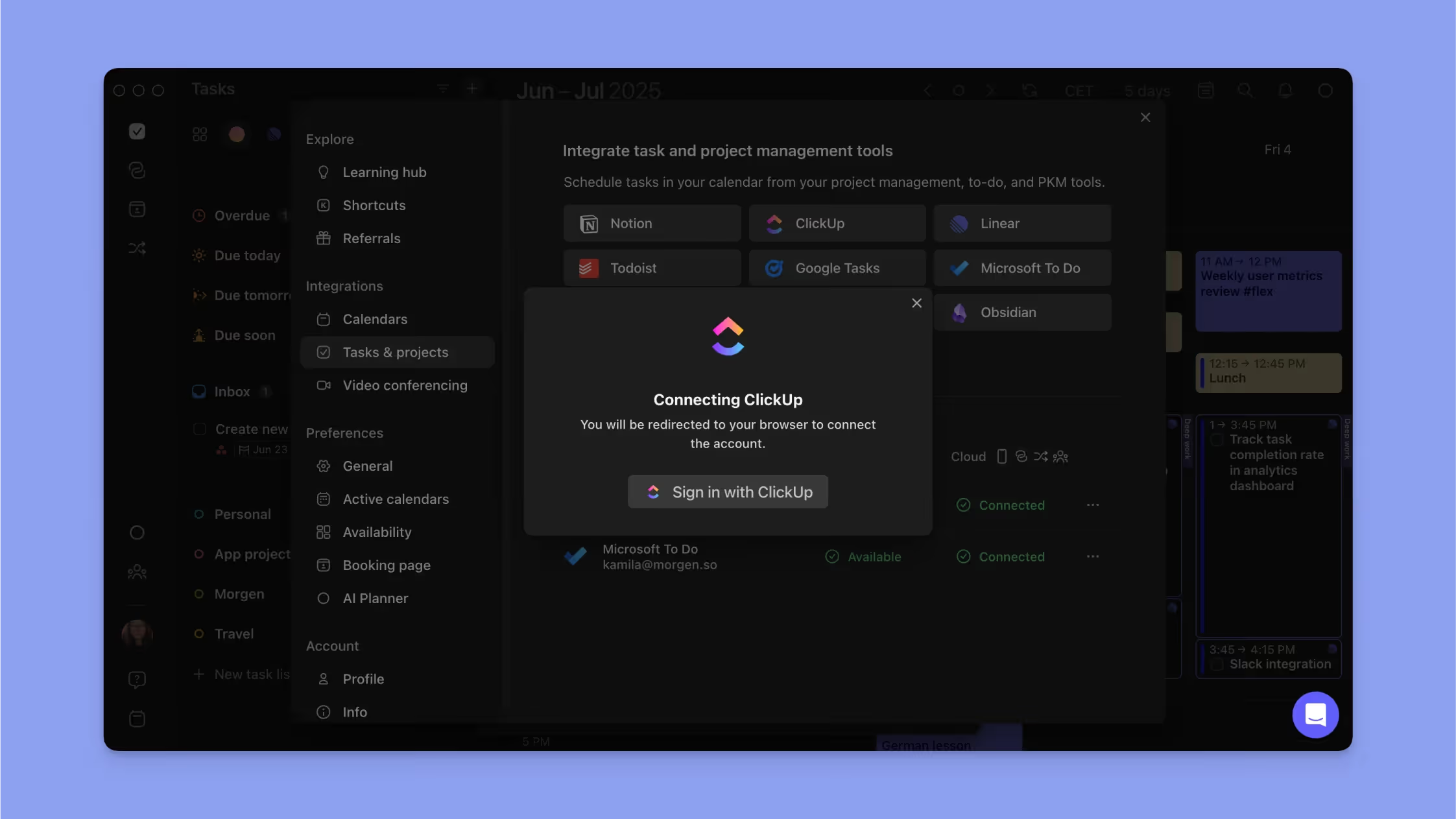
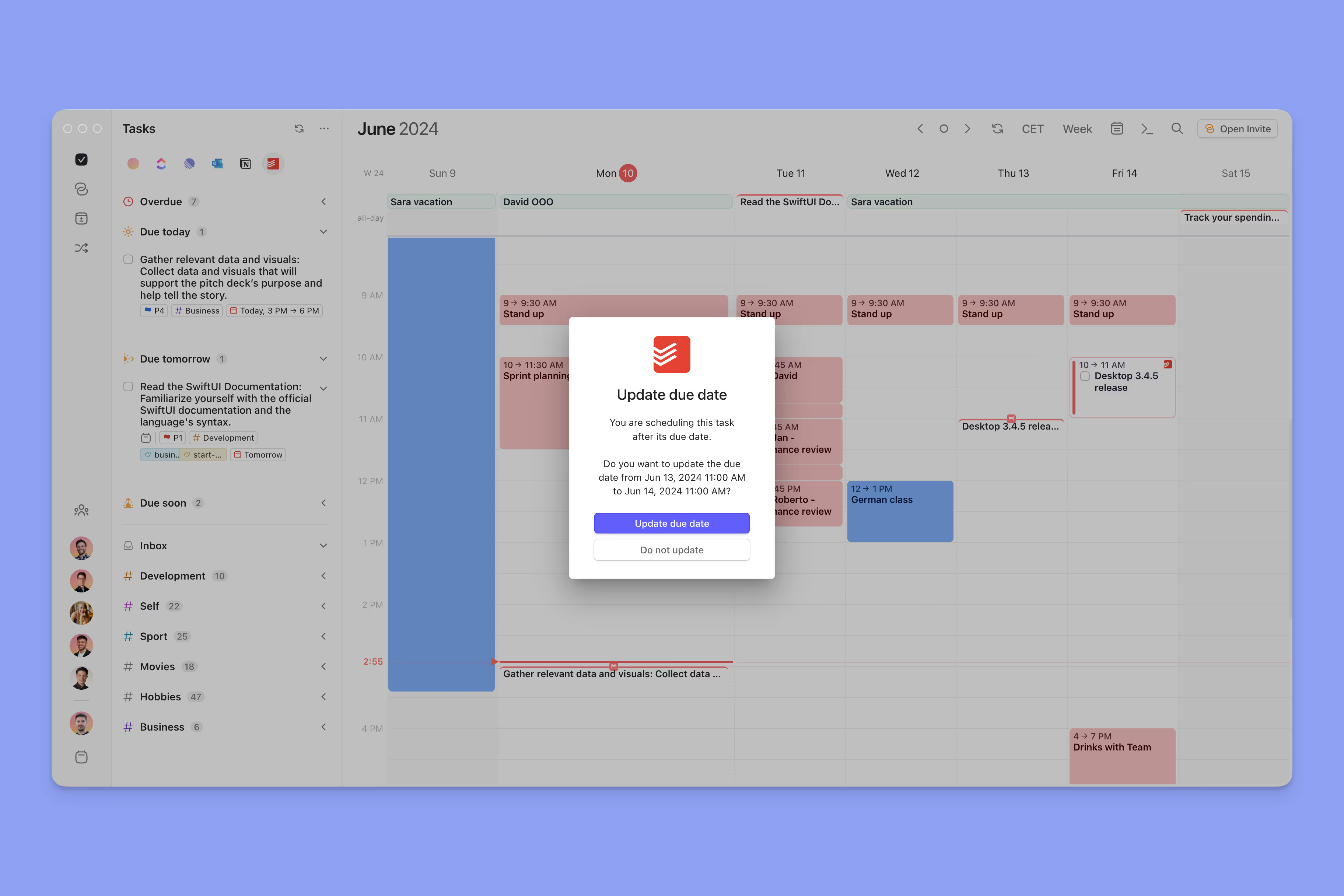
- Tasks from your other tools: read the tasks from Todoist, Notion, ClickUp, Linear, Google Tasks, Microsoft To Do and the other task tools connected to Morgen. The app can see them but can't change them.
- Places and travel times: look up a place for an event and how long it takes to get there. These lookups send the search query, origin and destination to Google Maps.
Connecting is one approval, and it covers every calendar and task account connected to Morgen.
The server address
Every app connects to the same address:
https://mcp.morgen.so/mcp
The server uses OAuth. Your AI app registers itself and opens Morgen's approval screen, where you sign in with your Morgen account and click Approve. There's no API key, client ID or secret to copy.
Connect Claude
Morgen is in Claude's connector directory as a community connector.
- Open Morgen in Claude's connector directory and click Connect to Claude. If you're signed out of Claude, the button reads Sign in to add.
- Morgen's approval screen opens. Check that it says you'll be sent to claude.ai, then click Approve.
- Start a new chat, click +, then Connectors, and check that Morgen is switched on.
- Ask something, such as “What's on my Morgen calendar this week?” When Claude asks to use a Morgen tool, choose Allow once, or Always allow so it stops asking for that tool.
You can also add Morgen by hand: in a chat, open the + menu, then Connectors, Add connector, Add custom connector, and paste the server address.
Claude sets its own rules for connectors. Its help center says custom connectors are added on the web or in the desktop app, and then show up in the phone apps too. The free plan allows one custom connector. On a Team or Enterprise plan, an Owner first adds Morgen for the organization under Organization settings > Connectors, and then each person connects their own Morgen account.
Connect ChatGPT
A Morgen app for ChatGPT is in review and isn't in ChatGPT's directory yet. Until it is, add Morgen by hand as a custom MCP server, in ChatGPT on the web. ChatGPT decides who can do that: custom MCP servers aren't on every ChatGPT plan, and in a Business, Enterprise or Edu workspace an admin may have to allow them first.
- In ChatGPT on the web, open Plugins in the left menu, click Add and choose Add custom MCP server.
- Name it Morgen, paste the server address and choose OAuth. Morgen registers ChatGPT by itself, so there's no client ID or secret to fill in.
- Tick I understand and want to continue, then click Create as a plugin.
- Click Connect Morgen, then Approve on Morgen's screen.
- Start a new chat, type @, pick Morgen and ask, as in “What's on my calendar this week?”
ChatGPT's Permissions setting for Morgen starts at Allow low-risk actions, which can let it make changes without asking. To approve each change yourself, open Morgen under Plugins > Personal, click ••• > Manage and set Permissions to Always ask.
ChatGPT gives each conversation only some of Morgen's tools, picked from how you open it. To switch from your calendar to your tasks, start a new chat.
Connect Claude Code
- In your terminal, run
claude mcp add --transport http morgen https://mcp.morgen.so/mcp - In Claude Code, type
/mcp, pick morgen, then sign in to Morgen and click Approve.
Claude Code needs a paid Claude plan or Anthropic Console billing. That's Anthropic's rule, not Morgen's.
Connect Cursor
- Open your MCP settings file:
~/.cursor/mcp.jsonfor all your projects, or.cursor/mcp.jsonfor one project. - Add Morgen under
mcpServers:"morgen": { "url": "https://mcp.morgen.so/mcp" } - Save the file. When Cursor asks you to sign in to Morgen, go ahead, then click Approve on Morgen's screen in your browser.
Connect VS Code
- Open the Command Palette and run MCP: Add Server.
- Choose HTTP, paste the server address, name the server morgen, then pick Global or Workspace.
- Accept the trust prompt, then sign in to Morgen in your browser and click Approve.
- In Copilot Chat, switch the mode picker to Agent, click the tools icon and tick the Morgen tools.
Morgen's tools work in Copilot's Agent mode only. On a Copilot Business or Enterprise seat, an owner has to switch on the MCP policy first.
Connect another MCP app
Any app that can add a remote MCP server with OAuth sign-in should work with Morgen. In the app, add a remote MCP server (some apps call it a custom connector), paste the server address, then sign in to Morgen and approve the connection when asked.
Disconnect an app
Remove Morgen in the AI app you connected:
- Claude: open Customize > Connectors, pick Morgen and click Disconnect.
- Claude Code: run
claude mcp remove morgen - ChatGPT, Cursor, VS Code and other apps: remove the Morgen plugin or server in the app's settings.
To use it again later, connect it the same way as the first time.
If something goes wrong
Morgen says “Sign in required”
Your browser isn't signed in to Morgen. Sign in at web.morgen.so in the same browser, then start the connection again from your AI app.
Morgen says “Request expired”
The approval screen waited too long. Start the connection again from your AI app.
A tool answers plan_required
Your Morgen account has no active plan or trial. Start a trial or pick a plan in Morgen, then ask again.
A calendar is missing or a busy day comes back empty
Your AI app only sees the calendars connected to Morgen. Connect the missing calendar in Morgen, on web.morgen.so or in the desktop app, then ask again. If one calendar fails while the others load, its connection usually needs signing in again in Morgen.
Tasks from Todoist, Notion, ClickUp or Linear are missing
Connect that tool in Morgen first. These tasks are read only through MCP: to change one, change it in the tool it comes from, or ask for a Morgen task instead.
A task is missing from the answer
Morgen sends your AI app up to 50 tasks at a time, the most recently changed first. With more open tasks than that, an older one can be left out, so ask for it by name or narrow the question.
The app answers from another calendar
If other calendar connectors are switched on, say “in Morgen” in your question, or switch the others off for that chat.
An invitation went out
Creating or changing an event with attendees sends them invitations through your calendar provider, and deleting an event that has attendees sends them a cancellation. Ask your AI app to check with you before it changes events that have other people on them.
Still stuck? Contact us and we'll help.
The tools
These are the 22 tools an AI app can use once it's connected. The read tools only look; the others change your calendar or tasks.
Accounts and calendars (read)
list_accounts: lists the calendar and task accounts connected to Morgen.list_calendars: lists the calendars across those accounts.
Events
list_events(read): lists the events in a time window, up to a year at a time.get_events(read): gets events by ID.create_event: creates an event. Attendees get invitations.update_event: changes an event.delete_event: deletes an event. Attendees get a cancellation.
Morgen tasks
list_tasks(read): lists your Morgen tasks.get_tasks(read): gets tasks by ID.create_task: creates a task.update_task: changes a task.close_task: marks a task done.reopen_task: reopens a done task.delete_task: deletes a task.
Tags
list_tags(read): lists your tags.create_tag: creates a tag.update_tag: changes a tag.delete_tag: deletes a tag.
Tasks from connected tools (read)
list_integration_tasks: lists the tasks from Todoist, Notion, ClickUp and the other task tools connected to Morgen.get_integration_tasks: gets those tasks by ID.
Places and travel (read)
search_locations: searches places for an event's location, through Google Maps.compute_commute_time: estimates the travel time between two places, through Google Maps.