Panoramica
Questa guida spiega come funzionano le scadenze ricorrenti in Morgen e quando usarle al posto delle attività pianificate o delle routine.
Imparerai come impostare scadenze ricorrenti, come si comportano quando le attività vengono completate (con o senza sottoattività), e come combinarle con Frames e l'AI Planner per mantenere le responsabilità ricorrenti visibili e pianificate automaticamente.
Perché Usare Scadenze Ricorrenti?
- Mantieni le responsabilità ricorrenti visibili
- Evita di ingombrare la barra delle attività
- Ideale per attività ricorrenti che non richiedono un orario fisso, come revisioni settimanali o check-in giornalieri
- La scadenza dell'attività si ripete, invece di bloccarla a un orario pianificato specifico
Come Impostare una Scadenza Ricorrente

- Apri un'attività
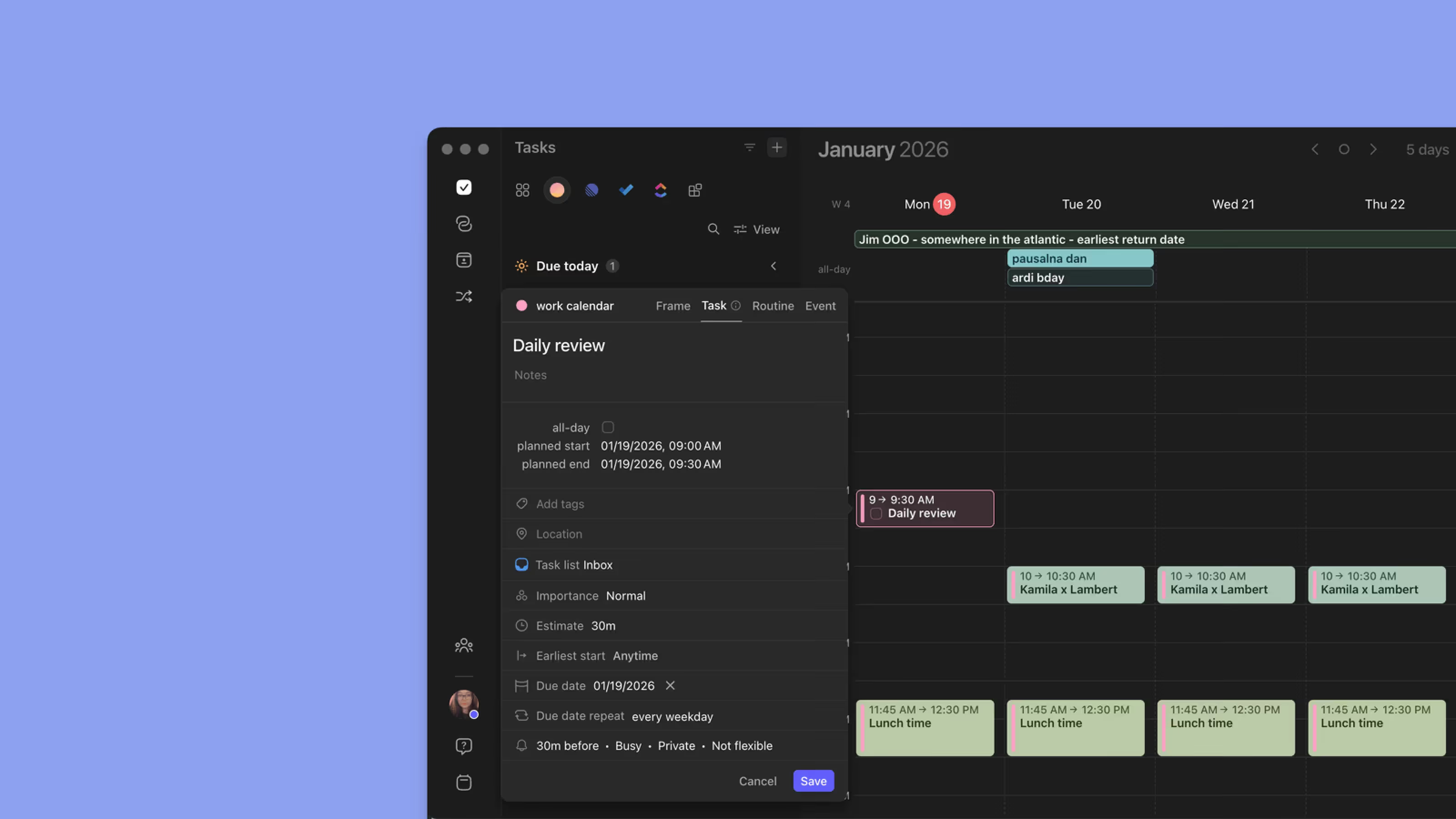
- Imposta una scadenza
- Fai clic su "Nessuna ripetizione" nella sezione Ripeti scadenza
- Scegli una regola di ripetizione (giornaliera, settimanale, personalizzata)
- Salva
Quando l'attività viene contrassegnata come completata, una nuova istanza viene creata automaticamente con date aggiornate.
Funziona con le Sottoattività

- Le attività ricorrenti possono avere sottoattività
- Completare l'attività principale ricrea le sottoattività per il ciclo successivo
- Le scadenze e le date di inizio più presto si aggiornano automaticamente
Contrassegnare le attività ricorrenti come completate
Barra laterale
- Trova l'attività ricorrente nella barra laterale
- Contrassegna l'attività ricorrente come completata
- L'attività ricorrente con le sue sottoattività viene pianificata automaticamente per il ciclo successivo
Pianificazione manuale
- Trova l'attività ricorrente nella barra laterale
- Trascina e rilascia l'attività ricorrente o le sue sottoattività sul calendario
- Contrassegnale come completate quando finisci
- L'attività ricorrente con le sue sottoattività viene pianificata automaticamente per il ciclo successivo
AI Planner e Morgen Frames

L'AI Planner funziona meglio con Morgen Frames per pianificare attività specifiche nell'intervallo di tempo selezionato.
- Crea un Frame trascinando il mouse sul calendario e scegliendo "Frame"
- Fai corrispondere la "ripetizione" con la ricorrenza della tua attività ricorrente (ripeti settimanalmente, giornalmente, ecc.)
- Assicurati che la tua attività ricorrente abbia un tag attività o appartenga a un elenco attività specifico
- In Frames, fai clic su "Attività Filtrate" e scegli il tag o l'elenco attività della tua attività ricorrente
- Fai clic o passa il mouse sul Frame e scegli "Avvia AI Planner qui"
- Termina facendo clic su "Pianifica tutto" nel menu AI Planner sulla destra
Suggerimenti Morgen
💡 Usa per le Revisioni: Le revisioni settimanali, mensili o trimestrali funzionano meglio come scadenze ricorrenti.
💡 Lascia che il Planner Ti Aiuti: Combina scadenze ricorrenti con date di inizio più presto per una pianificazione più intelligente.
Hai Bisogno di Aiuto?
📖 Come visualizzare e aggiornare le scadenze nel tuo calendario
📖 Comprendere le Scadenze vs le Date Pianificate in Morgen
💬 Hai ancora domande? Contattaci, siamo felici di aiutarti!