Descripción general
Esta guía explica cómo funcionan las fechas de vencimiento recurrentes en Morgen y cuándo usarlas en lugar de tareas programadas o rutinas.
Aprenderás cómo establecer fechas de vencimiento repetidas, cómo se comportan cuando se completan las tareas (con o sin subtareas), y cómo combinarlas con Frames y el Planificador de IA para mantener las responsabilidades recurrentes visibles y planificadas automáticamente.
¿Por qué usar fechas de vencimiento recurrentes?
- Mantén las responsabilidades repetidas visibles
- Evita saturar tu barra de tareas
- Ideal para tareas recurrentes que no requieren una hora fija, como revisiones semanales o check-ins diarios
- La fecha de vencimiento de la tarea se repite, en lugar de bloquearla a una hora específica programada
Cómo establecer una fecha de vencimiento recurrente

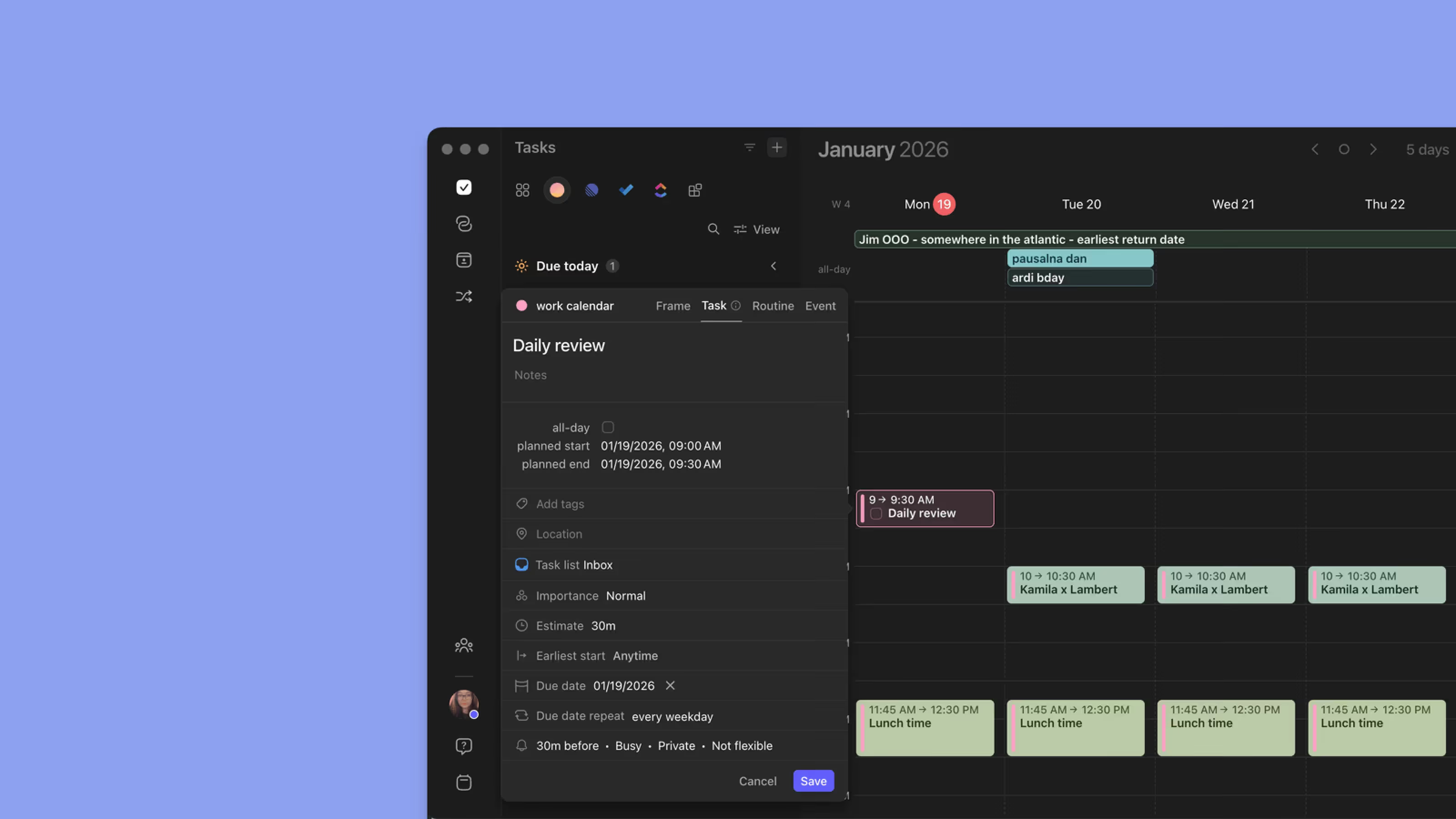
- Abre una tarea
- Establece una fecha de vencimiento
- Haz clic en el "Sin repetición" predeterminado en la sección Repetir fecha de vencimiento
- Elige una regla de repetición (diaria, semanal, personalizada)
- Guarda
Cuando la tarea se marca como completada, se crea automáticamente una nueva instancia con fechas actualizadas.
Funciona con subtareas

- Las tareas recurrentes pueden tener subtareas
- Completar la tarea principal recrea las subtareas para el siguiente ciclo
- Las fechas de vencimiento y las fechas de inicio más tempranas se actualizan automáticamente
Marcar tareas recurrentes como completadas
Barra lateral
- Encuentra la tarea recurrente en tu barra lateral
- Marca la tarea recurrente como completada
- La tarea recurrente con sus subtareas se programa automáticamente para el siguiente ciclo
Programación manual
- Encuentra la tarea recurrente en tu barra lateral
- Arrastra y suelta la tarea recurrente o sus subtareas en el calendario
- Márcalas como completadas cuando termines
- La tarea recurrente con sus subtareas se programa automáticamente para el siguiente ciclo
Planificador de IA y Morgen Frames

El Planificador de IA funciona mejor con Morgen Frames para programar tareas específicas en el marco de tiempo seleccionado.
- Crea un Frame arrastrando el ratón en tu calendario y eligiendo "Frame"
- Haz que la "repetición" coincida con la recurrencia de tu tarea recurrente (repetir semanalmente, diariamente, etc.)
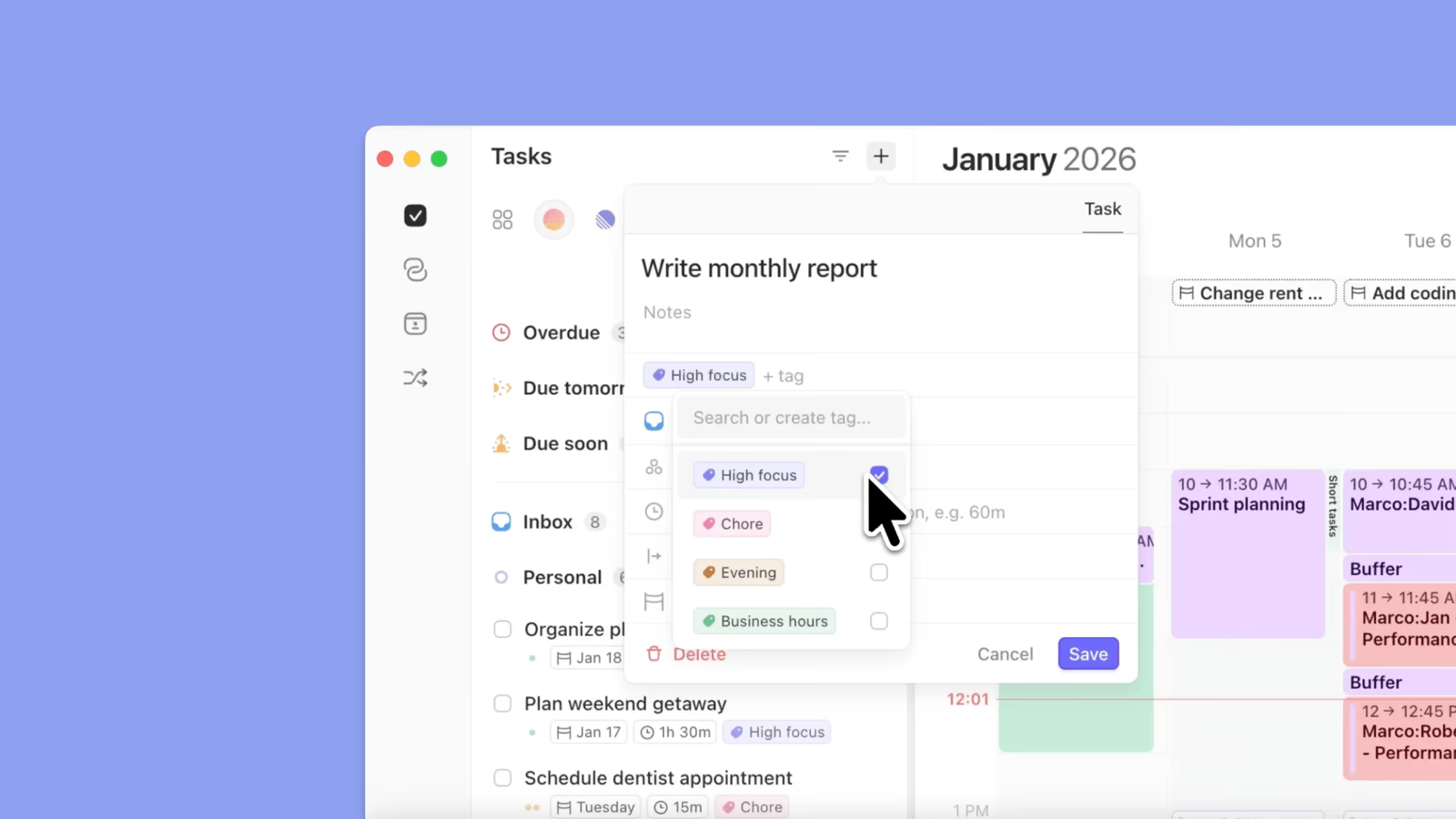
- Asegúrate de que tu tarea recurrente tenga una etiqueta de tarea o pertenezca a una lista de tareas específica
- En Frames, haz clic en "Tareas filtradas" y elige la etiqueta o lista de tareas que tiene tu tarea recurrente
- Haz clic o pasa el ratón sobre el Frame y elige "Iniciar Planificador de IA aquí"
- Termina haciendo clic en "Programar todo" en el menú del Planificador de IA a la derecha
Consejos de Morgen
💡 Úsalo para revisiones: Las revisiones semanales, mensuales o trimestrales funcionan mejor como fechas de vencimiento recurrentes.
💡 Deja que el Planificador te ayude: Combina fechas de vencimiento recurrentes con fechas de inicio más tempranas para una programación más inteligente.
¿Necesitas ayuda?
📖 Cómo ver y actualizar fechas de vencimiento en tu calendario
📖 Entender fechas de vencimiento vs fechas planificadas en Morgen
💬 ¿Aún tienes preguntas? Contáctanos, ¡estamos felices de ayudarte!