Panoramica
Questa guida ti mostra come riprogrammare le attività in Morgen quando i piani cambiano. Imparerai tre modi per spostare, continuare o dividere il lavoro programmato, e come usare l'AI Planner per decidere rapidamente cosa fare dopo in linea con le tue priorità.
Perché riprogrammare le attività?
Riprogrammare le attività ti aiuta a:
- Continuare il lavoro programmando la sessione successiva automaticamente
- Assicurarti che le attività importanti siano ripianificate al momento giusto usando la prioritizzazione assistita da AI
Modi per riprogrammare le attività programmate
Riprogramma questa sessione
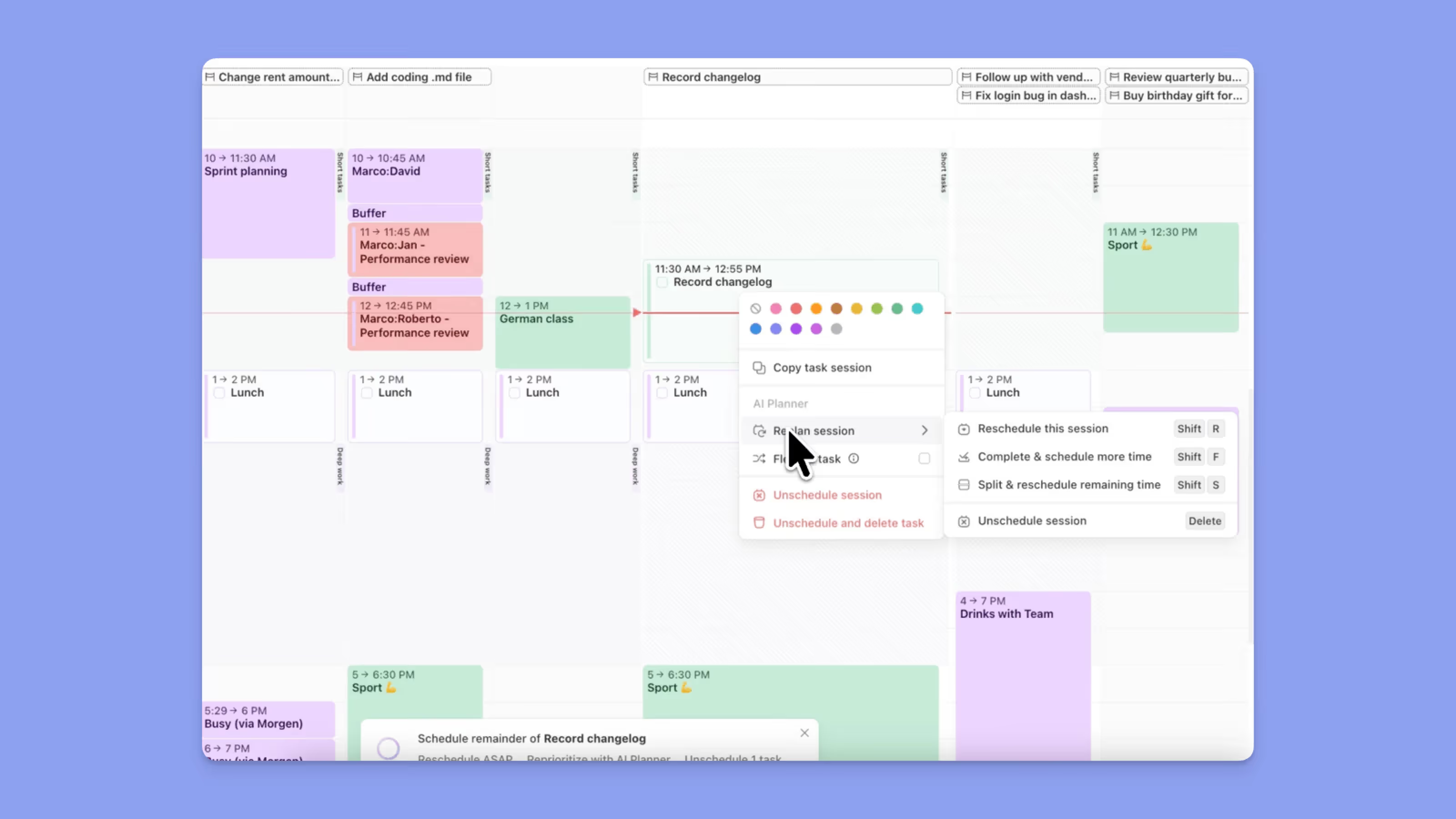
- Fai clic destro sulla tua attività programmata
- Vai a Ripianifica sessione
- Scegli Riprogramma questa sessione
OPPURE
- Fai clic sull'attività programmata e premi Shift + R
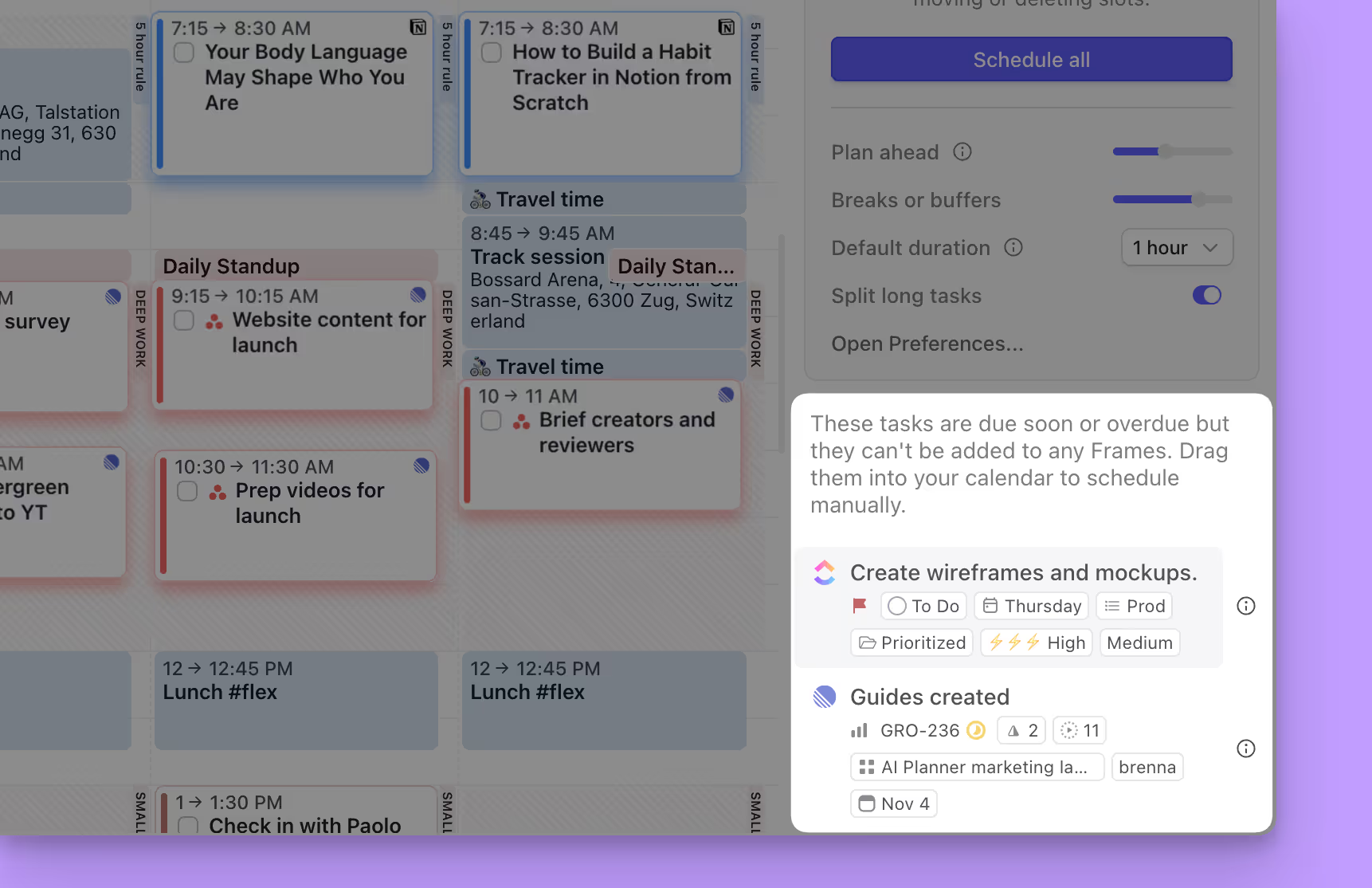
- Apparirà un pop-up dell'AI Planner con 3 opzioni:
- Riprogramma ASAP troverà lo slot libero successivo e programmerà l'attività
- Riprioritizza con AI Planner userà il Morgen Priority Factor e programmerà l'attività
- Annulla programmazione annullerà la programmazione dell'attività selezionata
Completa e programma ancora una volta
- Fai clic destro sulla tua attività programmata
- Vai a Completa e programma ancora una volta
OPPURE
- Fai clic sull'attività programmata e premi Shift + F
- L'attività selezionata sarà contrassegnata come completata e la sessione successiva sarà programmata con l'AI Planner e la stessa durata della sessione precedente
- Quando apparirà il pop-up dell'AI Planner, avrai 3 opzioni:
- Riprogramma ASAP troverà lo slot libero successivo e programmerà l'attività
- Riprioritizza con AI Planner userà il Morgen Priority Factor e programmerà l'attività
- Annulla programmazione annullerà la programmazione dell'attività selezionata
Dividi e riprogramma il tempo rimanente
- Fai clic destro sulla tua attività programmata
- Vai a Dividi e riprogramma il tempo rimanente
OPPURE
- Fai clic sull'attività programmata e premi Shift + S
- L'attività selezionata sarà contrassegnata come completata e il tempo rimanente sarà allocato per la sessione successiva
- La sessione successiva sarà programmata con l'AI Planner e la stessa durata della sessione precedente
- Quando apparirà il pop-up dell'AI Planner, avrai 3 opzioni:
- Riprogramma ASAP troverà lo slot libero successivo e programmerà l'attività
- Riprioritizza con AI Planner userà il Morgen Priority Factor e programmerà l'attività
- Annulla programmazione annullerà la programmazione dell'attività selezionata
Hai bisogno di aiuto?
📖 Leggi la nostra guida all'AI Planner
💬 Hai ancora domande? Contattaci, siamo felici di aiutarti!