Navigate Morgen's web app like a pro with its keyboard shortcuts. From toggling views to managing events and tasks, you can dramatically speed up your workflow and make calendar management effortless.
Why Use Keyboard Shortcuts in Morgen Web?
Keyboard shortcuts eliminate the need to constantly reach for your mouse, allowing you to:
- Access general settings
- Toggle the command bar and other quick access features
- Toggle between calendar views
- Make quick changes in your events and tasks
General Navigation Shortcuts
Essential Quick Actions
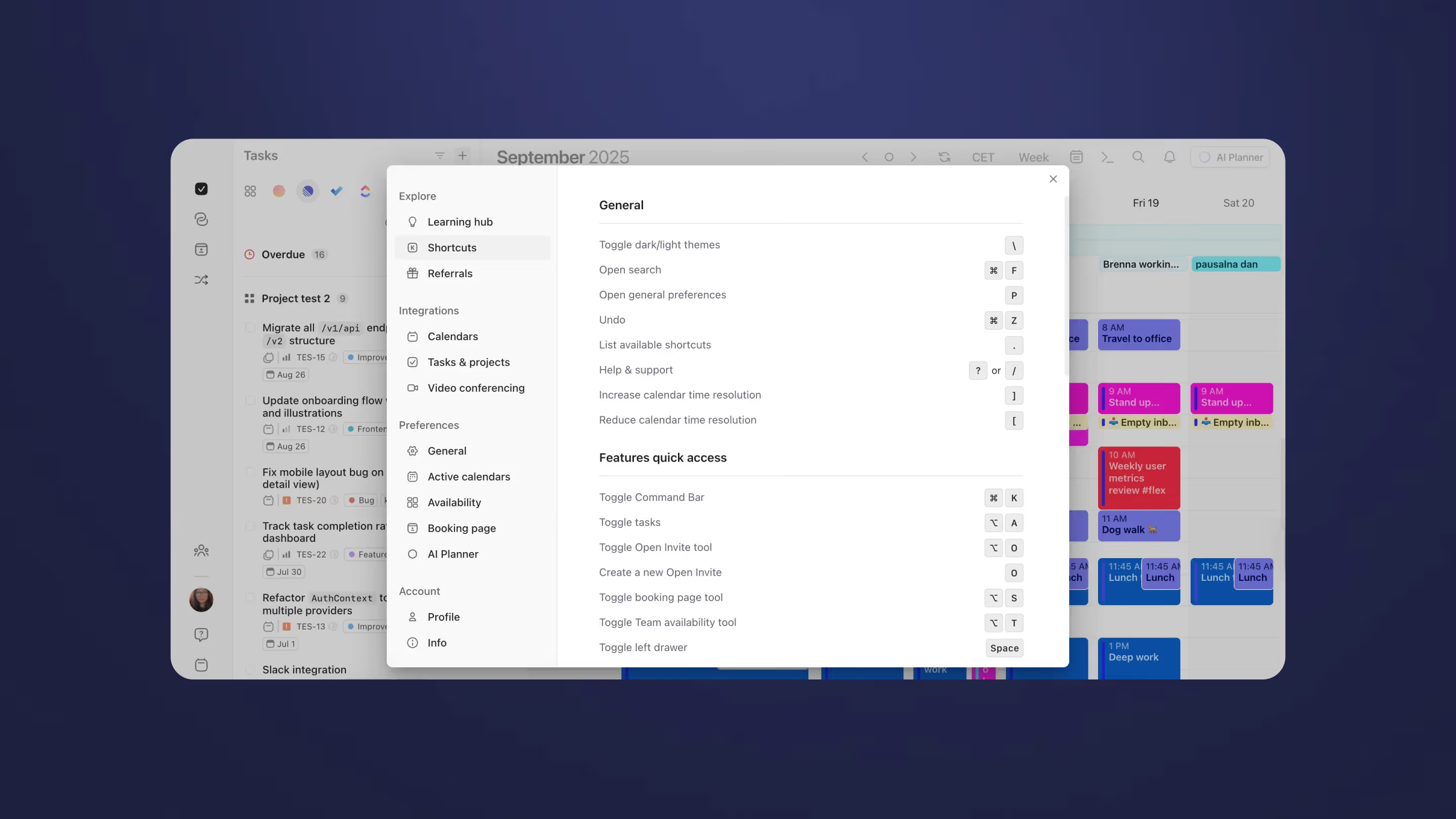
- \ (Backslash) - Toggle dark/light themes for optimal viewing
- ⌘ + D /Ctrl + F - Open search to quickly find events, tasks, or contacts
- P - Open general preferences to customize your experience
- . (Period) - List all available shortcuts for quick reference
- ? or / - Access help & support when you need assistance
Calendar Time Management
- ] - Increase calendar time resolution for more detailed views
- [ - Reduce calendar time resolution for broader overviews
Features Quick Access
Toggle Essential Tools
- ⌘ + K /Ctrl + K - Toggle Command Bar (your fastest route to creating events and tasks)
- ⌥ + A /Ctrl + A - Toggle tasks panel to manage your to-do items
- ⌥ + O /Ctrl + O - Toggle Open Invite tool for managing meeting availability
- O - Create a new Open Invite link instantly
- ⌥ + S /Ctrl + S - Toggle booking page tool for scheduling appointments
- ⌥ + T /Ctrl + T - Toggle Team availability tool for coordinating group meetings
- Space - Toggle left drawer for quick access to calendars and settings
Calendar View Navigation
View Switching
- R - Refresh your calendars to sync the latest updates
- T - Move to the current day (today)
- → - Move to the next period (day, week, or month)
- ← - Move to the previous period
- D - Switch to Day view for detailed daily planning
- W - Switch to Week view for weekly overview
- M - Switch to Month view for monthly planning
- A - Switch to Agenda view for a clean list format
- X - Switch to 2 weeks view for extended planning
Custom Multi-Day Views
- ⌥ + 1/Ctrl + 1 - Switch to 1 day view
- ⌥ + 2/Ctrl + 2 - Switch to 2 days view
- ⌥ + 3/Ctrl + 3 - Switch to 3 days view
- ⌥ + 4/Ctrl + 4 - Switch to 4 days view
- ⌥ + 5/Ctrl + 5 - Switch to 5 days view (perfect for workweek planning)
- ⌥ + 6/Ctrl + 6 - Switch to 6 days view
- ⌥ + 7/Ctrl + 7 - Switch to 7 days view (full week)
- ⌥ + 8/Ctrl + 8 - Switch to 8 days view
- ⌥ + 9/Ctrl + 9 - Switch to 9 days view
Event and Task Management
Creating and Editing
- C - Create a new event quickly
- E - Edit an existing event
- Delete or Backspace - Delete selected event or task
- Esc - Discard the creation of an event (cancel current action)
- ⌘ + Enter /Ctrl + Enter - Save changes to events or tasks
- ⌘ + C /Ctrl + C - Copy selected event or task
- ⌘ + V /Ctrl + V - Paste copied event or task
- N then T - Create a new task efficiently
Pro Tips for Maximum Efficiency
Master the Command Bar
The Command Bar (⌘ + K/Ctrl + K) is your most powerful tool. Use it to:
- Create events with natural language: "Team standup tomorrow at 9am"
- Add tasks with context: "Review budget report ⬆️"
- Schedule recurring events: "Weekly review every Friday at 2pm"
Quick Calendar Switching
Use the custom day views (⌘ + 1-9/Ctrl + 1-9) to create your perfect planning layout:
- 5-day view for focused workweek planning
- 3-day view for intensive project periods
- 2-day view for weekend planning
Efficient Event Management
- Select an event and press E to edit instantly
- Use Delete to quickly remove unwanted events
- Press Esc if you accidentally start creating an event
Seamless Navigation
- Use T to quickly return to today when you've navigated far into the future or past
- Press R to ensure you're seeing the most up-to-date calendar information
- Toggle between views with single keystrokes to find the perfect perspective for your current needs
Getting Started
- Press . (Period) to see all available shortcuts anytime
- Start with ⌘ + K/Ctrl + K to use the Command Bar
- Use T, D, W, M to quickly navigate between views and dates
- Practice C and E for rapid event creation and editing
Master these shortcuts and transform your workflow. The more you use them, the more natural they'll become, saving you hours each week in calendar management tasks.
Need Help?
Contact us, we’re happy to help 🙏