.avif)
.avif)
What is an Open Invite?
Open Invites improve scheduling for both the organizer and the invitee. As the organizer, you avoid back-and-forth emails and create an invite quickly. Invitees don’t feel a meeting is imposed on them because they choose a mutually convenient time from the options you offer. It’s a simple, win-win scheduling flow.
When you create an Open Invite in Morgen, you define the meeting details, select possible time slots that work for you, and share a link. Your invitee books one of the offered slots in seconds.
(Open Invites are designed for one-time meetings with one invitee and replace One-Time Scheduling Links, offering a simplified and improved experience.)
Option 1: Turn a new event into an Open Invite
- Click a time slot in your calendar to open the event creation widget.
- Fill in meeting details (title, invitee, location/video link, and calendar).
- In the lower-left corner of the invite, click Open Invite to enter the Open Invite creation view (your details carry over).
- Instead of hitting the Save button, click on Open Invite.
- Highlight the areas of your calendar you want to offer as optional time slots.
- (Optional) Adjust settings on the right (busy calendars, notifications, and other parameters).
- A unique URL is generated. You can customize it by typing in the URL field.
- Click Copy & Save and share the link via email, Slack, SMS, WhatsApp, Signal, Telegram, etc.
Option 2: Create an Open Invite from scratch
- Click the Open Invite button in the upper-right corner.
- Highlight availability windows in your calendar (they can match the meeting duration or be longer).
- Add meeting details on the left (name, duration, location/video link, invitee details).
- (Optional) Configure advanced options, including which calendars are checked for real-time conflicts.
- Customize the generated URL if you’d like.
- Click Copy & Save, then share the link with your invitee.
What your invitee will experience
In less than a minute, your invitee can pick and book a time that works for them:
- Click the shared URL to open the invite in their browser.
- Choose from the days/times you offered.
- Select a highlighted date (highlighted days have available slots).
- Pick a specific time slot.
- Enter name, email, and optional notes.
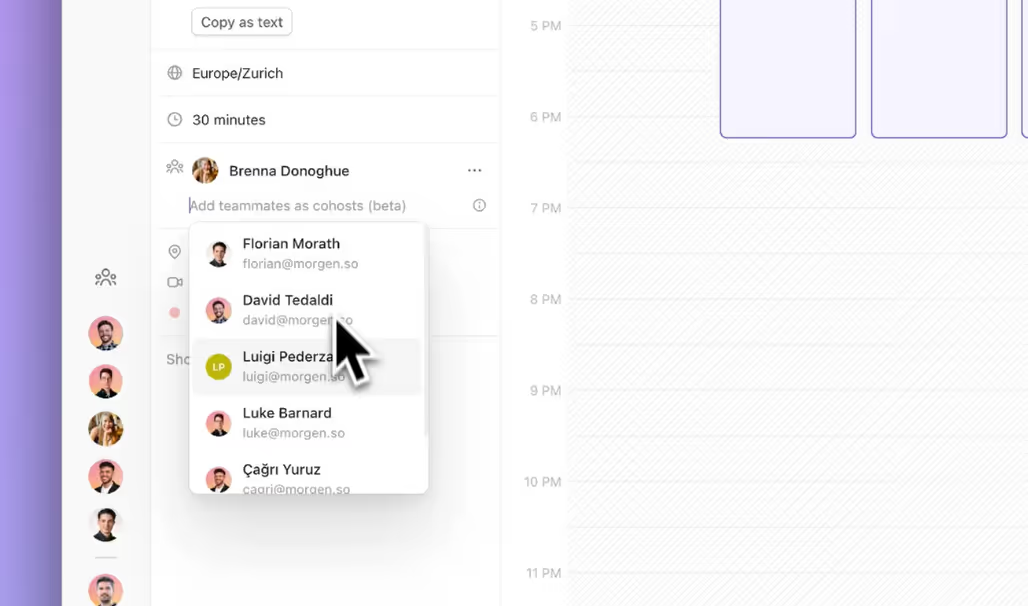
- (Optional) If you’re on a team plan, the organizer may include co-hosts.
- Click Confirm.
How to cancel or reschedule an Open Invite
Cancel
If either person needs to cancel, use the link in the event details in your calendar, click Cancel, and confirm. The event is removed and cancellation emails are sent.
Reschedule
- Organizer reschedules: Edit your Open Invite and resend it.
In Morgen, click the 🔗 link icon in the left rail, find the invite under Booked Invites, click Edit, update the offered times, and share the updated link. - Invitee reschedules: The attendee can click Reschedule from the event details in their calendar, choose a new time from your Open Invite, and confirm. Both calendars update and email notifications are sent.
Where to find and manage your Open Invites
- Click the 🔗 link symbol in the left rail of Morgen to view all Open Invites.
- Your Open Invites list includes Unused, Booked, and Expired.
- Current, unbooked invites appear at the top; expand sections to view Booked/Expired.
- Open Invites can be edited any time, or deleted to keep the list clean.
- You can also delete all invites in a list using Delete All Links.
Need Help?
📖 Read a guide about multi-person scheduling links and open invites

.avif)