.avif)
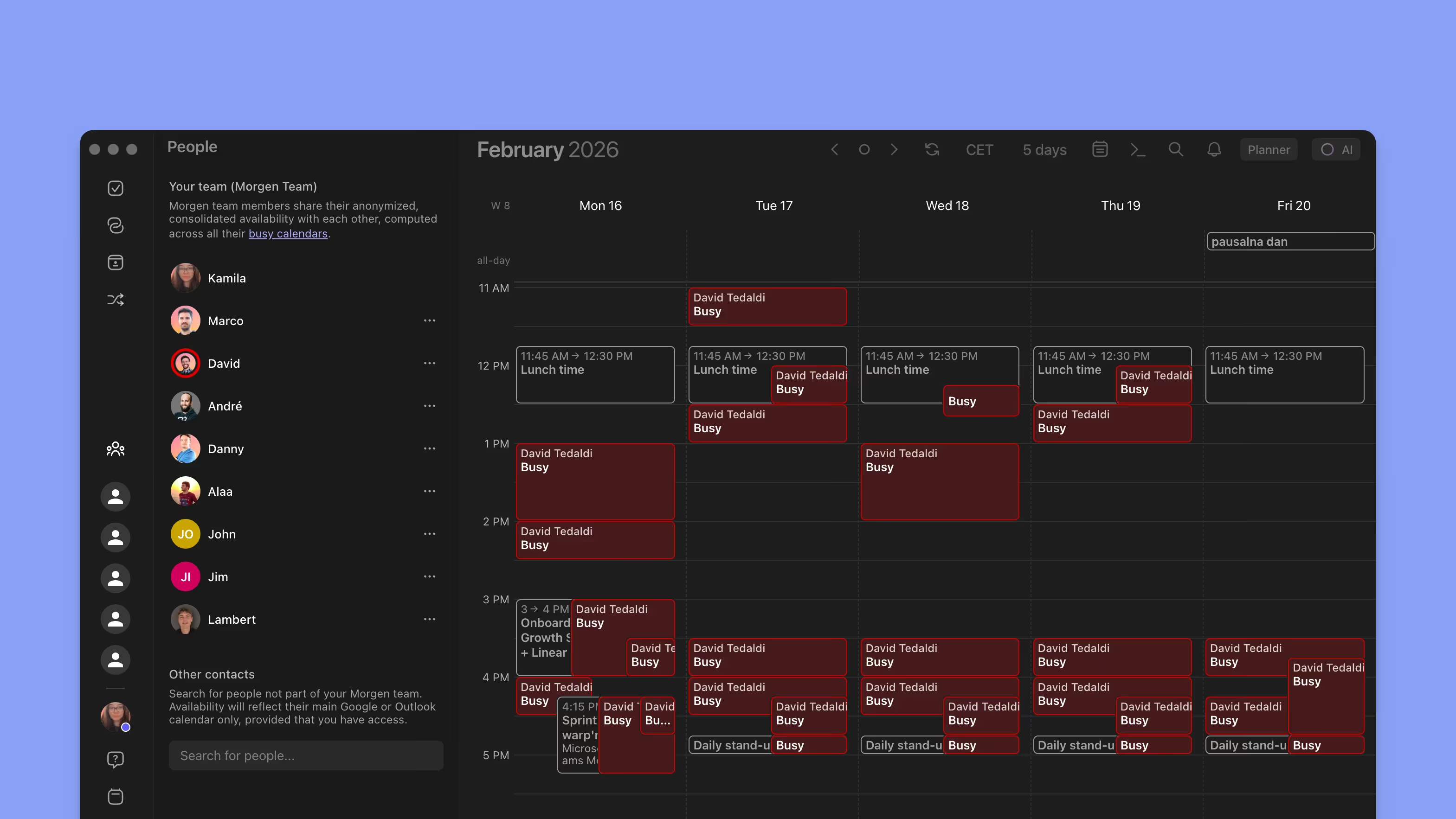
Accessing other people's calendars is often critical for scheduling meetings efficiently. This guide covers your options for viewing teammates' calendars when your team uses Outlook or Microsoft 365 (even if your teammates don't use Morgen).
Option 1: Quick availability access
This is the easiest way to check someone's availability up to 4 weeks in the future. Use this when you are sharing your schedule with others (internal team or external clients) to book meetings.
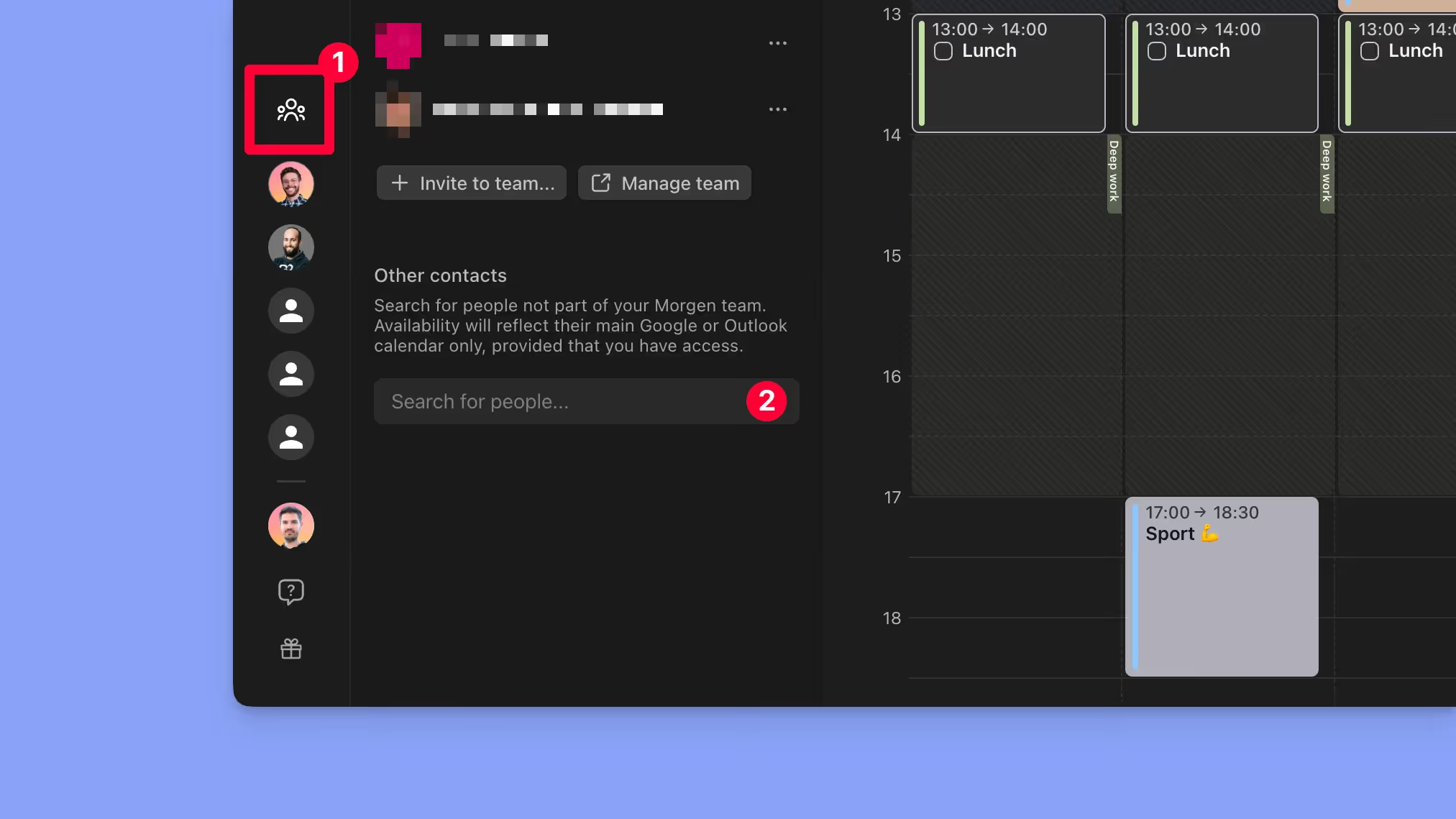
- Open the Teams tab (⌥ + T or Alt + T) on the left toolbar.
- In the Other contacts section, add the email of the person whose calendar you want to access.
- Click on the person in the People’s list to see their availability.
Option 2a: Sync other people's calendars
Syncing someone else's calendar in your Morgen gives you full access to their calendar information. Only possible if you have full read access to the calendar.
Why use this method?
- You can see far in the future or far in the past, while option 1 is limited to 4 weeks in the future
- You have offline access (not with Option 1)
- It’s faster. All data is kept in sync locally (Option 1 fetches events when you click on the person's avatar)
- You can search the calendar (not with Option 1)
- If you have editing rights, you can schedule or edit events (not with Option 1)
Prerequisite
The person needs to share their calendar with you using one of the following access levels:
- Can view all details
- Can edit
- Delegate

If someone has shared a calendar with the appropriate permissions, make sure the calendar is added to your list of calendars in Outlook web:
- Open Outlook web
- Click on Add a calendar
- Select Add from directory
- Search for the person by email

Once you've added the person's calendar to your list of calendars, it should automatically appear in Morgen.
If it doesn't:
- Open Preferences > Active calendars
- Select your M365 calendar account
- Click on Resync account
Synchronized shared calendars appear in your calendar list, as shown in the image below.

Option 2b: Sync group calendars
Microsoft 365 has a concept of Groups. Groups can have their own email address and calendar, often used for shared events or out-of-office placeholders.
To add a group calendar in Morgen, you need to know the group's email address. Afterwards follow these steps:
- Open Preferences > Active calendars
- Select your M365 account
- Click on Add group calendar (by email)
- Enter the email address of the group
.avif)