.svg)
→ Use Google Tasks when you need a calendar-integrated to-do list. It’s perfect for scheduling tasks with due dates and subtasks in Gmail/Calendar
→ Google Keep works when you want creative, multimedia notes and lists. Keep lets you capture text, images, voice memos, and shared checklists on the fly
→ Alternatively, pair Tasks with Morgen and pull your tasks for time-blocking on your calendars based on priorities and availability
In 2025, Google’s update linked Google Keep to Tasks. If you add a reminder to a note in Keep, it is automatically added to Google Tasks. However, Tasks is still uniquely a task planner, while Keep is a sticky note app.
In this Google Keep vs. Google Tasks comparison, we’ll explore the tools across several areas, including task management and integrations.
We’ll also show you how to integrate both platforms into Morgen for stronger calendar management tool, or use it as an alternative task and note-taking platform
Google Tasks vs Google Keep: A Brief Overview
Who Is Google Tasks Best For?
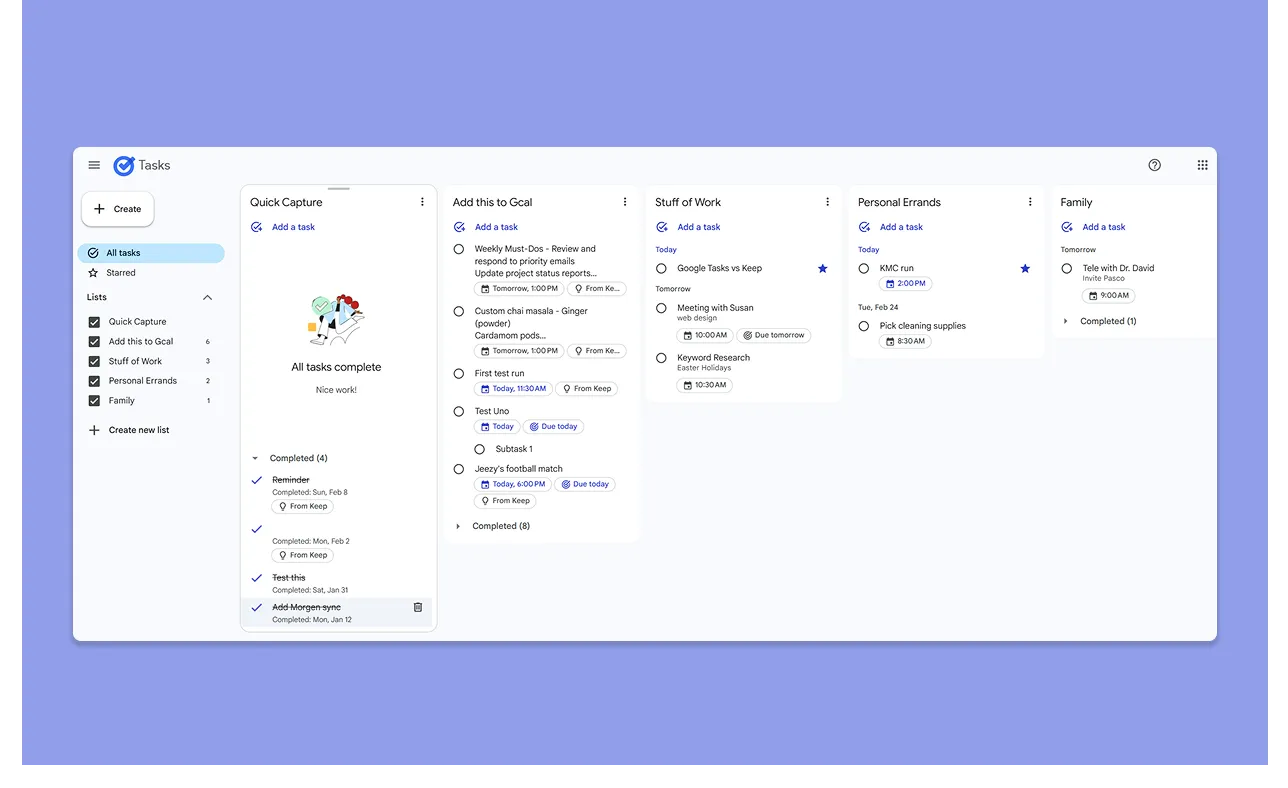
- Individuals who want a simple tasks app that’s integrated with Google Calendar for scheduling
- People managing short-term goals with clear deadlines, who need subtasks and recurring tasks
- “One-person” workflows, for people who don’t need collaboration features
- Users find Google Tasks easy to use and great for what it does, while complaints arise about how tasks only show up in the calendar after you assign them dates
For Whom Is Google Keep Useful?
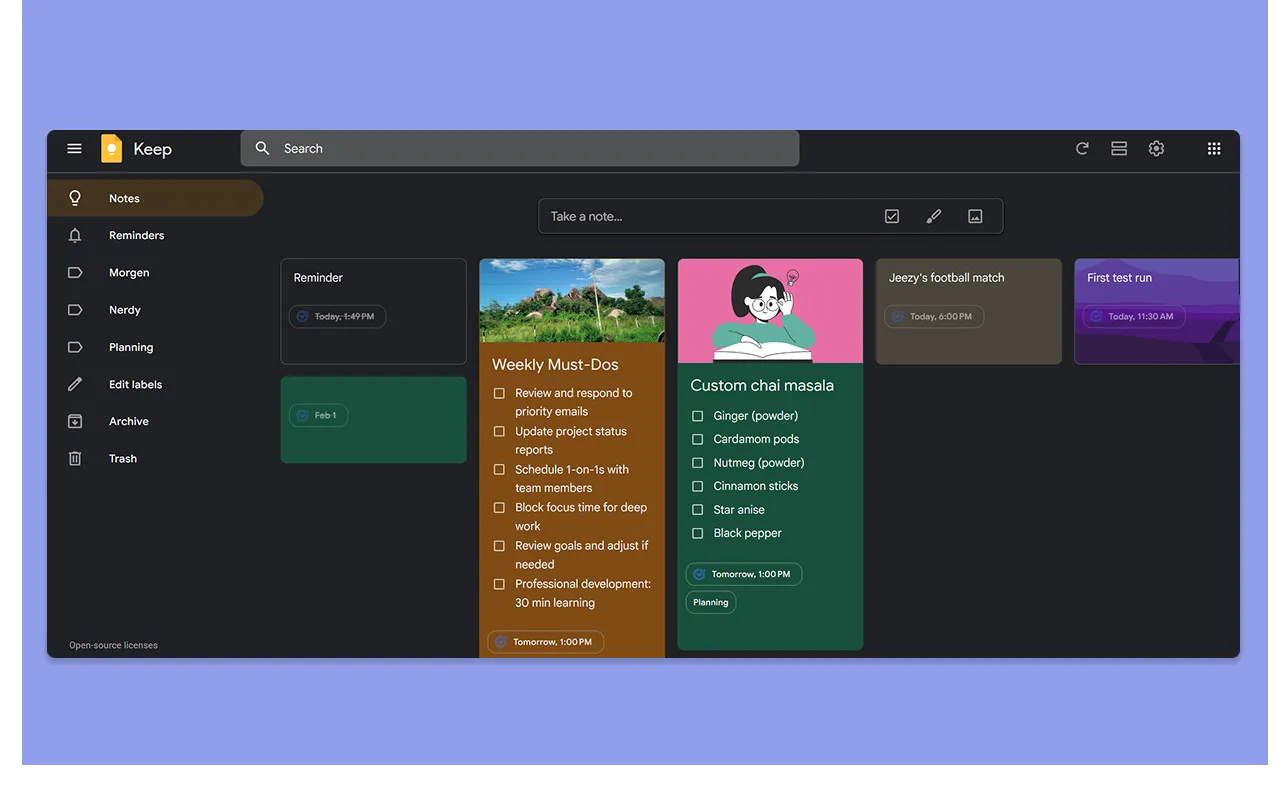
- Users who need a note-taking app to capture ideas and notes quickly
- Anyone who wants visual organization: notes appear as colored “cards” you can pin, label, and search
- Teams and families who use shared checklists and reminders
- For users who like to combine groups of notes into Google Docs with a single click
Morgen: An Alternative to Google Tasks and Google Keep
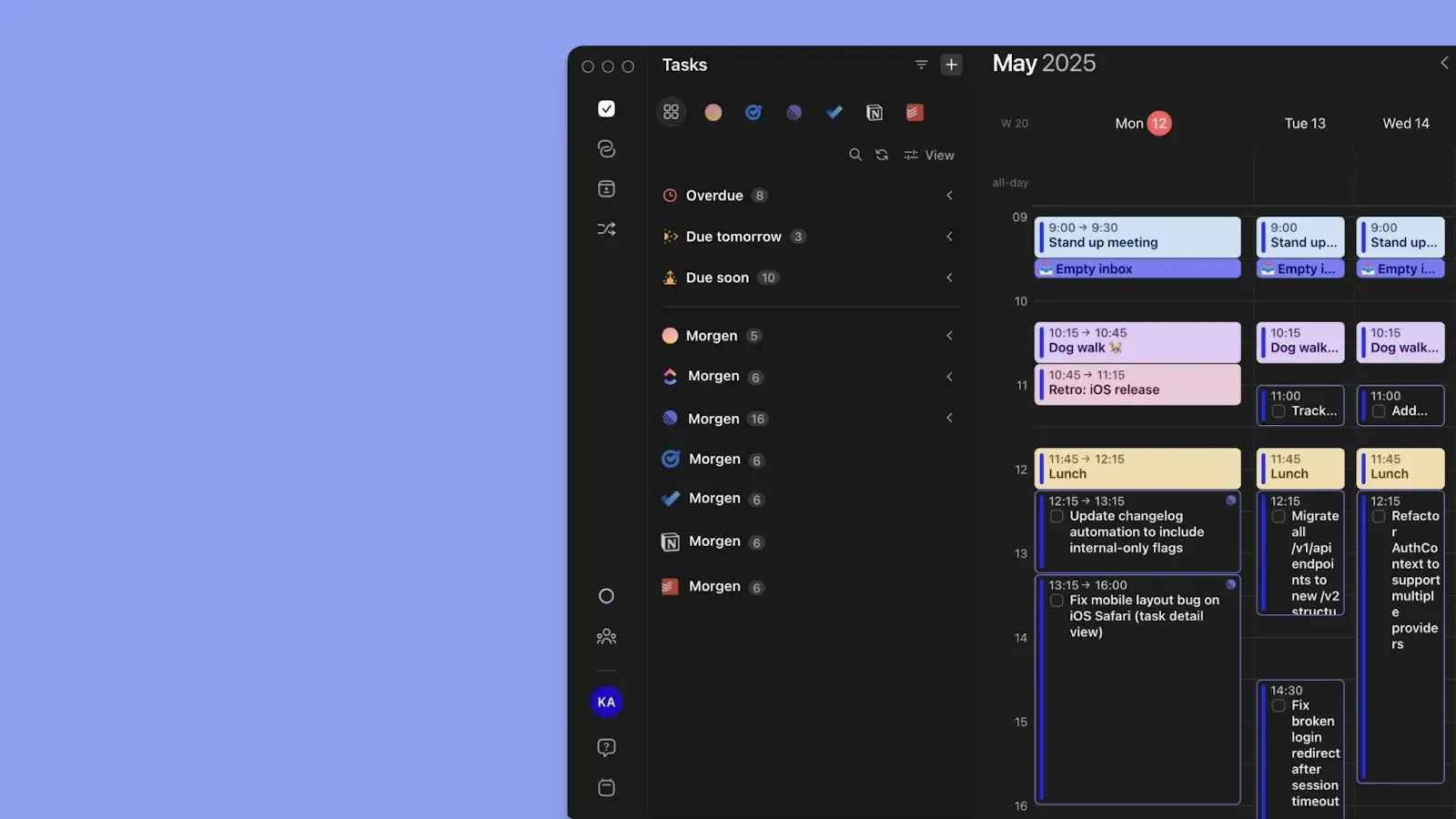
Morgen consolidates calendars and tasks from multiple sources into one planning interface. As an alternative to Tasks and Keep, it:
- Consolidates tasks from tools like Google Tasks and other task planners into a single plane
- Templates your schedule with recurring tasks and due dates, routines, and frames
- Offers AI planning to suggest when to tackle tasks based on priorities, deadlines, availability, and other parameters
- Allows advanced reminders: Set notifications 15 minutes or days before (not just at due time)
Here’s your starter guide to Morgen tasks.
Customer Support
If you need customer support, here’s how Google offers it for these free tools:
Google Tasks
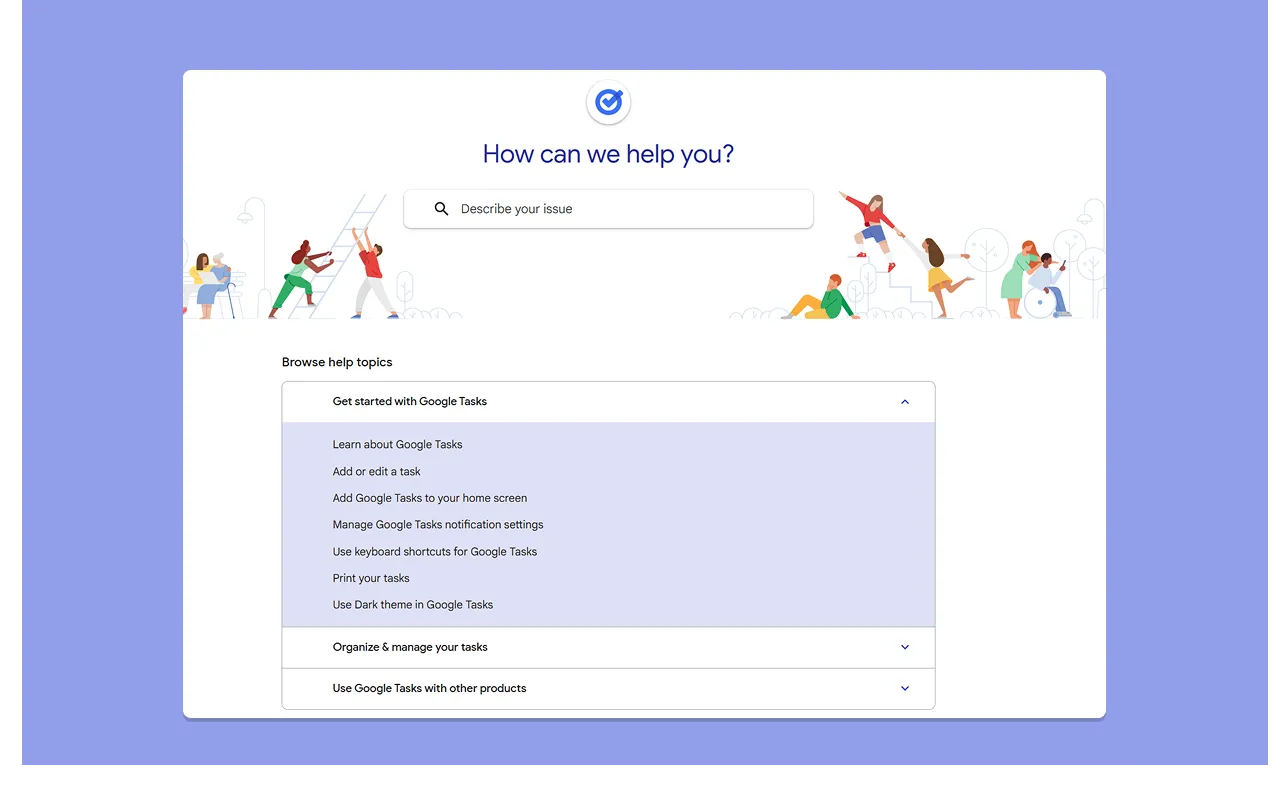
- Google has a Tasks Help Center with tutorials (how to add or edit tasks, manage notifications, use keyboard shortcuts, etc.)
- There is an active Google Tasks community on Reddit where users and experts answer questions
Google Keep
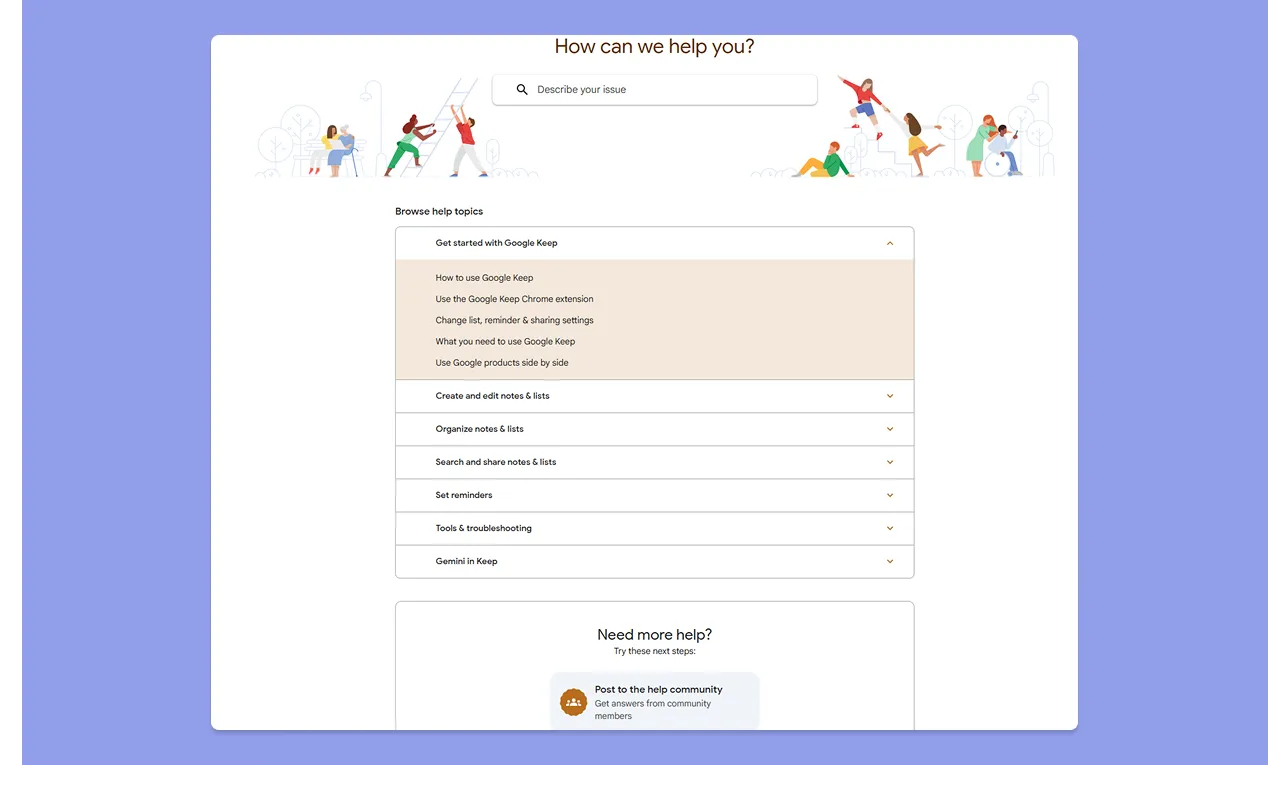
- Like Tasks, Google Keep also has its dedicated Help Center with guides on getting started, sharing notes, troubleshooting, etc
- Google’s product forums include a Google Keep section where you can ask other users or search for common problems
- You’ll also find a Google Keep subreddit, where users share their experiences, troubles, and solutions
- Google Keep is rated 4.4/5 for good customer support on Software Advice
Verdict
Neither tool has an edge here, as they both rely on Google’s online resources and forums.
Integrations
Here’s how each app plugs into the broader Google ecosystem and other workflows:
Google Tasks
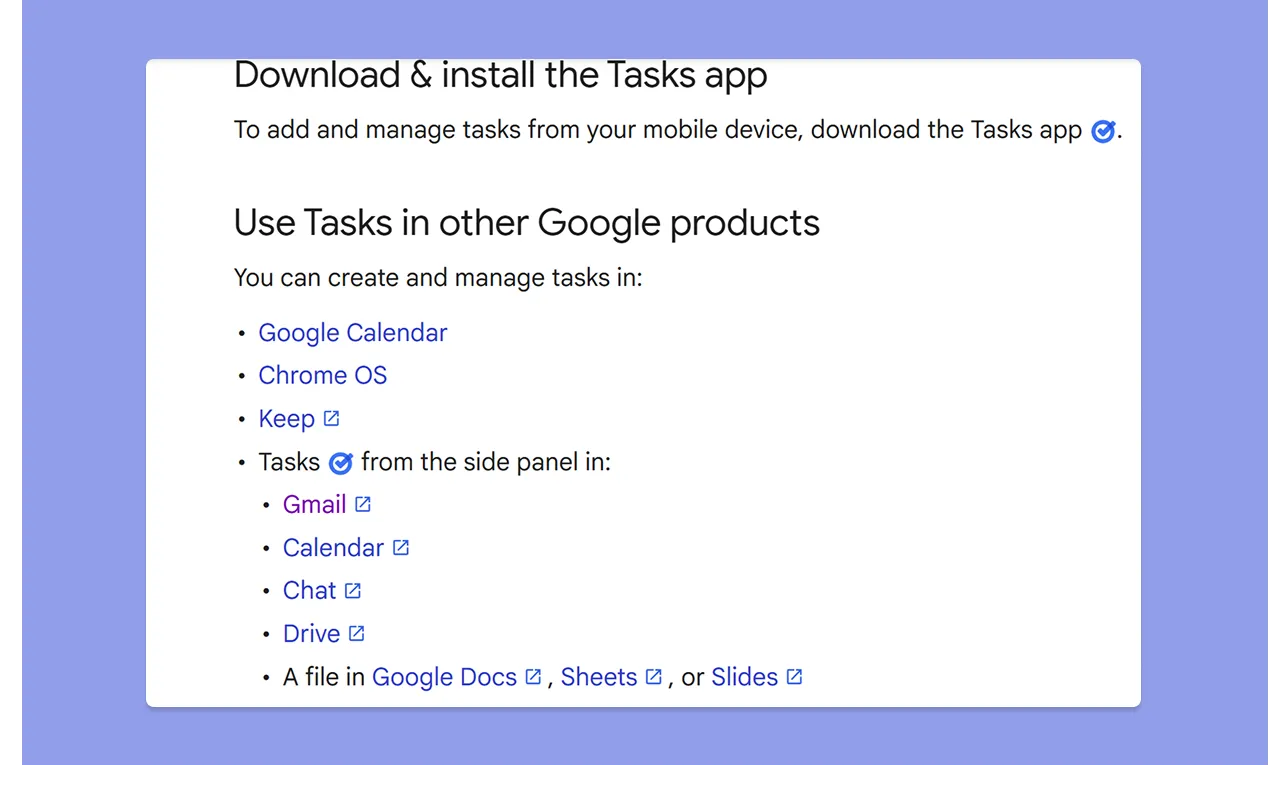
- Google Tasks is built into Gmail, Calendar, and Google Chat. You can turn an email into a task in one click and jump back to the email easily
- If you ask Google Assistant to set a reminder, it will create a task that alerts you later
- Add a date/time to tasks and push them into your Calendar for basic time-blocking
Google Keep
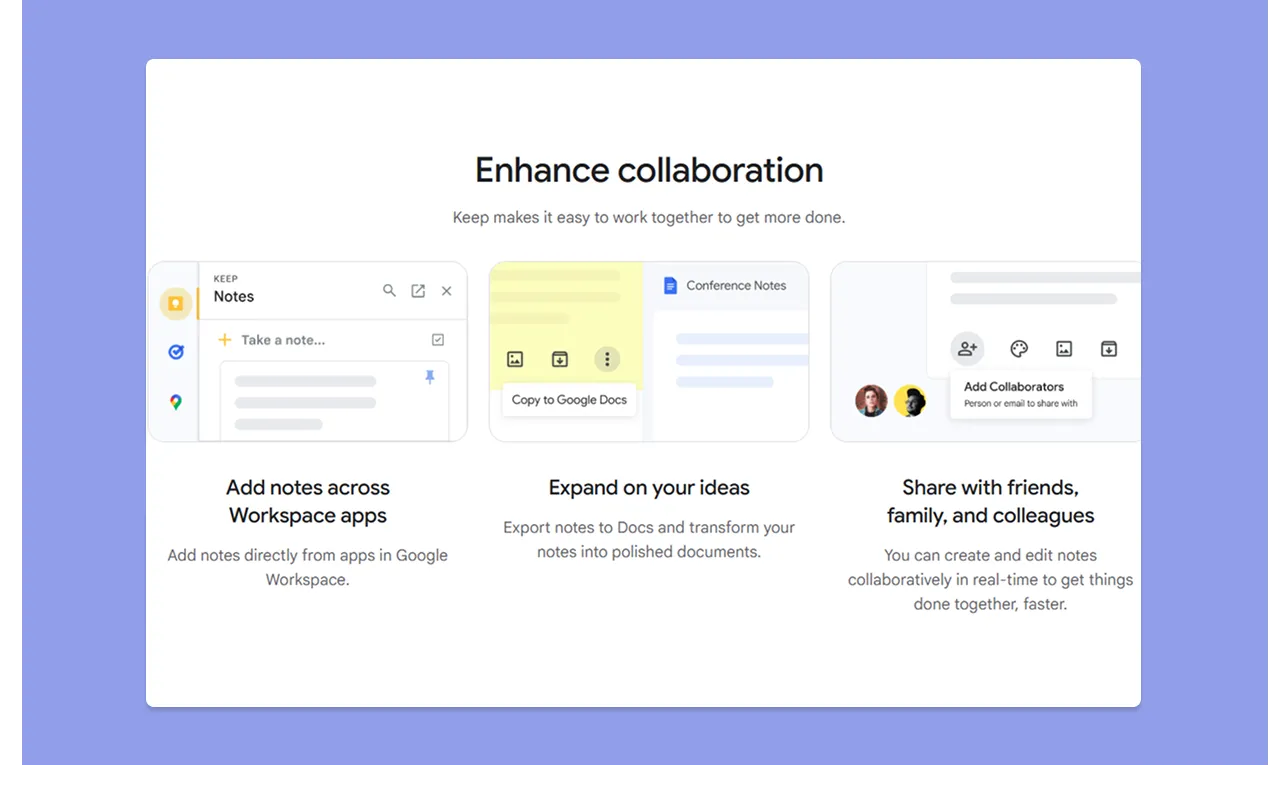
- an insert Keep notes into Docs. From Google Docs, there’s a sidebar to pull in a note (complete with checkboxes and text) directly
- On the web, you can open Keep alongside other Google apps (Gmail, Calendar, etc.) for quick note-taking without switching apps
- Keep’s web extension lets you save web content to notes
Verdict
Because Tasks lives inside core Google apps, it feels like part of your email/calendar workflow. For a note-taking context, Keep works fine, but by comparison, its integration is more standalone.
Task Organization & Search
Can you easily organize or find your work? Here's how Google Keep and Tasks compare:
Google Tasks
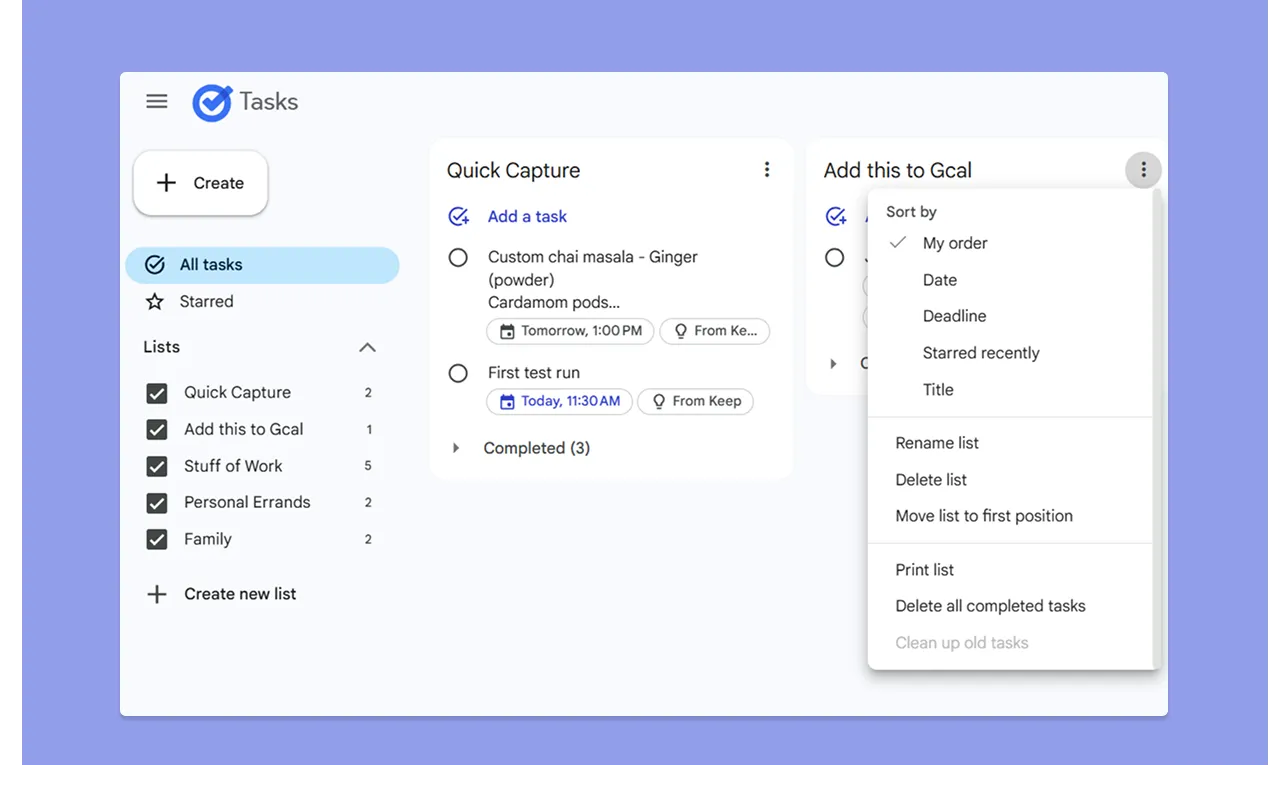
- Tasks organizes everything as plain lists. You can create multiple lists (e.g., “Work” and “Personal”), and within each list, sort tasks by “date,” “title,” “deadline,” or “starred recently”
- You cannot tag tasks or create nested categories in Google Tasks, something users on Reddit would love to see
- Another user complaint about Google Tasks is the lack of a search button, which makes it complicated to pull up specific tasks from long lists
Google Keep
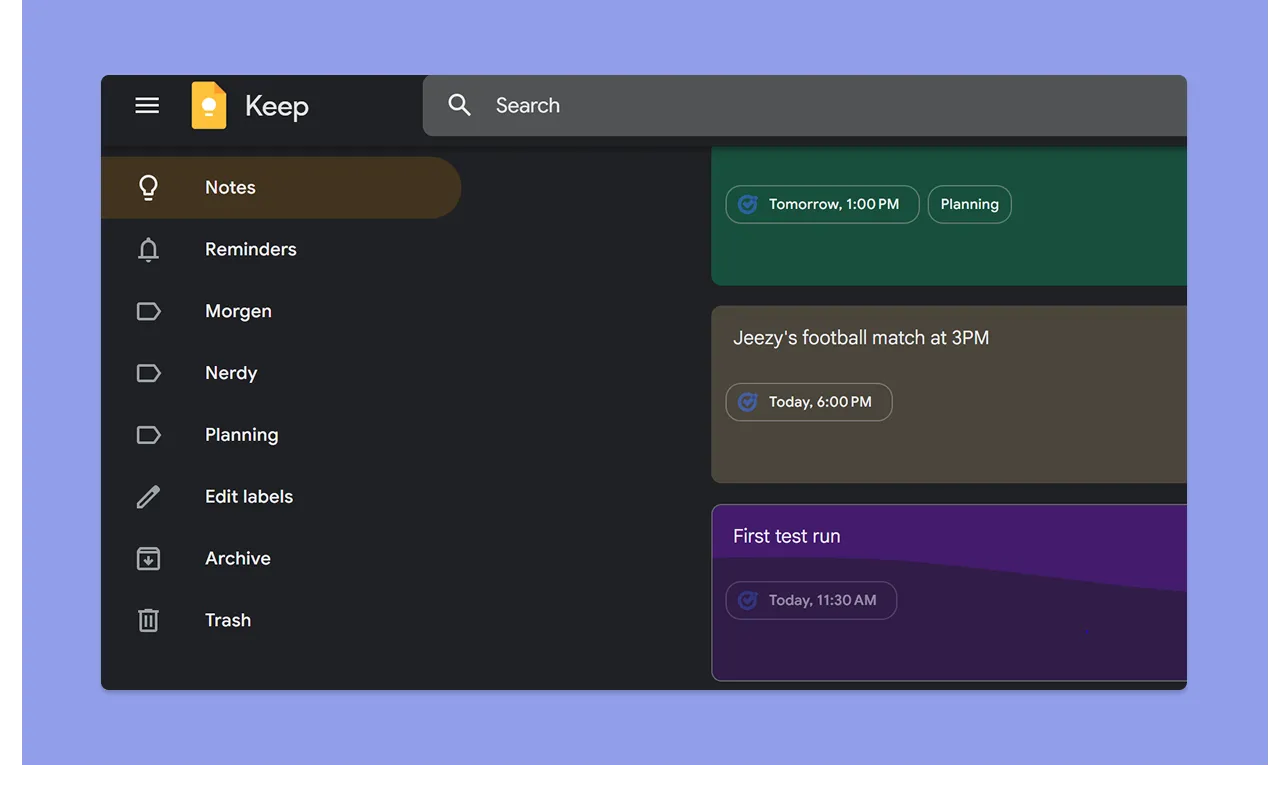
- Users label notes with text tags, assign colors, and pin important notes to the top
- You can turn any note into a checklist (nice for to-dos or shopping lists), and attach images or drawings
- Keep’s search can look inside images and across text, labels, colors, and things (like food, music, groceries, sand). When you archive old notes to declutter the main view, they still remain searchable
Verdict
Google Keep wins for organization and search. Its labeling, color-coding, and search capabilities far outstrip Tasks’ basic lists.
Reminders
Reminders determine whether your tools reliably surface what you need at the right moment, so here's how both apps compare:
Google Tasks
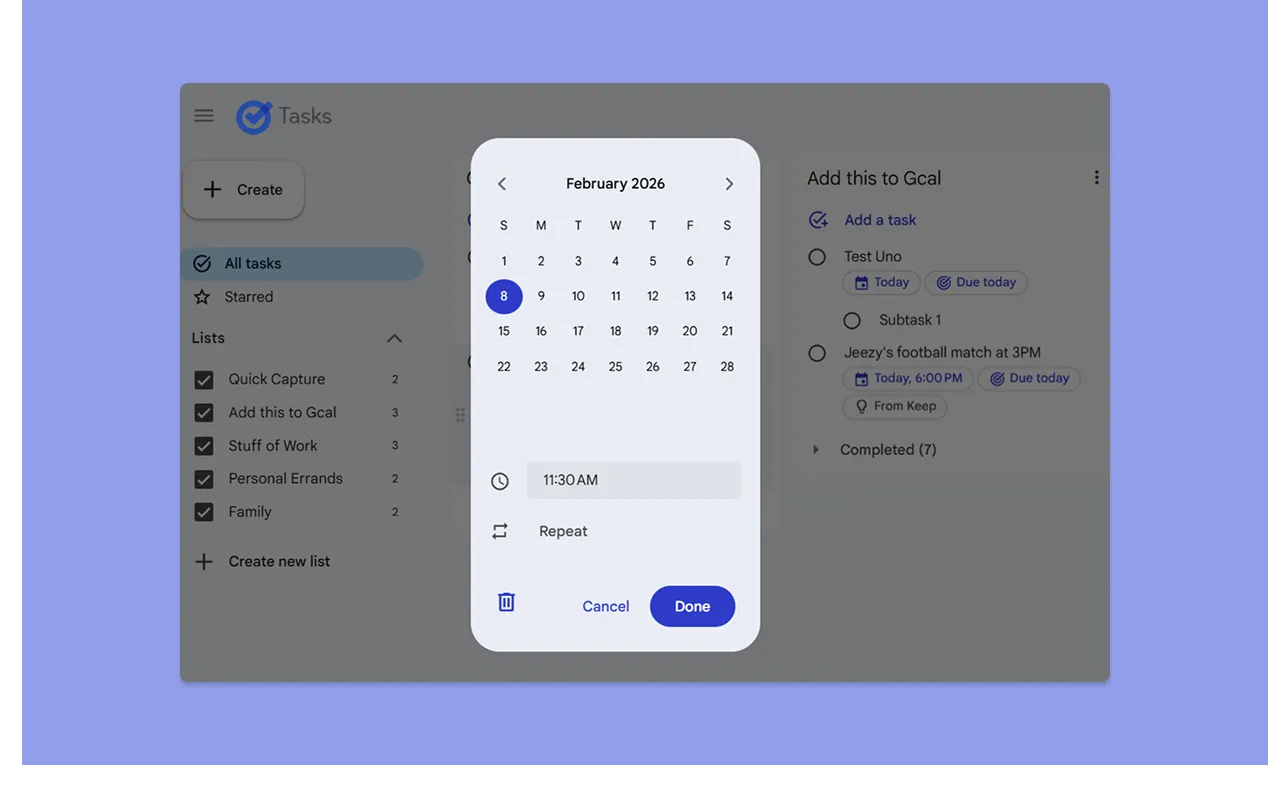
- You can add a date and time to a task, and it will appear on your Google Calendar with a standard notification
- Tasks supports repeating tasks (daily/weekly/monthly/yearly). When one instance is completed, the next scheduled one appears on its due date
- Since late 2025, any reminder set in Google Keep is migrated into Tasks and labeled “From Keep”
- A common complaint, though, is that you get simple notifications, with no alarm system to remind you to complete the task
Google Keep
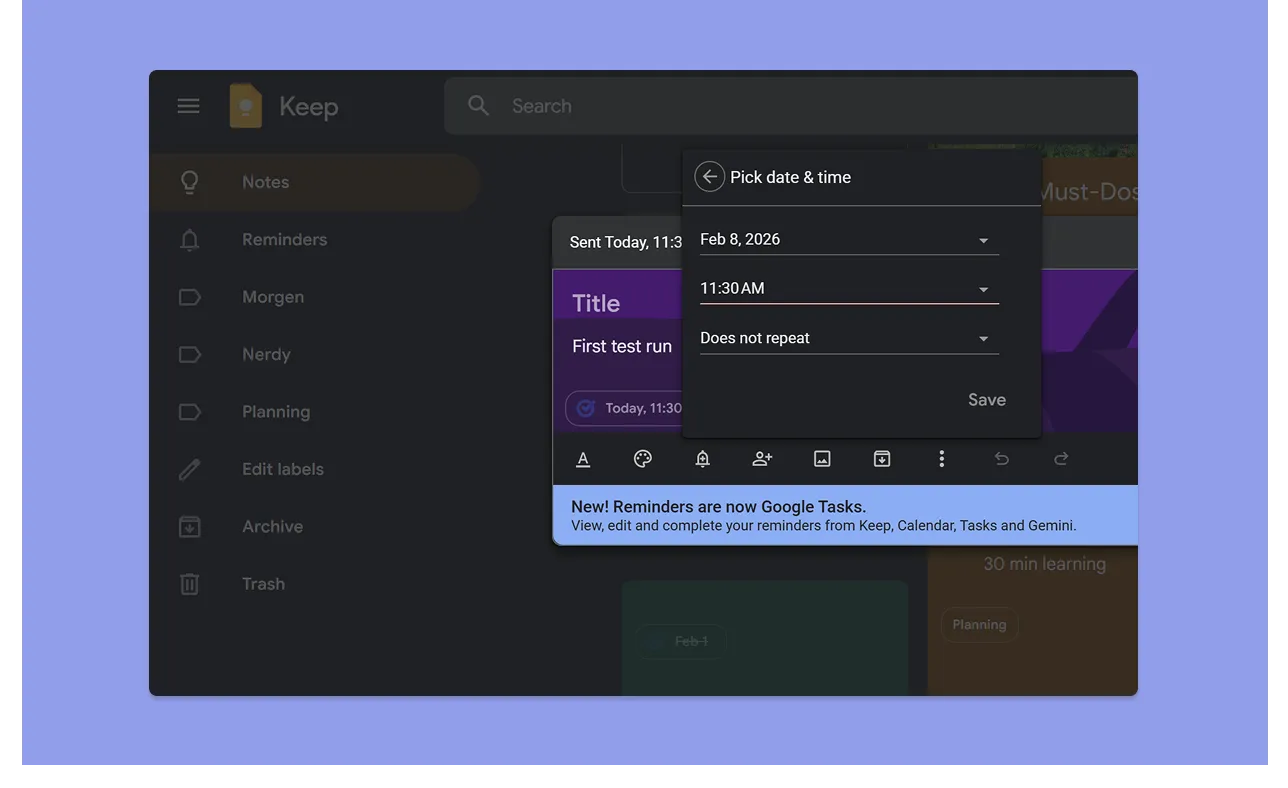
- You add a reminder by clicking the bell icon on a note and picking a date/time
- New reminders in Keep no longer trigger alerts from Keep. Instead, they get saved as Google Tasks (with the note title), so the alert comes through Google Tasks
Verdict
If getting reminders in-app matters to you, you may find the Keep setup clunkier than before (as many recent user reviews note).
While you’ll get reminders on time, the Tasks UI is also too oversimplified, especially without tracking or organization features like tags, color-coding, or more customization.
How to Choose a Time Tracking Software
Currently, a lot of content spills from Keep into Tasks, which makes it better suited for time tracking, but here are more important features you need to consider:
Calendar Integration and Time Blocking
Google recently added time-blocking to Tasks, so you can reserve calendar blocks and mark yourself busy. Keep, meanwhile, stores notes and checklists but doesn't sync with your calendar.
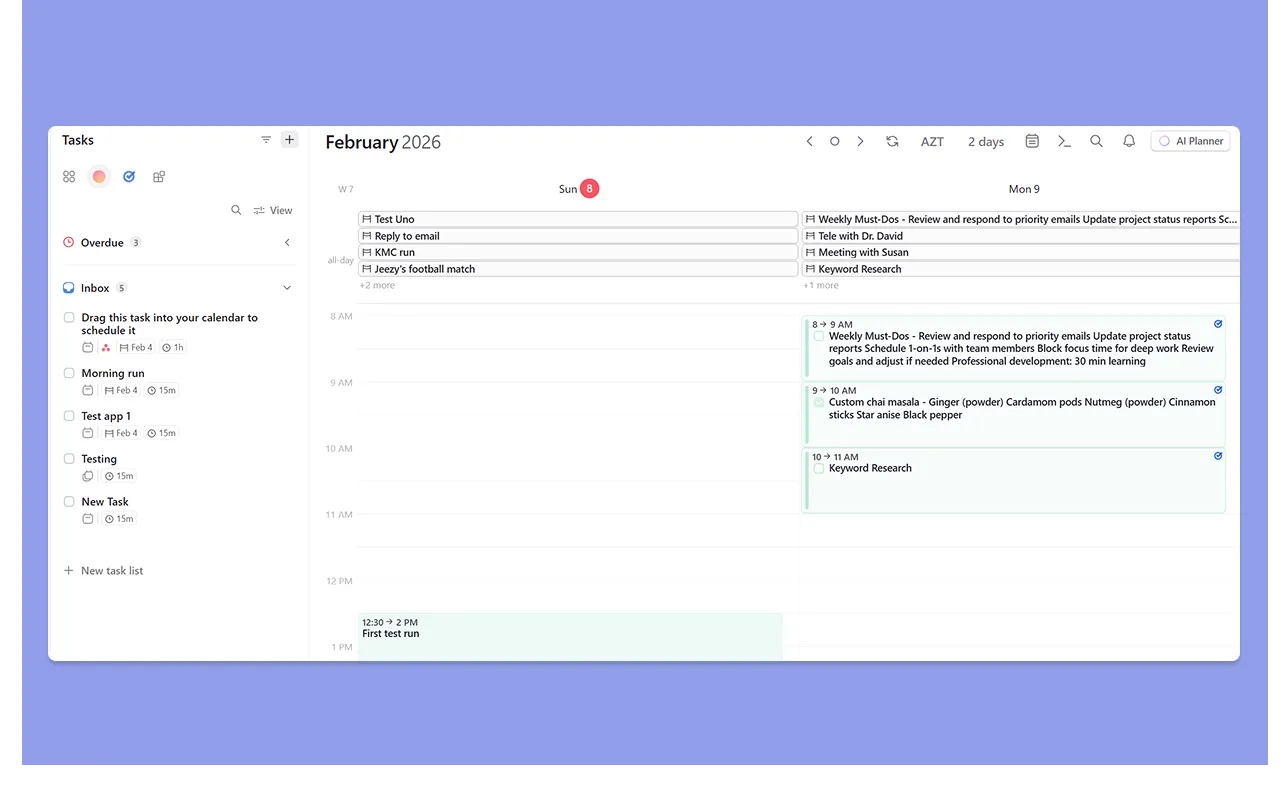
But if you want to plan your schedule on a better interface that considers your pending work and available time, Morgen can layer both Google Tasks and Keep reminders into your calendar view.
Create a free calendar event link, and add the event time to your calendars.
Task Organization and Filtering
Neither Google Tasks nor Keep offers context-based filtering. Meanwhile, the task management market is growing 15.4% annually, partly because people need better organization for productivity.
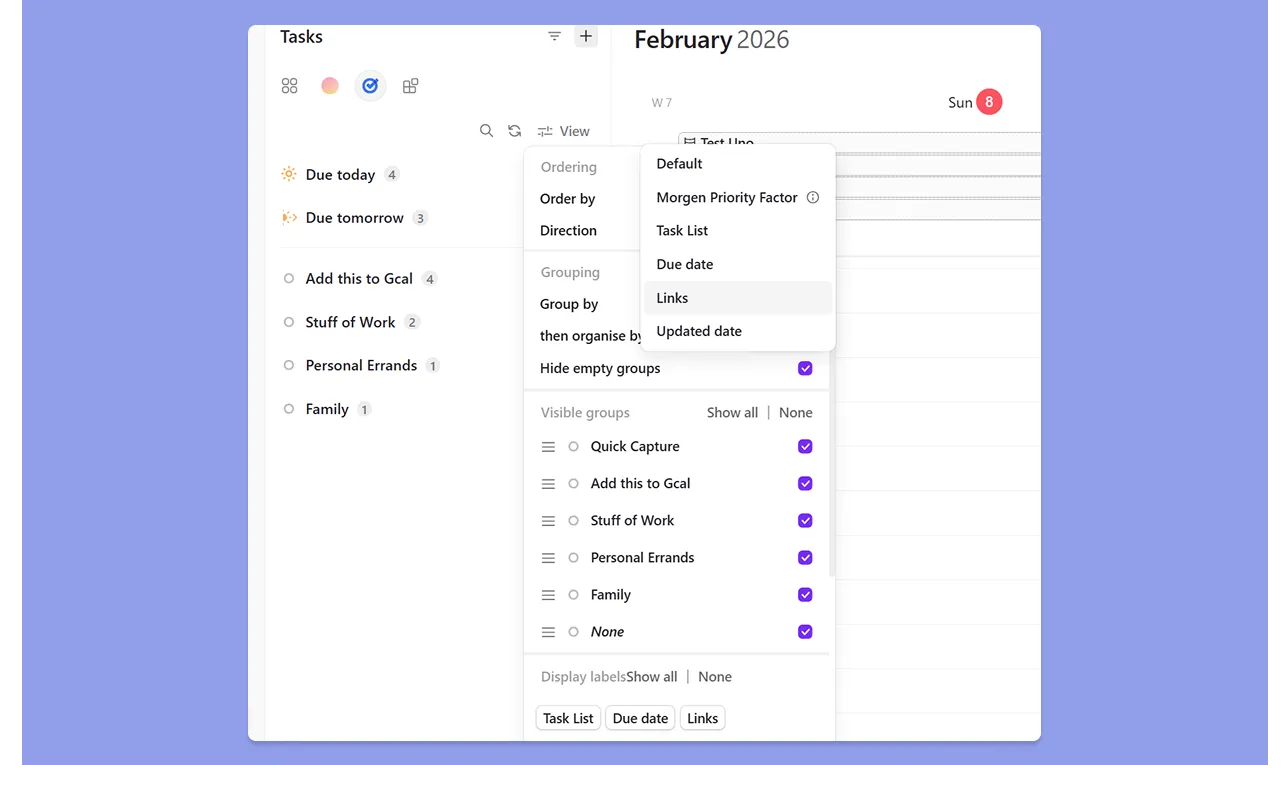
If you connect Google Tasks to Morgen for calendar planning and time-blocking, you can filter your views by “Tasks Lists,” “Due Dates,” “Updated Dates,” and “Links.”
Beyond that, you can also customize different tasks/time blocks with different Morgen outline colors, or add tasks into specific frames to template your week.
Integrations with Different Systems
Tasks and Keep are deeply integrated into the Google Workspace, but that may be limiting to busy professionals.
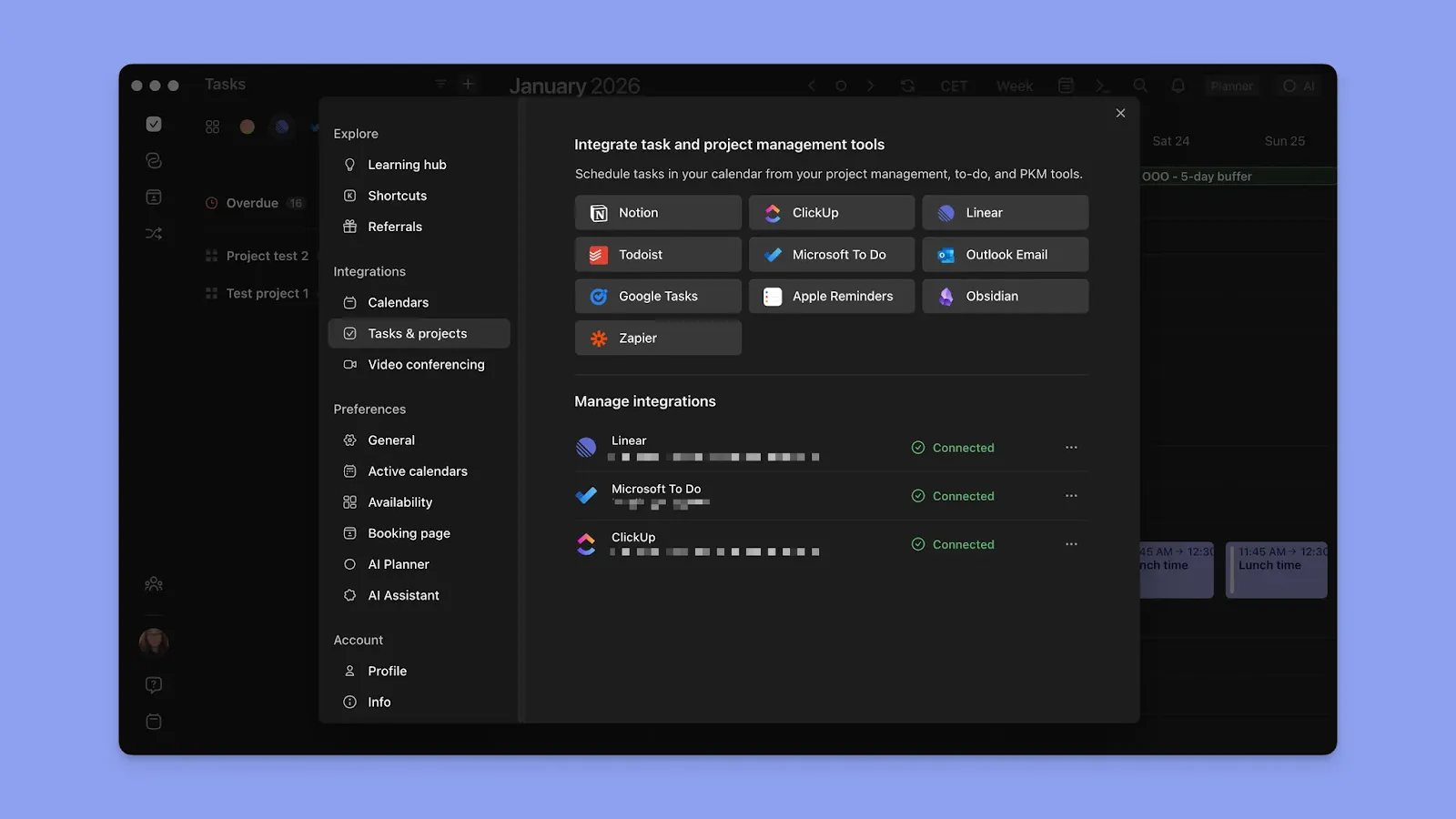
If your tasks, notes, and deadlines are scattered across tools, use Morgen to consolidate them into one view.
Explore native Morgen integrations to consolidate your time and pending work in one place.
Reminders and Notifications
Even though Google Tasks sends you reminders, you get notified at the task's due time, then have to click through to view the original Keep note. You can't set advance warnings like "remind me 30 minutes before" for better deadline management.
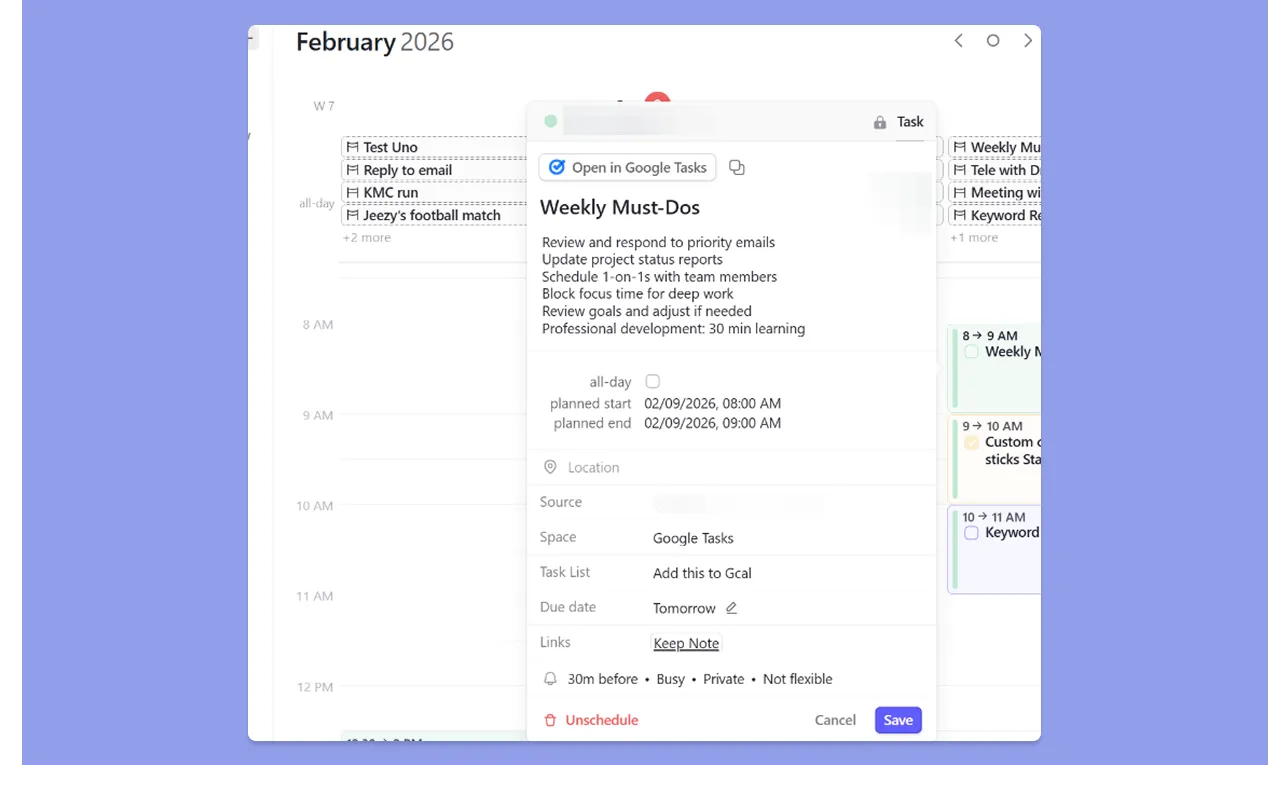
When you layer Morgen on top of Tasks, you can set reminders 15 minutes, 30 minutes, or even a day before a task starts. Plus, Morgen consolidates Keep-originated tasks with your calendar events to show everything in context, with a link to view the original note, too.
Alternative To Google Tasks and Keep: Morgen
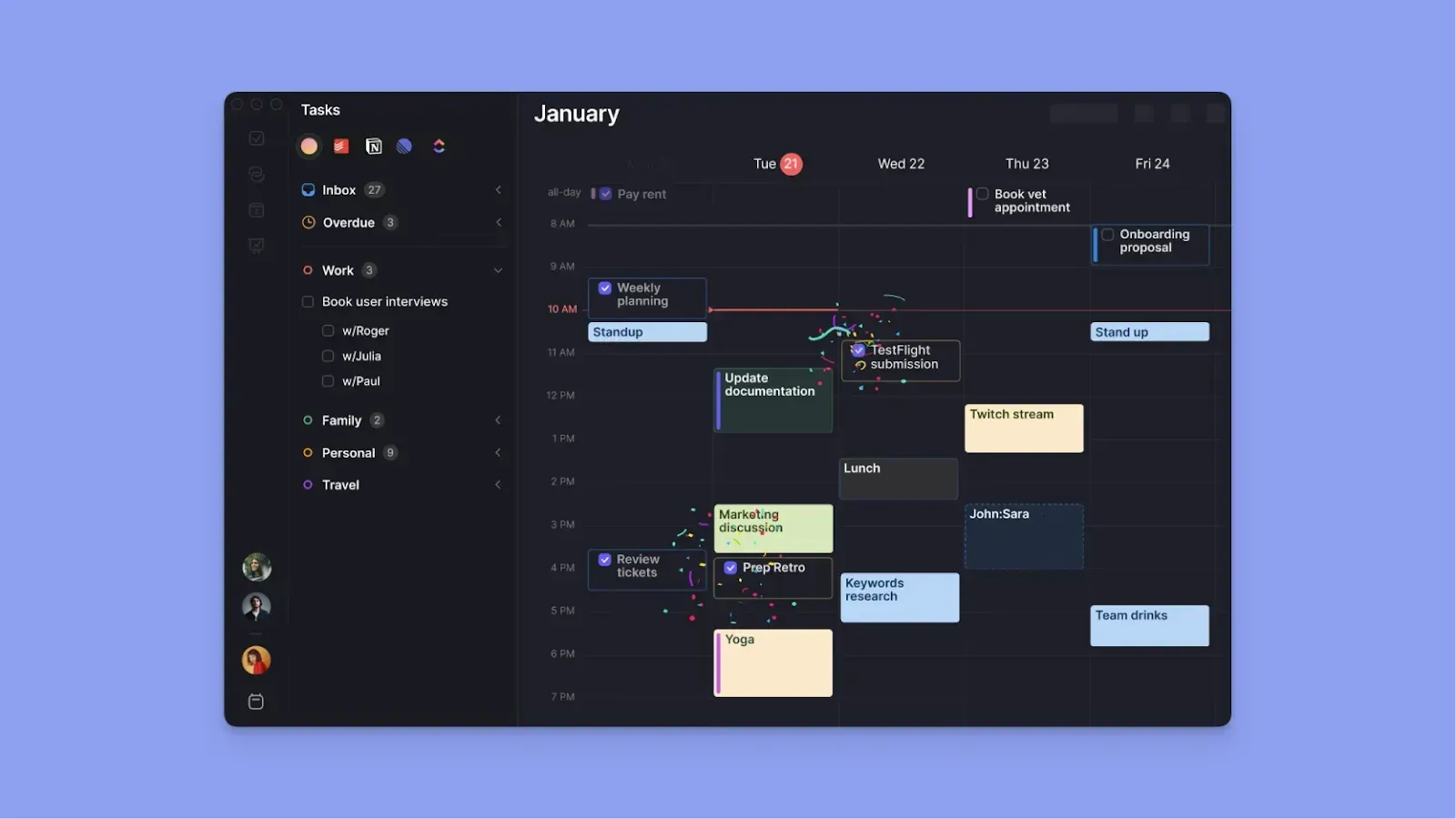
You can layer Morgen on top of Google Tasks (and Keep if you set reminders).
Or, use it as a complete alternative to create tasks with notes directly in the app, schedule them across calendars, mark calendars busy, and manage meetings and routines from the same interface.
Key Features
Morgen gives you what Tasks and Keep don’t, the ability to visualize your workload against your available time, and tools to adjust when plans inevitably change.
Time-Blocking with Frames
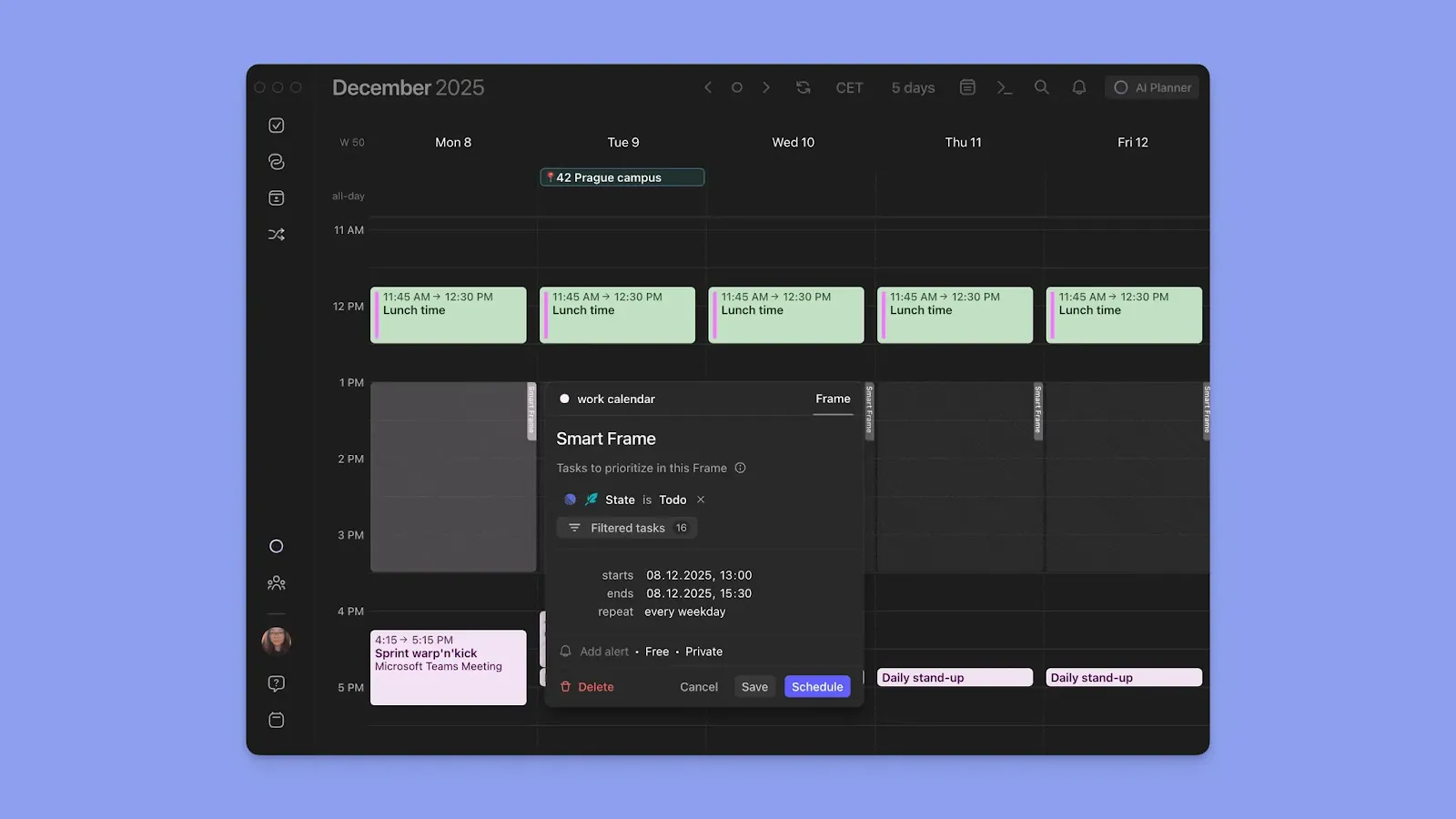
Create to-do lists in Morgen or pull them from Keep/Tasks, then schedule them across different calendars using Frames, which are recurring time blocks for specific work types.
Drag tasks into these time blocks or let the AI Planner suggest placement based on availability, deadlines, priorities, tags, and more.
AI Planning and Conflict Resolution
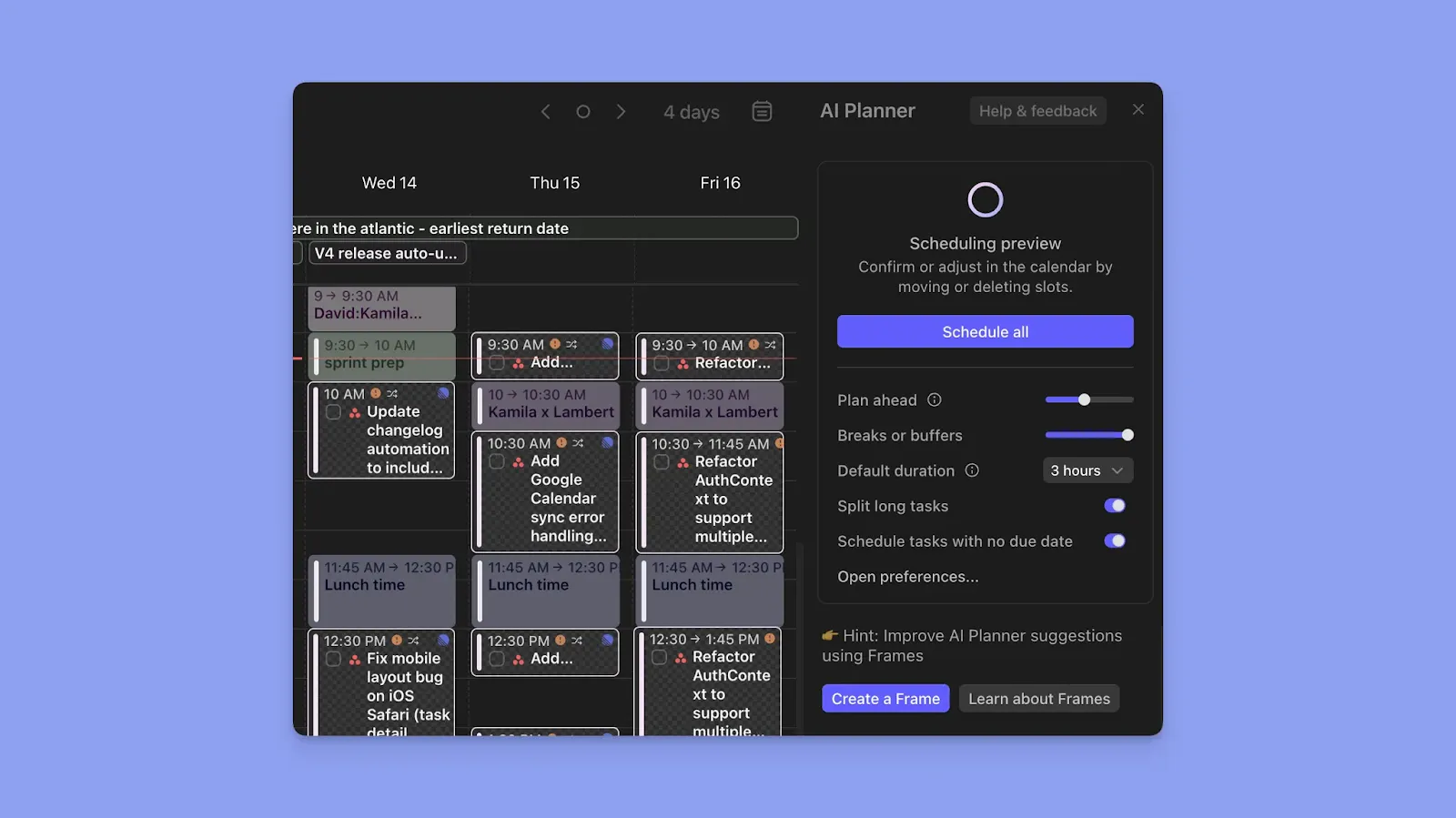
Once you've created tasks and Frames, Morgen's AI Planner generates a personalized schedule based on your workload and available time. It shows pulsating blocks, the proposed task placements, so you can review before accepting.
If a meeting pops up and conflicts with scheduled work, the planner surfaces the clash and offers options:
- "Reschedule ASAP" (moves tasks to the next available slot)
- "Reprioritize with AI Planner" (reorganizes your entire schedule intelligently)
- "Unschedule Task" (removes the conflicted task)
Consolidate Different Calendars and Task Sources
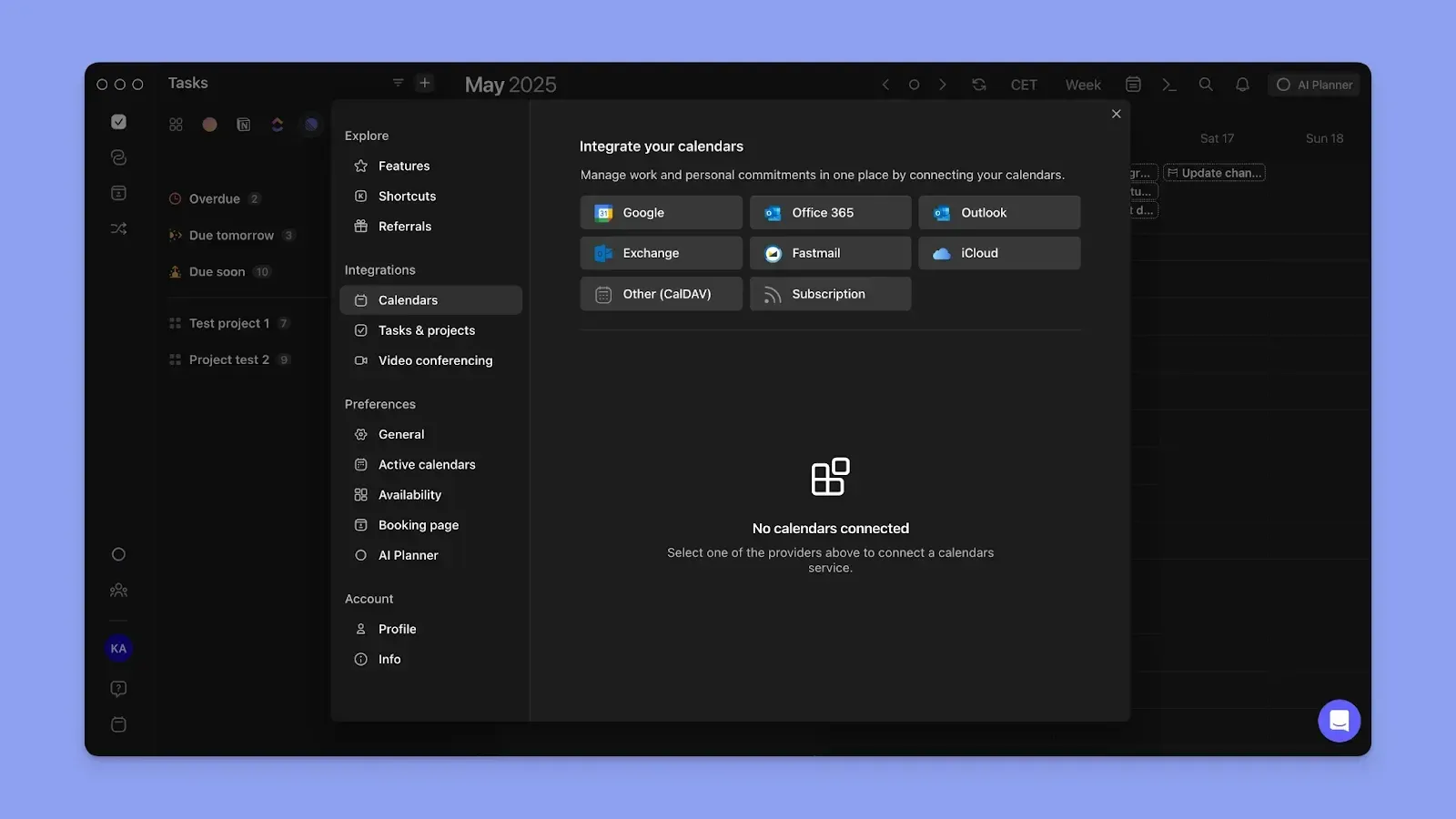
If your work spans Notion, Obsidian, Linear, ClickUp, Todoist, Google Tasks, Microsoft To-Do, Outlook Email, and Apple Reminders, Morgen integrates them all.
Plus, it supports Google Calendar, Outlook, iCloud, and Fastmail to bring personal, work, and family calendars from different providers into the interface.
Task Capture with NLP

Google Tasks and Keep require manual entry, much to the disappointment of current users.
Morgen's command bar (Cmd+K/Ctrl+K) uses natural language processing to create tasks and events instantly. You can also use the AI personal assistant (currently in early access waitlist) to verbally add tasks, create calendar events, and manage your schedule without touching your keyboard
Or, click any free space on your calendar to surface options: create a task, event, routine, or frame, and assign it to the appropriate calendar.
Pricing
Note: A 14-day free trial is available, and students, nonprofits, and academics get 25% off.
Where Morgen Shines
- Unified calendar and task views: One interface that displays tasks alongside calendar events
- Color-coding, tags, and filters: Calendars show in distinct colors, task outlines are customizable with 13 base colors, and task tags (which are also color-coded) let you group by priority, energy level, or context
- Schedule tasks across days or add subtasks: Break complex tasks into subtasks that can each be scheduled separately, or create multiple sessions for large projects
- Meetings with multiple booking options: Create personal booking pages, scheduling links, multi-person scheduling links (that check co-host availability), and open invites (offer specific time slots for one-off meetings)
- Team features for actual collaboration: View teammate availability before scheduling meetings
Where Morgen Falls Short
- Not designed for full project management: While Morgen helps with time management and scheduling, it lacks project hierarchies, dependencies, and resource management features
Customer Reviews
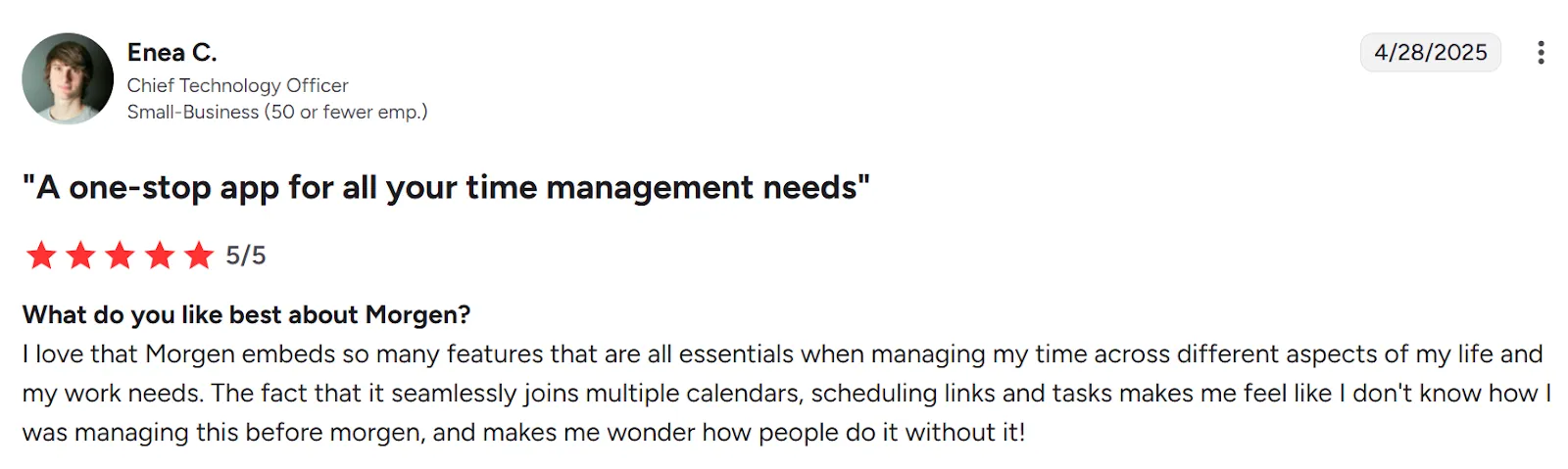
Morgen is rated 4.8/5 on G2, with many users appreciating its ease of use, integration depth, scheduling features, and calendar integrations.
Enea C calls Morgen “A one-stop app for all your time management needs.”
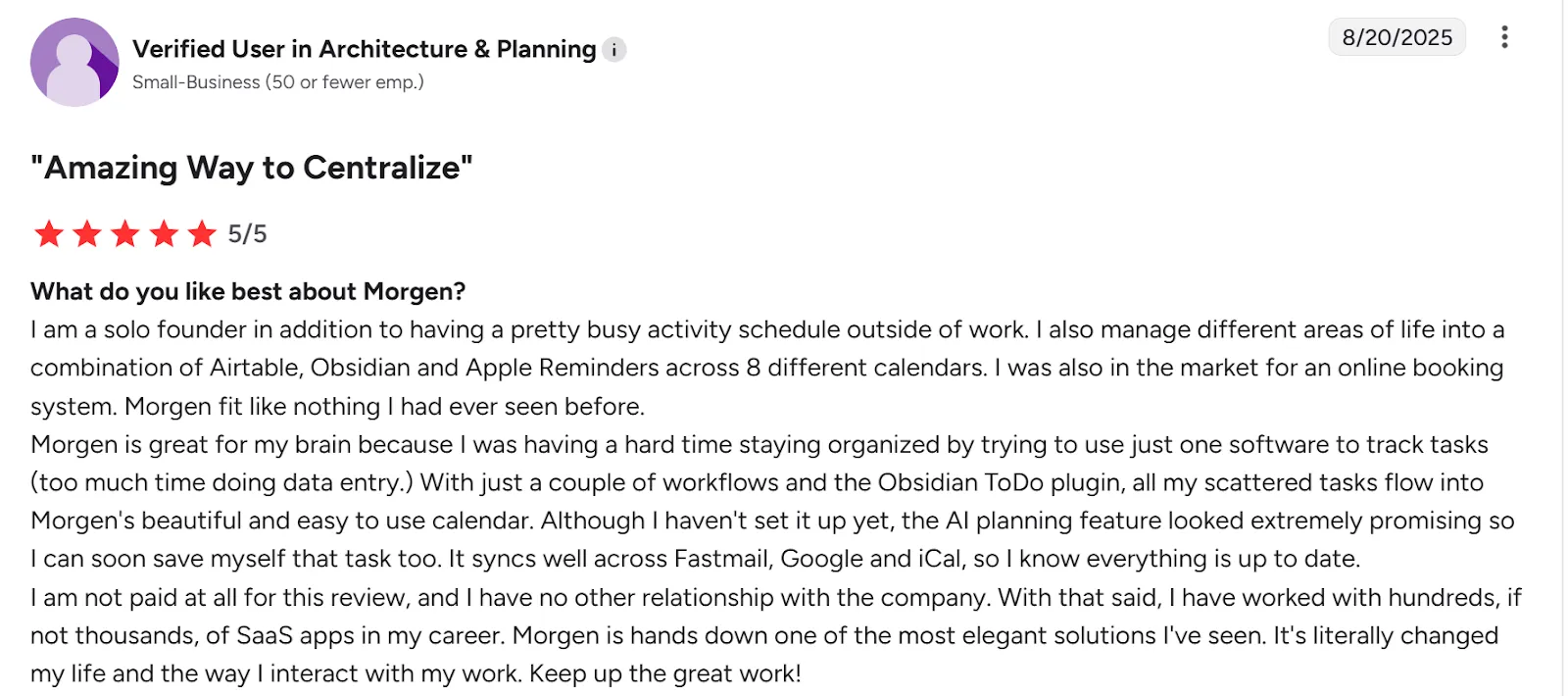
Another reviewer calls using Morgen an “Amazing Way to Centralize.”
Who Morgen Is Best For
- Google Tasks and Keep users: who need calendar context for their tasks and notes
- Busy solopreneurs, freelancers, marketers, developers, and product managers: Professionals juggling multiple projects, clients, and responsibilities who need to see their full workload against available time
- ADHD brains: People who struggle with time management, starting tasks, or remembering commitments across scattered tools
Download the new Morgen 4 on macOS, Linux, or Windows, then download Morgen on iOS or Android.
Centralize Your Work and Personal Calendars Using Morgen
Do you want a tool that blocks time on your calendars for tasks (with notes), meetings, and routines?
If you also want to template your week with Frames, use AI to suggest daily schedules, and get custom reminders before the scheduled time, you need Morgen.
Unify personal, shared family, and work calendars and add commitments, then place tasks into available time blocks to create a clean schedule without conflicts.
Grab your 2-week free trial or contact us now.

.svg)
.webp)