.svg)
→ Choose Fantastical: if you want a clean front-end for your calendars and tasks within the Apple ecosystem
→ Choose Google Calendar: if you want a free, simple, and reliable digital calendar that works on all platforms
→ Or, Morgen as an alternative: if you have different operating systems and want a platform that consolidates multiple calendars (including Google Calendar) and task tools, and uses AI to suggest achievable daily schedules
Are you looking for a good calendar management system and have come across Fantastical and Google Calendar? Fantastical is a calendar planner for Apple devices, while Google Calendar is a digital calendar that works across all operating systems.
If you have an Apple device, you can use both by integrating your Google Calendar with Fantastical. But if you want to choose between them, here's how they compare across pricing, ease of use, customer support, and planning features, plus what actual users say.
We'll also recommend Morgen as an alternative for busy individuals working across different operating systems.
Fantastical vs Google Calendar: A Brief Overview
Who Is Fantastical Best For?
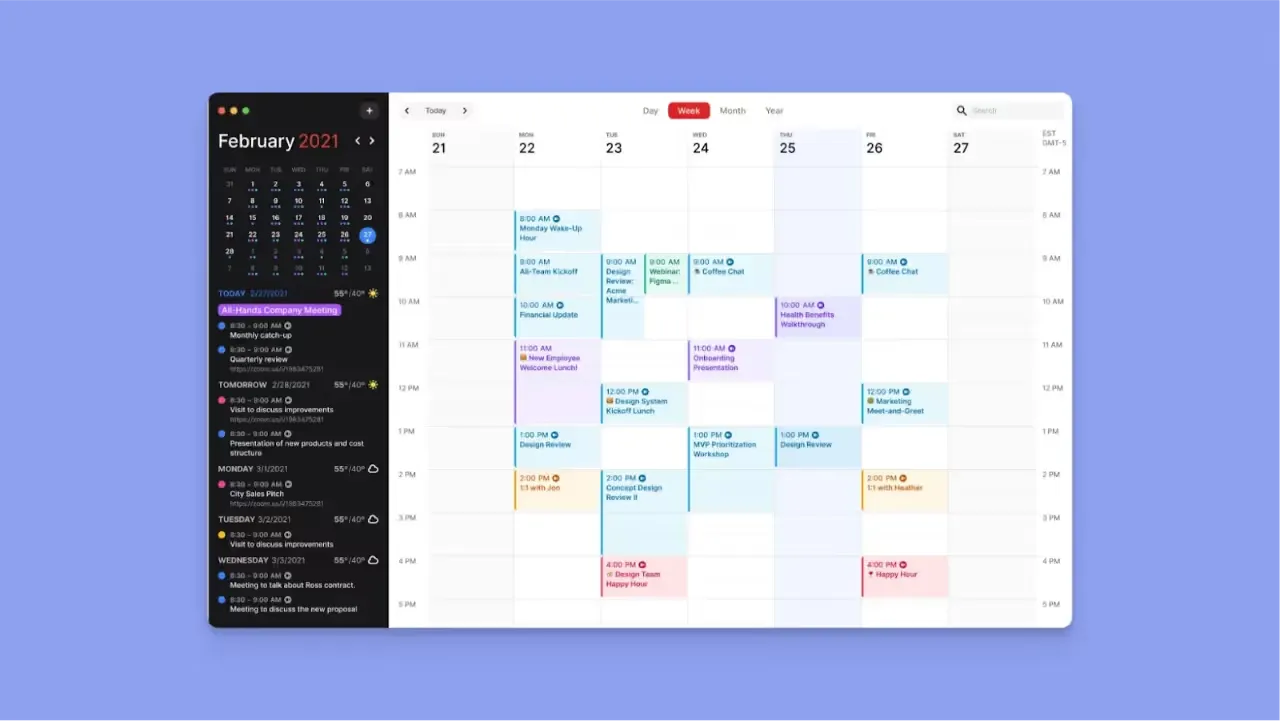
- Users whose workflows live in the Apple ecosystem
- People who need the efficiency of dragging tasks into calendar blocks and planning with natural language parsing
- Users who prefer seeing tasks and meetings in one consolidated and color-coded view instead of switching between apps
Who Is Google Calendar Best For?
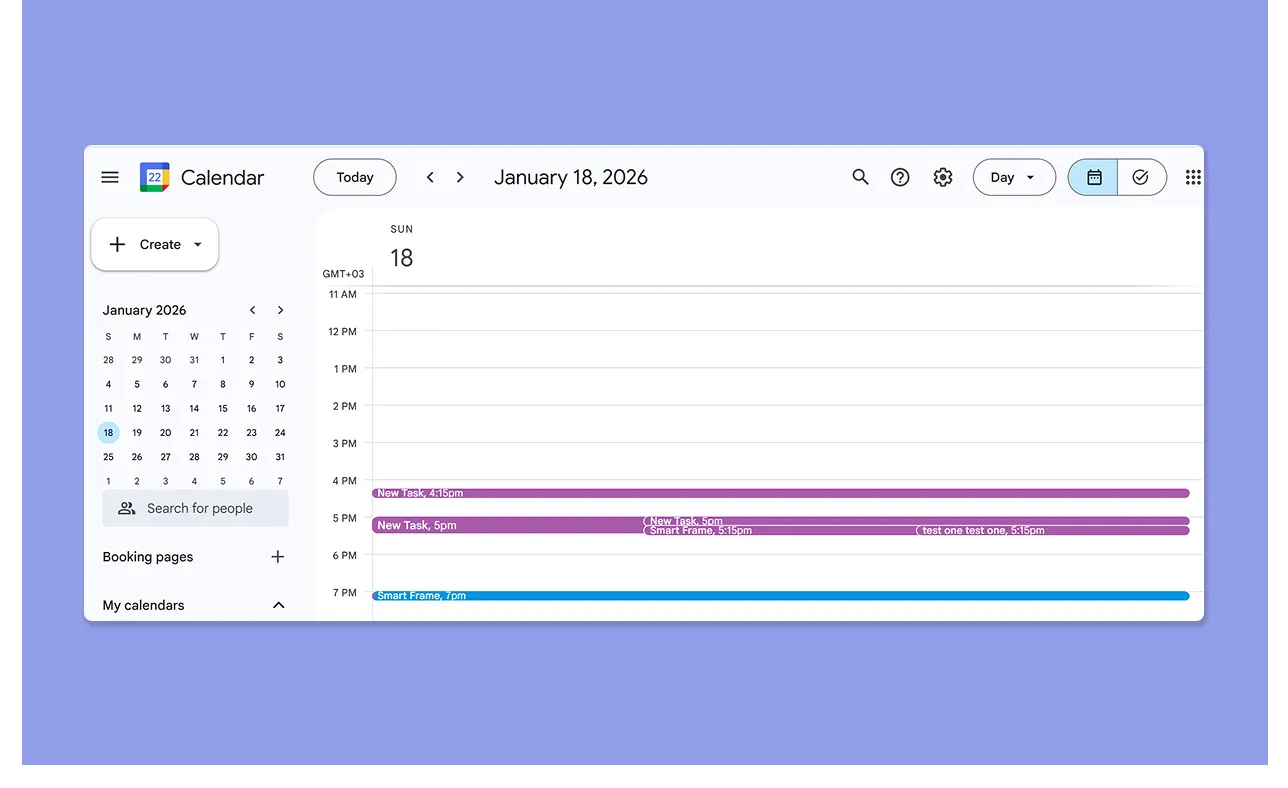
- Users who want scheduling consistency across operating systems and devices
- Individuals who want comprehensive scheduling and booking pages, automatic event generation from Gmail, reminders, recurring events, and notifications at no cost
Morgen: An Alternative to Fantastical and Google Calendar
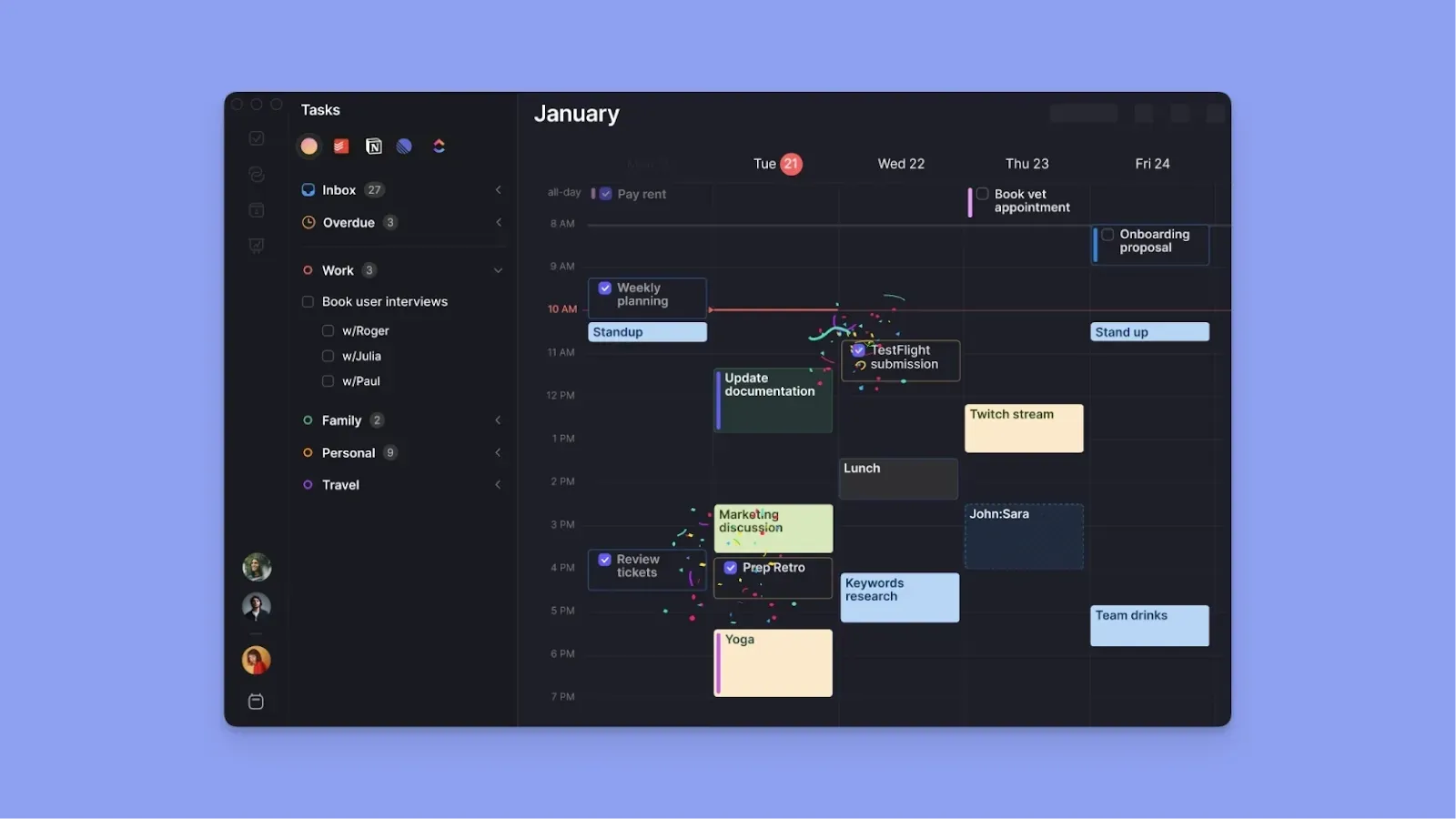
Fantastical syncs with multiple providers, but it is designed for Apple users. Google Calendar works seamlessly within the Google ecosystem across all devices but offers basic task-planning features.
Do you want an alternative that lets you add calendars, task tools, and virtual conferencing platforms, and that also works across most operating systems? Here's why that's Morgen:
- Syncs Google Calendar, Microsoft Outlook, iCloud, and Fastmail, and lets you color-code each calendar for visual clarity
- Integrates with your task managers and schedules work around calendar events
- Offers AI Planning that looks at your calendar events, available time, and priorities before suggesting where new tasks fit
- Creates and protects time blocks for tasks and events, and resolves scheduling conflicts
- The schedule you create on Morgen syncs to your Google Calendar to eliminate the back-and-forth of updating two platforms
Download Morgen 4 for Linux, Windows, Mac, iOS, and Android.
Pricing
How much will each platform cost, and how much depth and value will you get from the features? Here's Fantastical Vs. Google Calendar:
Fantastical

- Fantastical offers a limited free tier
- The $4.75/month premium subscription unlocks features such as calendar sets, task integration, weather forecasts, and scheduling tools
- Customer sentiment on pricing and value is mixed. Some feel the value matches the features, while others express frustration with price increases for a basic calendar front-end
Google Calendar
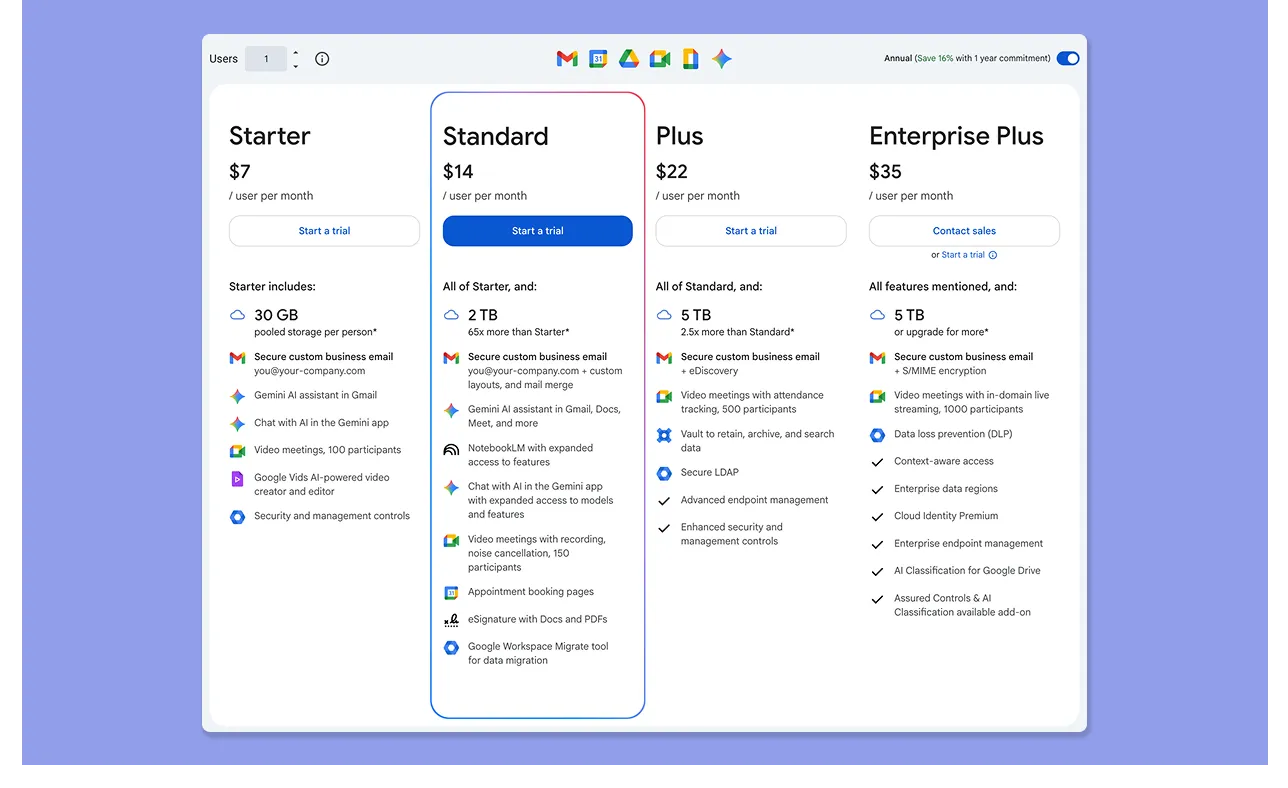
- For personal use, Google Calendar is free when you open a Gmail account
- If you need it as part of a broader work setup with shared drives and business email, that requires a Google Workspace plan, starting at $7 per user per month
- Workspace is optional for most solo users, but if your work already runs on it, you're paying for the whole suite regardless of whether Google Calendar is actually meeting your scheduling needs
Verdict
Google Calendar is more affordable for individuals, but Fantastical offers advanced calendar management and a polished experience within the Apple ecosystem.
Ease of Use
Ease of use determines how quickly you can start using the tool without navigating a learning curve.
Fantastical
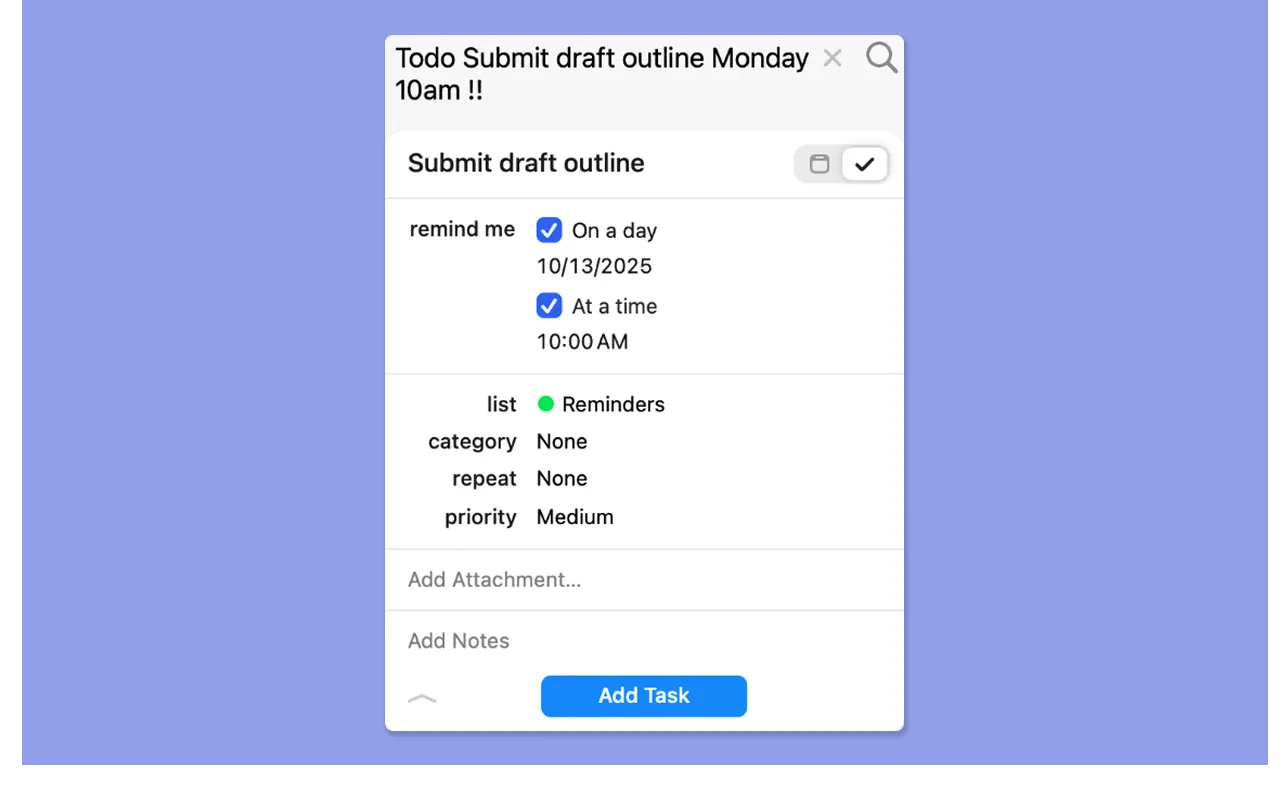
- Fantastical’s clean interface allows for easy event and task creation with natural language parsing
- You can color-code calendars and switch between them using Fantastical's calendar sets, which keep personal, work, and side project schedules visually separate
- If you type "reminder" or "todo," Fantastical understands that as a task and separates it from your events automatically
- Even so, Kelly W. says that Fantastical does not always sync across all Apple devices, meaning she needs to update tasks on all devices separately
Google Calendar
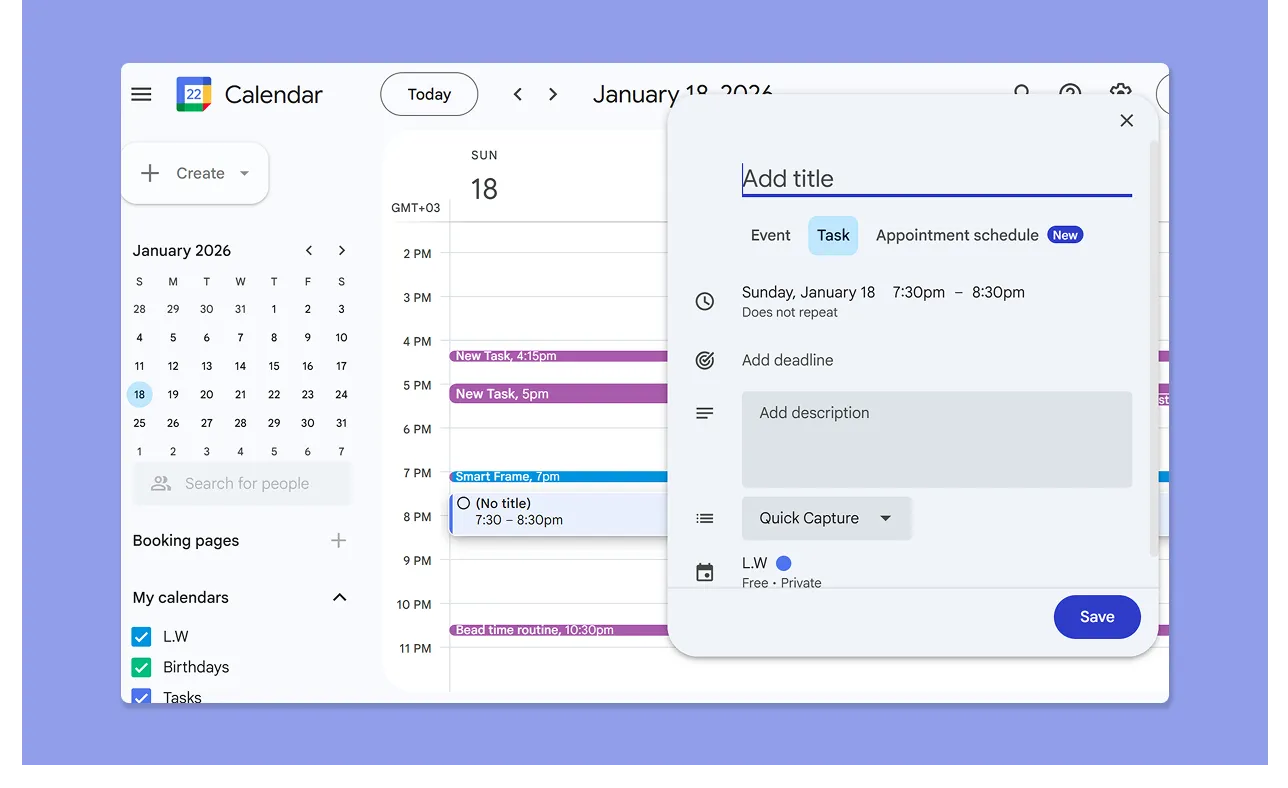
- Click "Create" or a time slot, select an event or task, type a title, add time settings, and save
- The interface is clean, but built around clicking and typing rather than any shortcut-first or natural language processing
- You can easily switch between the calendar and Google Tasks view on the same interface, and set daily, weekly, monthly, yearly, or custom views of your schedule
- One user shares that the interface can also feel cluttered and confusing when juggling many calendars
Verdict
Fantastical delivers a more advanced experience, while Google Calendar works better if you prioritize simplicity when scheduling.
Customer Support
Here's how Fantastical and GCal compare in terms of customer support:
Fantastical
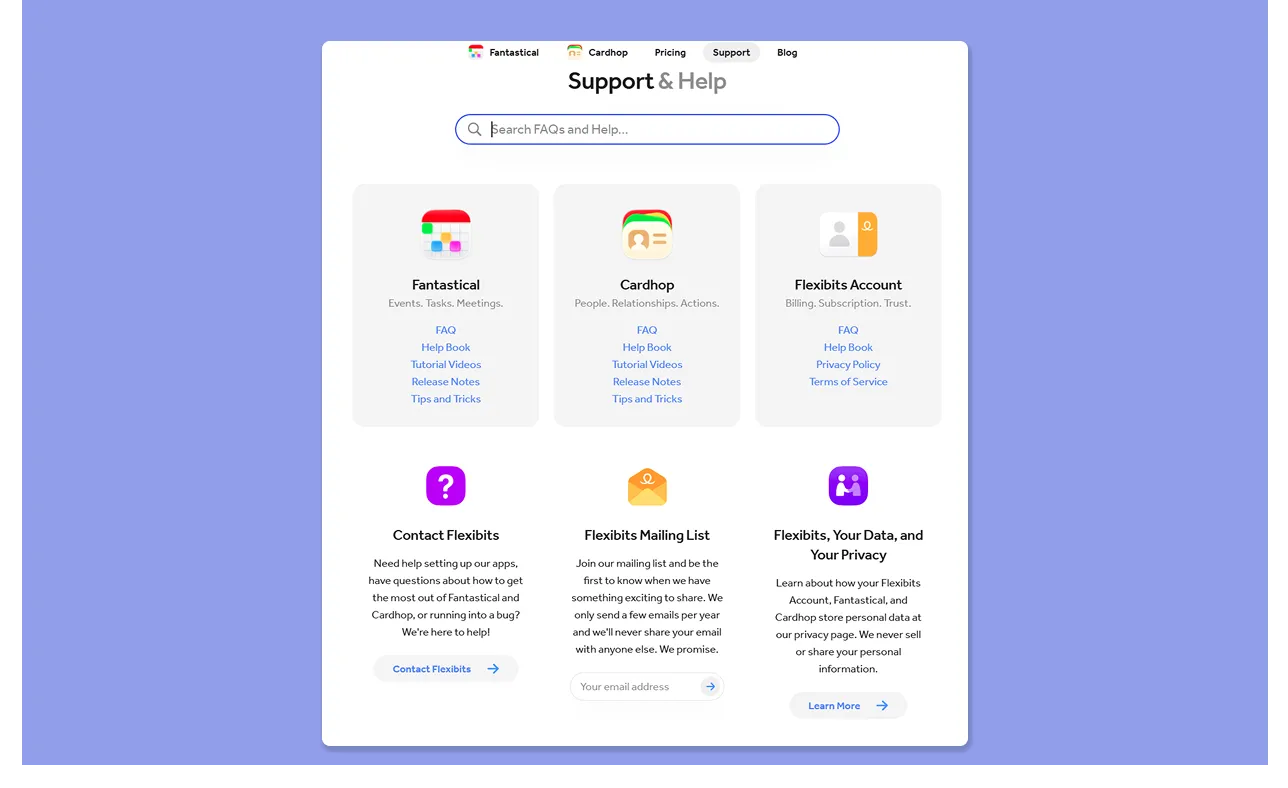
- You get email and a help desk, plus a library of tutorial videos and an FAQ page
- Users praise Fantastical's customer support for being prompt and non-judgmental
- However, there is no live chat or phone support, so if you hit a complex issue, you're waiting on an email response
Google Calendar
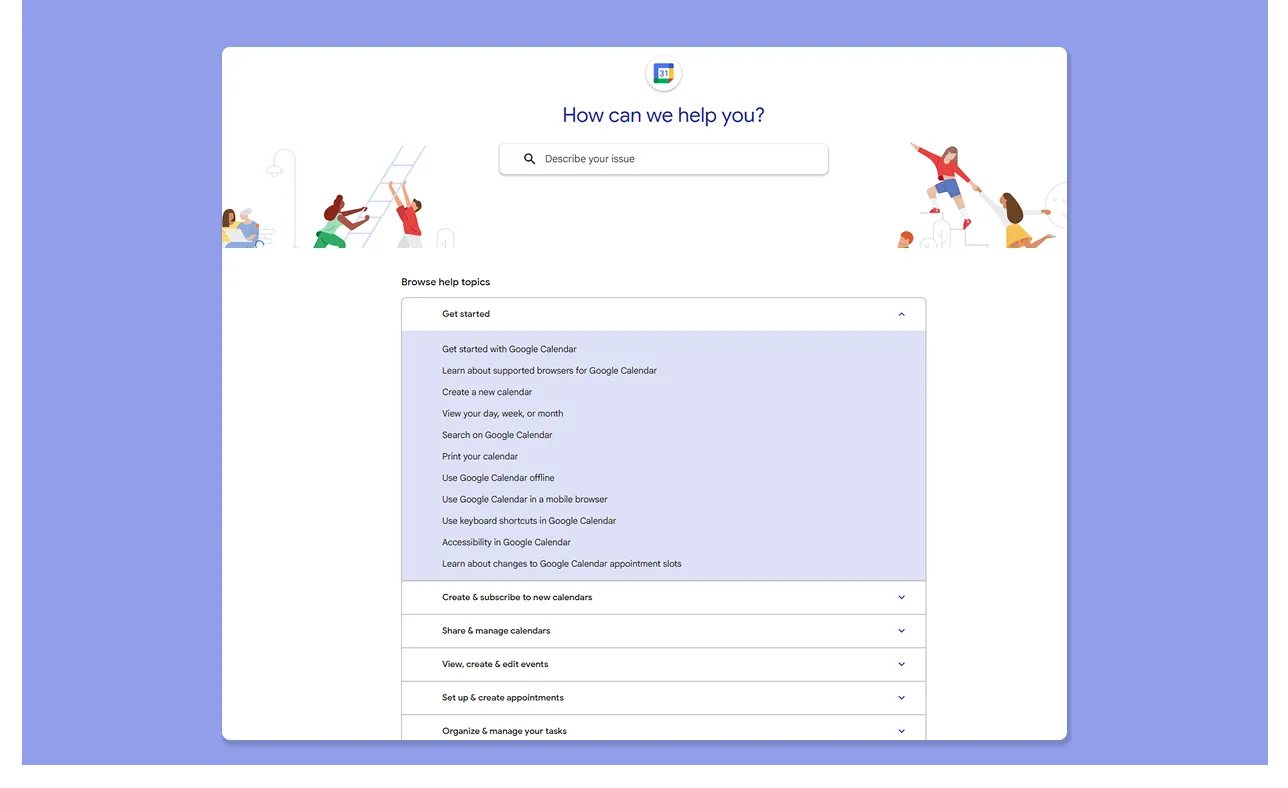
- Google offers a help center with tips, tutorials, and frequently asked questions, but there is no direct support line for individual users
- Dedicated multi-channel support is only available to Google Workspace administrators
- This Capterra reviewer shares that the customer team is great when you need to fix an issue
Verdict
Fantastical wins for responsive, direct customer support for technical issues. With Google Calendar, you get less support in comparison, especially on a free, personal plan.
Integrations
Without integrations with other tools in your stack, you end up with regular context switching that wastes productivity.
Fantastical
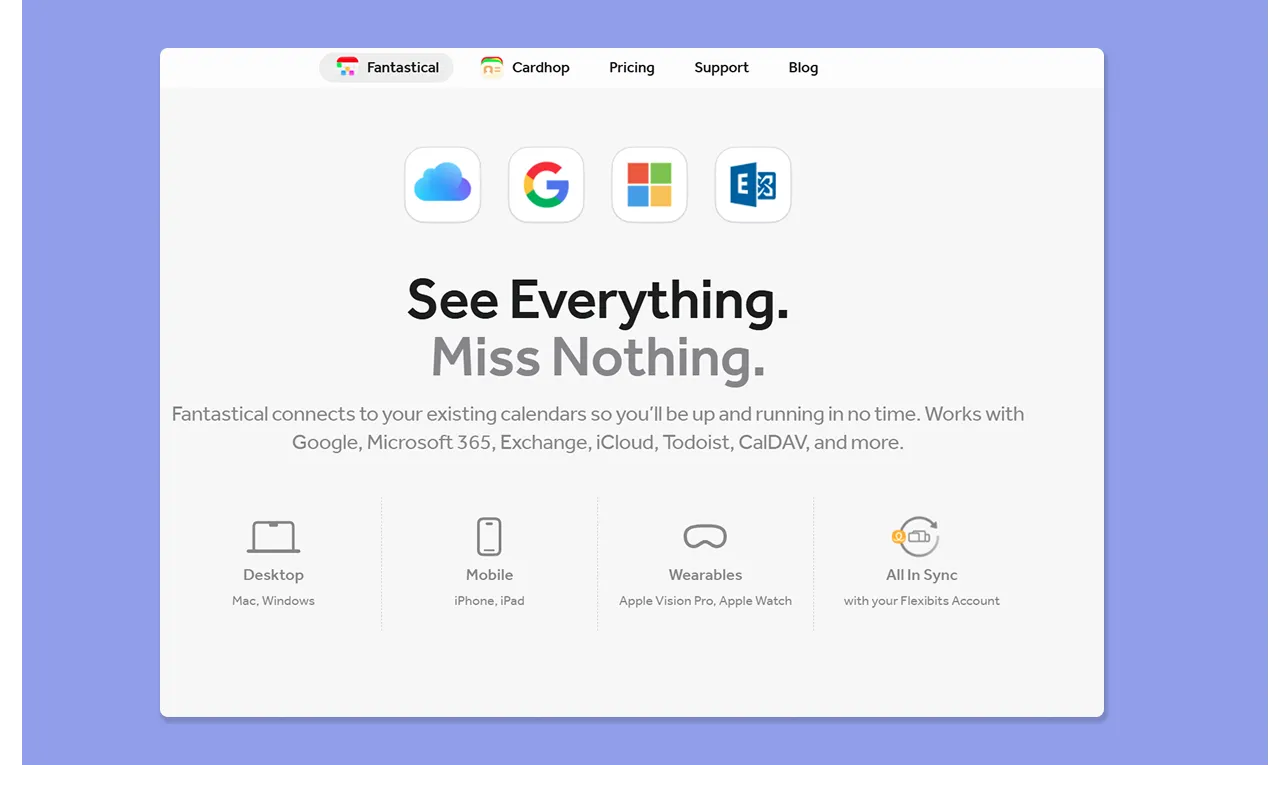
- Connects with iCloud, Google, Exchange, Microsoft 365, Todoist, plus Apple Reminders, so your tasks and calendar events sit in the same view
- Supports Zoom, Teams, and Google Meet, and has more connections via Zapier
- This G2 reviewer appreciates Fantastical’s ability to pull calendars from different sources into one unified view
Google Calendar
.webp)
- Connects natively with Gmail, Google Tasks, Google Meet, and Google Drive.
- If you're already in the Google ecosystem, most of this works without any setup
Verdict
Fantastical has more native connections than Google Calendar, although the latter is a primary integration target for most productivity tools.
How to Choose a Calendar Management Tool
82% of people have no time management system in place. When choosing a calendar management tool like Fantastical or GCal, you're ready to fix that and improve your productivity. Here's what to look for.
Calendar View and Workload Visualization
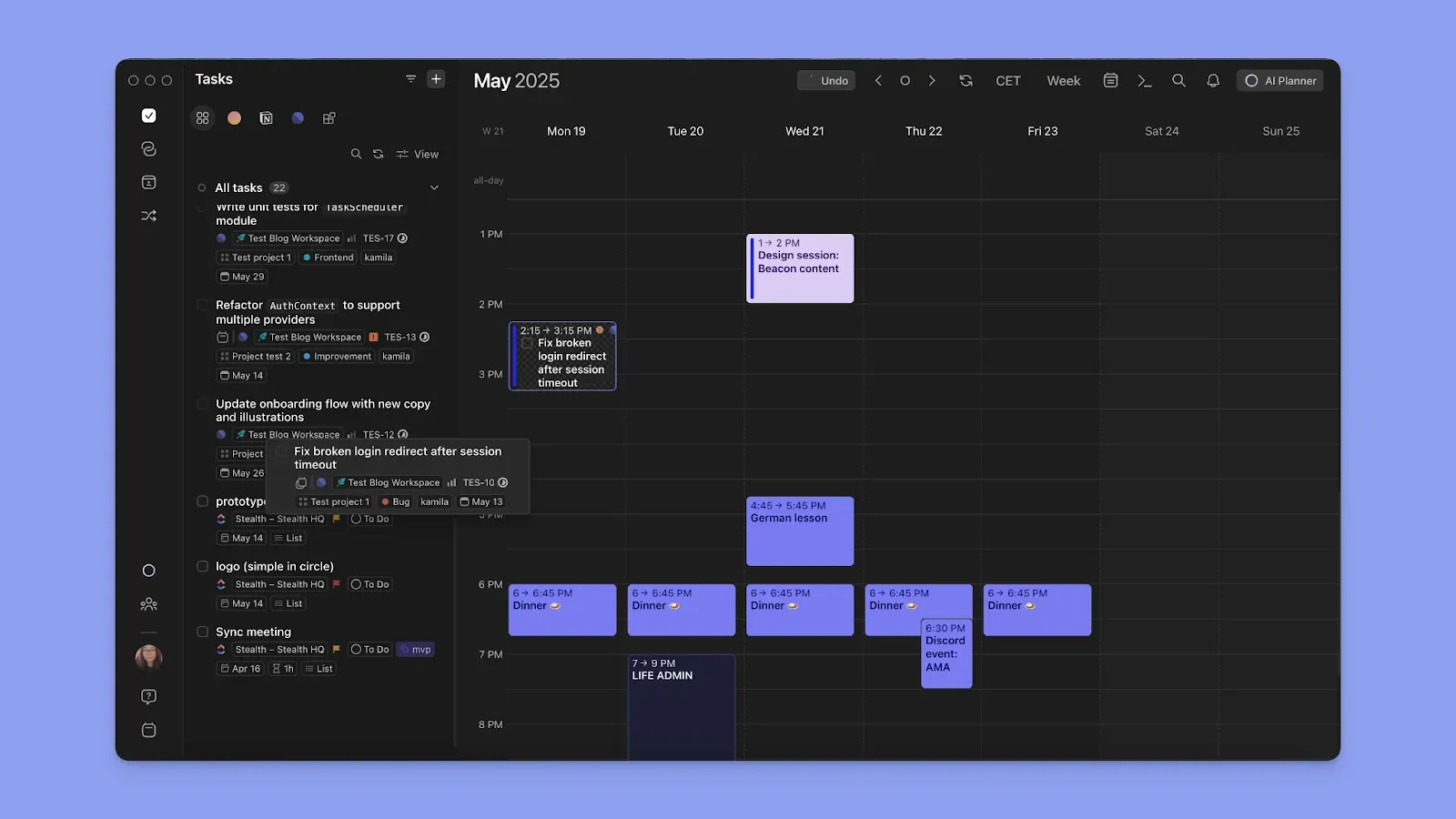
You want an interface that shows your calendar commitments, and then surfaces available time where you can schedule tasks.
Morgen offers a planning interface where you drag tasks directly into your calendar view, which syncs back to connected calendars. You see your full workload, your meetings, and your open slots in one place.
Learn how to use Morgen to create an ideal daily plan.
Time Blocking and Focus Protection
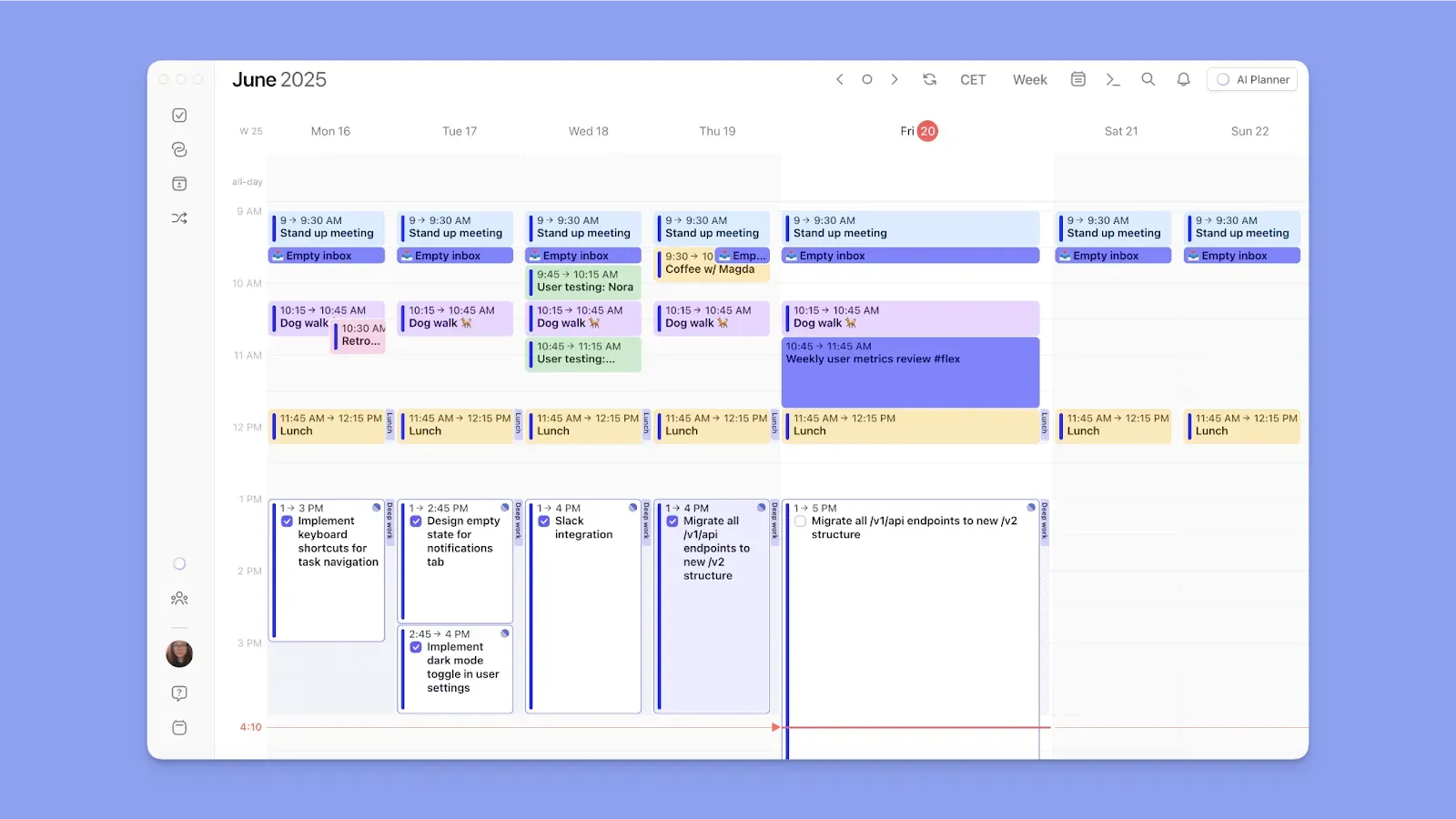
Fantastical handles focus blocks better than Google Calendar. Morgen also turns every task you schedule into a time block on your calendar, and you can also create Frames for specific types of work.
Cross-Platform Availability
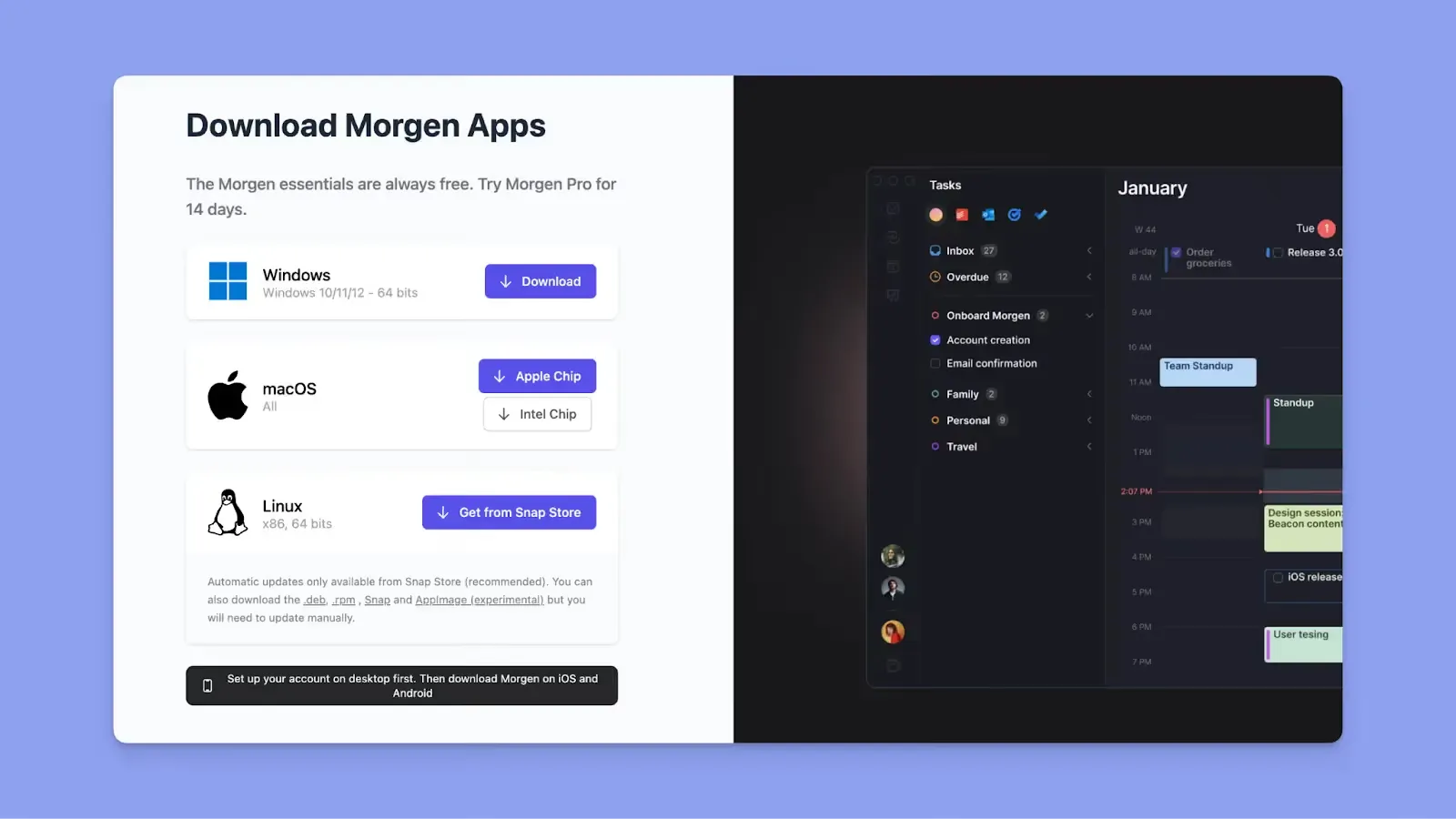
When choosing, you need a tool you can access on different devices and operating systems. Morgen runs natively on Mac, Windows, and Linux, with mobile apps for iOS and Android.
You can also get Morgen's free Easy Tasks Chrome extension to capture tasks from any webpage directly into your calendar.
Alternative To Fantastical and Google Calendar: Morgen

Morgen provides more planning features than Fantastical and can also integrate your Google Calendar to access advanced scheduling and management options.
Key Features
Here’s what makes Morgen an alternative if you’re comparing Google Calendar vs. Fantastical:
Deep Integrations
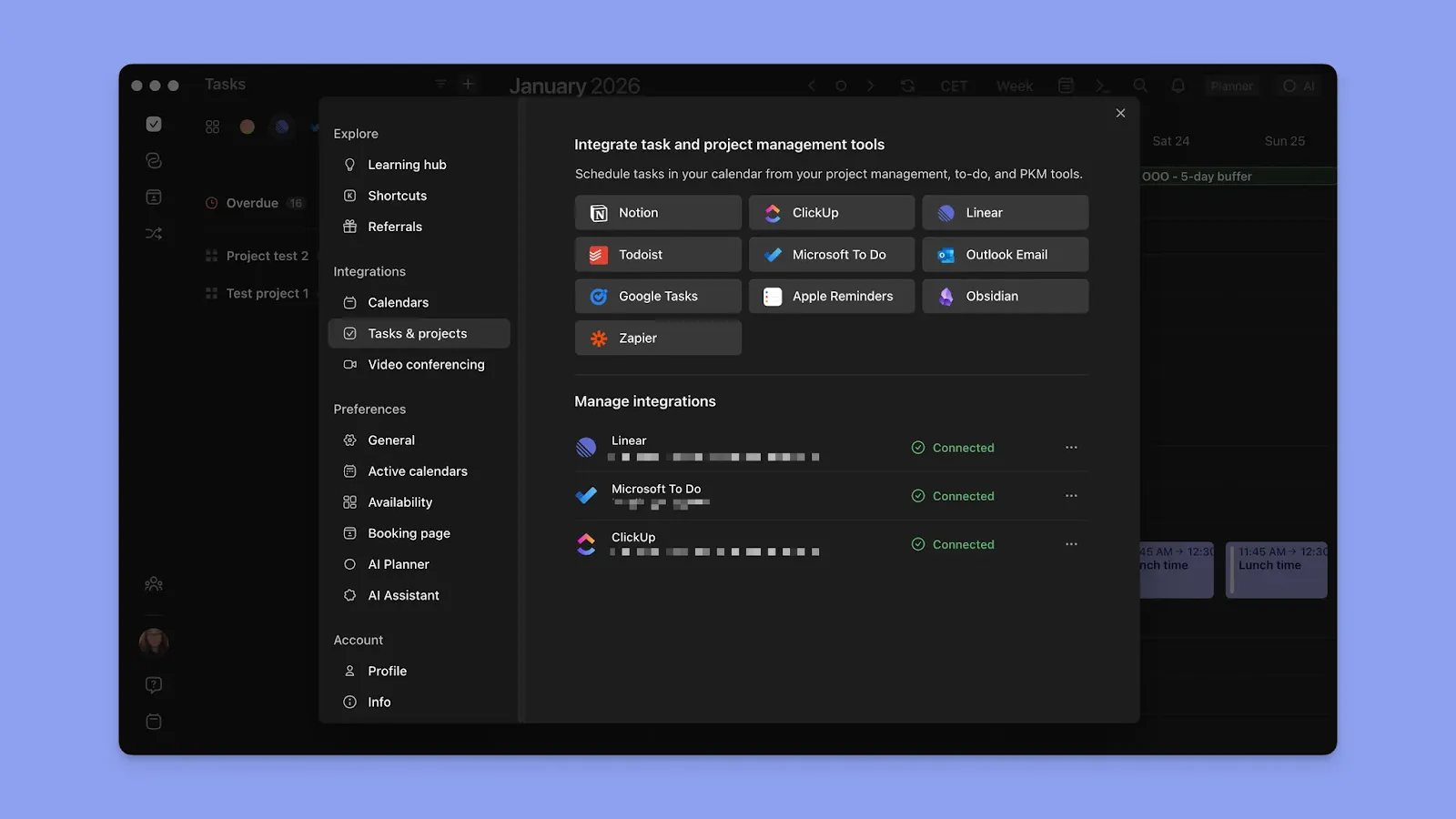
You can pull in tasks and their parameters (including dates and priorities) from Microsoft To-Do, Todoist, Notion, Linear, Google Tasks, Obsidian, and ClickUp.
Then create a task list and drag work into the calendar view, which syncs with Google Calendar, Microsoft Outlook, Fastmail, and Apple Calendar.
AI Planner
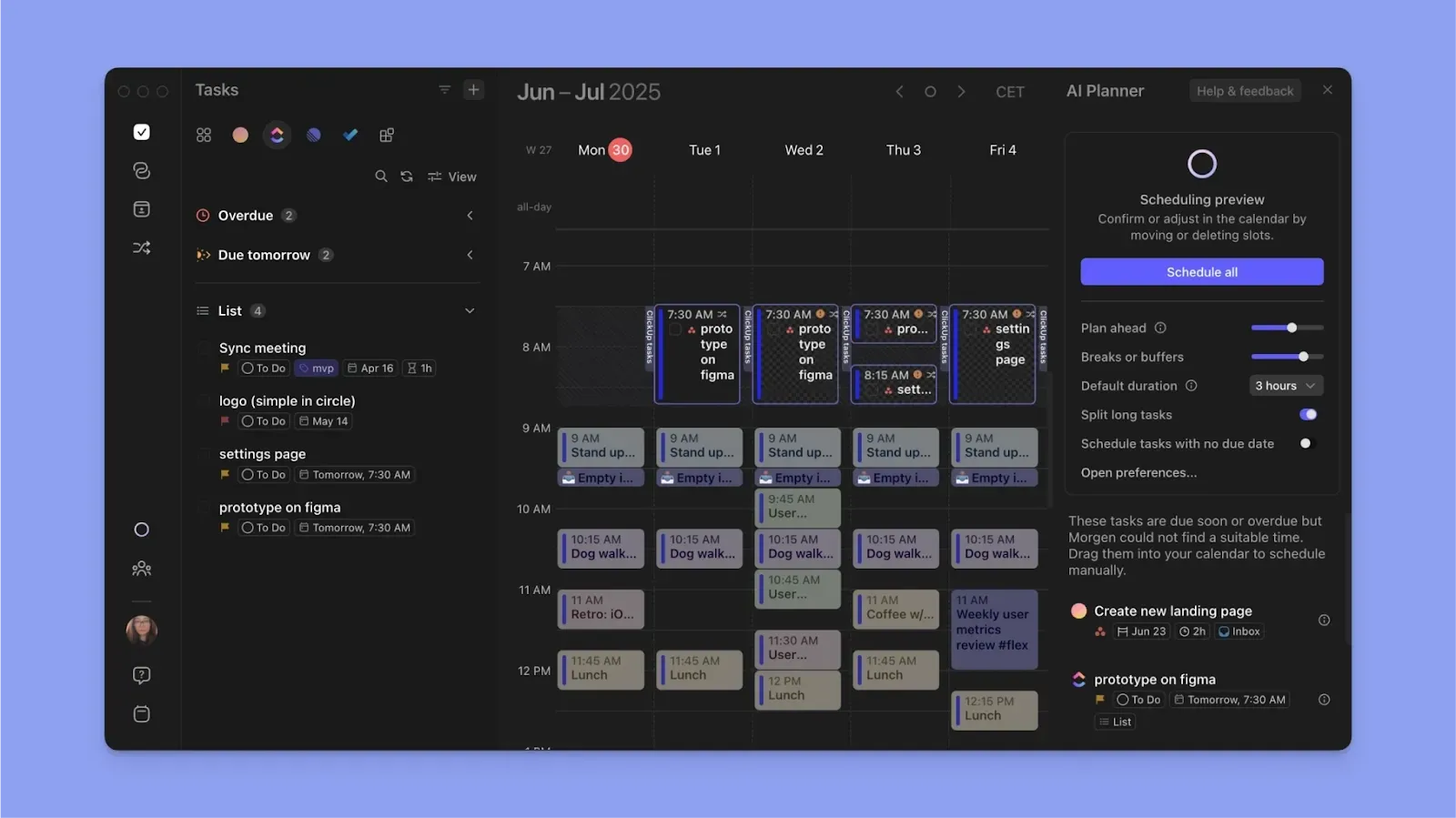
Morgen’s AI planner surfaces scheduling suggestions after analyzing your calendar commitments, task deadlines, durations, and priorities.
Frames for Recurring Time Blocks
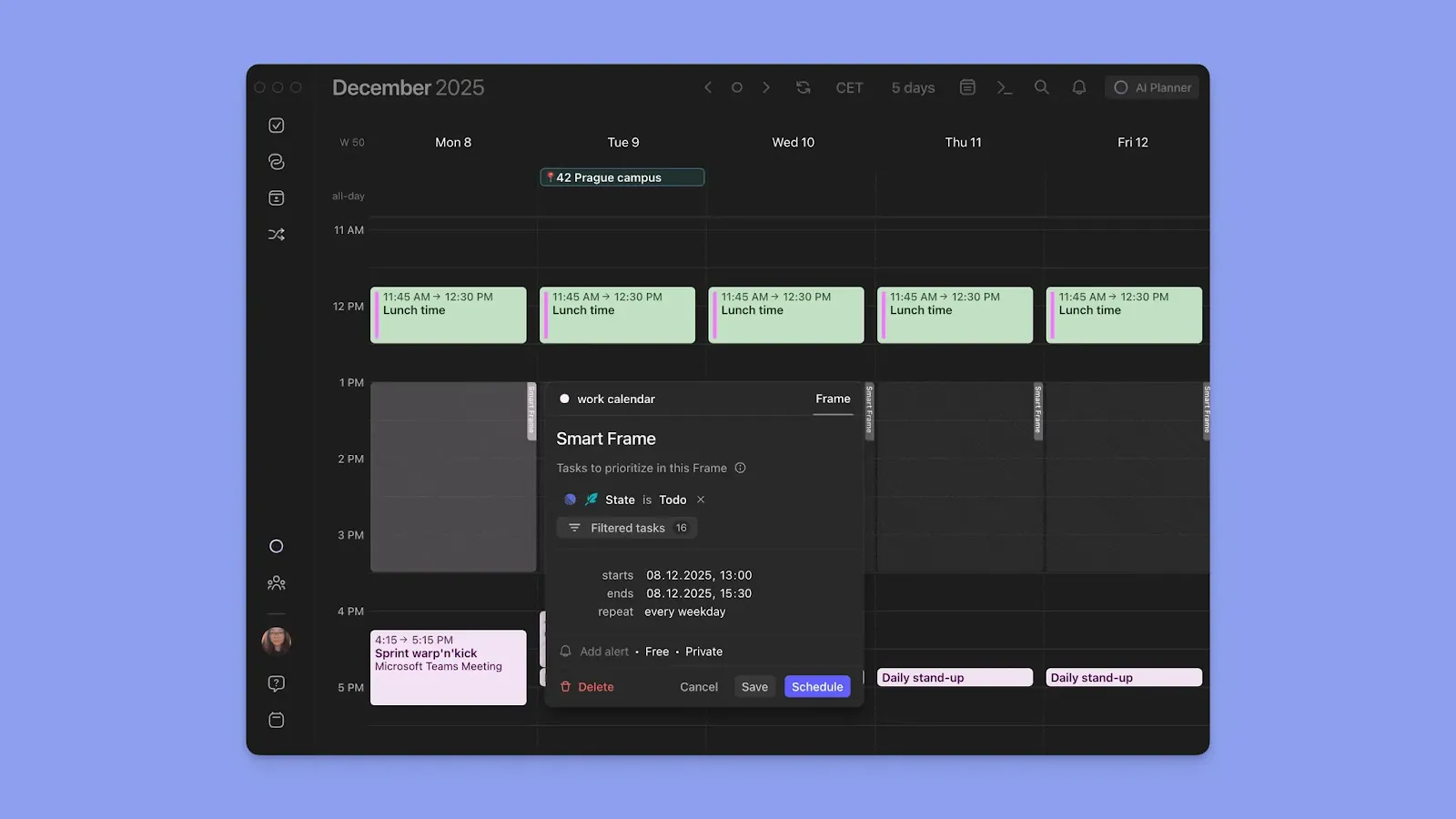
Once you add tasks to Morgen, you can also create Frames to create recurring focus blocks for handling specific types of work.
Click a free space on your calendar view, then "Frame," and add filters for which tasks appear there. Next, add start and end dates, plus how often the Frame repeats.
Create Calendar Events Without Switching Apps

While Morgen lets you sync calendars to consolidate all your events in one interface, it also makes it easy to create and schedule new calendar events.
Click any free space on your calendar view, create an event or routine, and assign it to specific calendars. Alternatively, you can also use the Morgen voice assistant or the command bar to create calendar events with NLP.
Pricing
All Morgen plans come with a 30-day money-back guarantee.
Where Morgen Shines
- Google Calendar management: Connect your Google Calendars to Morgen and view your commitments on one plane
- One app for time and task planning: With the depth of integrations, Morgen lets you plan on the same interface without context switching
- ADHD features: The AI planner simplifies decisions for professionals with executive dysfunction and time blindness. ADHD brains who also prefer visual structure benefit from Morgen's color coding that explains how workloads are balanced
- Notifications and reminders: Morgen lets you set custom notifications and event alerts for different calendars. You can also set custom reminders before each task begins
- Meetings and team support: Morgen lets you create booking pages, scheduling links, and multiperson scheduling links for professional meetings. You can also view team availability to avoid conflicts when scheduling meetings, and auto-schedule travel time buffer times for your meetings and tasks.
Where Morgen falls short
- Not a project management tool: Morgen is a task planner, so it doesn't offer team-based project planning or tracking with task dependencies and ownership
Customer reviews
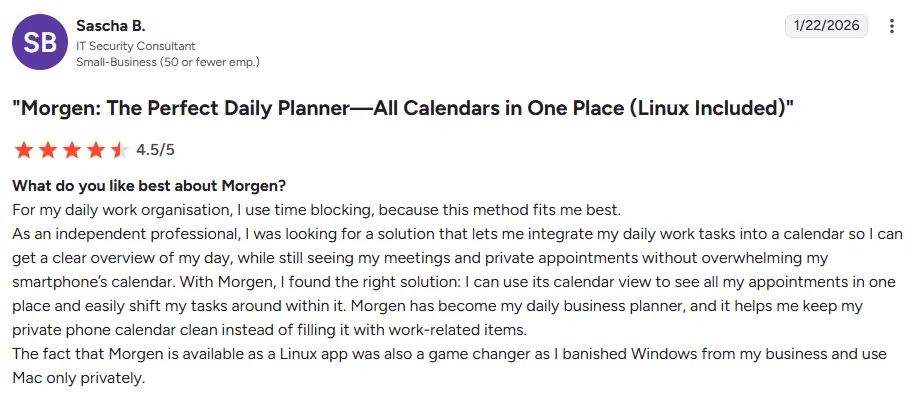
"I can use its calendar view to see all my appointments in one place and easily shift my tasks around within it," shares Sascha B.
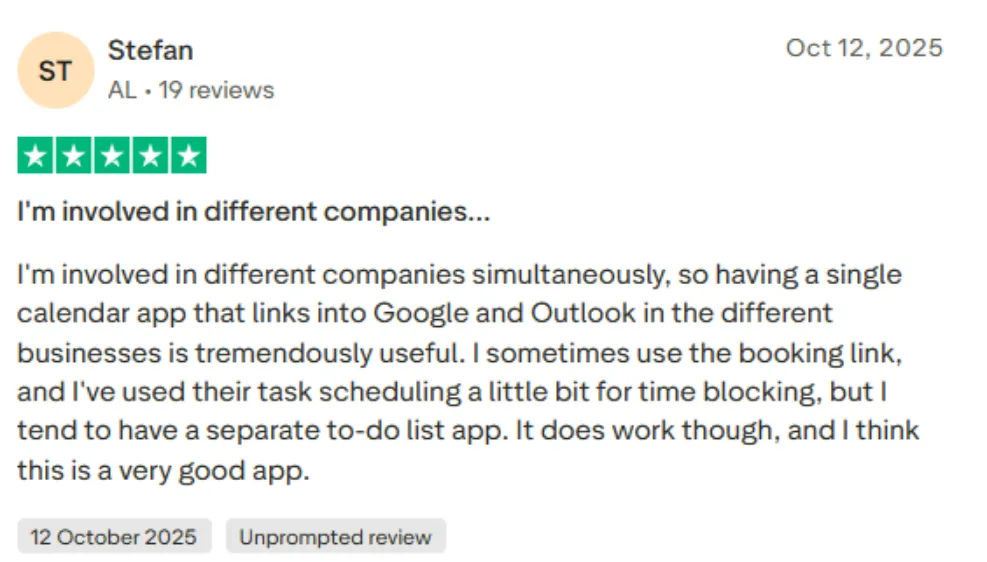
"Having a single calendar app that integrates with Google and Outlook across different businesses is tremendously useful," shares Stefan.
Who Morgen is best for
- Busy professionals juggling multiple calendars and tools: Individuals who use a calendar-first task planner that pulls events and tasks into one view across, plus AI-assisted scheduling with human approval
Here's how to get started with Morgen Tasks now.
Fantastical vs Google Calendar vs Morgen: Which One Should You Choose?
If you don't need extensive task planning around calendar events, Google Calendar may work for you. But for a management layer for Google Calendar, consider Fantastical and Morgen.
Morgen is an alternative to Fantastical for Windows and Linux for an AI Planner that schedules around your existing commitments. You'll also get numerous task tool integrations and advanced planning features like Frames to simplify daily scheduling.
Start your free trial of Morgen to start planning.

.svg)
.webp)