.svg)
→ Choose Morgen if you want the best AI-assisted scheduling that keeps you in control: best for goal-oriented solo professionals who want a visual interface with smart suggestions for when to work on what
→ Use Akiflow or Sunsama, if you prefer manually dragging tasks into calendar time blocks: works for structured daily planners who need full control when scheduling tasks
→ Pick Fantastical or Notion Calendar if you mainly manage meetings and events on a calendar grid: best for Apple users or Notion database users who want simple drag-and-resize event scheduling
→ ClickUp or Monday will work for you if you want collaborative planning inside a project workflow: best for teams managing complex projects and want to drag tasks across calendar views
If you use specific calendars for meetings and have to-do lists scattered across task managers, you probably start each morning planning what to do and when. The problem is, lengthy daily planning steals time from actual work.
But you can use a drag-and-drop calendar planner to consolidate tasks and events in one view. With it, you can drop tasks into available time blocks on a calendar view that syncs to all connected calendars.
Here are our best picks.
9 Best Drag-and-Drop Calendars in 2026: A Quick Overview
| App | Best For | Standout Feature | Starting Price | G2 Rating | Capterra Rating |
|---|---|---|---|---|---|
| Morgen | Professionals who want AI-assisted planning | Task and calendar integrations, drag and drop, human-in-the-loop AI Planning, and voice planning | $15/month | 4.8 | 5.0 |
| Akiflow | Individuals who want a unified task inbox | Consolidate tasks, drag directly into Google/Outlook slots | $19/month | 4.8 | 4.7 |
| Sunsama | Structured daily planners | Drag tasks into the daily calendar plan, manual rescheduling | $20/month | — | 4.7 |
| Fantastical | Apple users | Create and drag events into calendar time slots | $4.75/month | 4.4 | 4.8 |
| Notion Calendar | Notion database users | Drag database items into calendar view | Free (included with Notion) | 4.7* | 4.8* |
| Structured | Visual daily timeline users | Drag items into the daily timeline and resize blocks | Free, Paid tier | — | — |
| ClickUp | Teams planning project tasks | Drag across calendar/timeline views; project-first | Free, $7/user/month | 4.7 | 4.6 |
| Monday | Team workload scheduling | Drag tasks across dates and boards | Free, $9/seat/month | 4.7 | 4.6 |
| Routine | Individual planners with light workflows | Drag tasks from the inbox into the calendar timeline | Free, $10/month | 3.8 | — |
1. Morgen: Best Drag-and-Drop Calendar for Multi-Tool Planning with AI Suggestions

Morgen is ideal for people who want to schedule scattered task lists directly on their calendars. It imports tasks from multiple tools so you can drag them into time blocks, while the AI Planner suggests available slots.
Key Features
Here’s how Morgen handles planning across tasks and calendars.
Drag-and-Drop Scheduling

Connect with tools to import existing tasks automatically, or click the “+” button in the left panel to create new and recurring tasks directly inside Morgen. You can also create, edit, and schedule tasks with your voice.
Once you have a task list, drag any task into an open time slot on the calendar view. You can resize the block to adjust duration, move it across days, or schedule the task for multiple sessions.
Tip: Prefer a different scheduling style? Morgen also supports AI-assisted planning, where the AI suggests a full-day plan that you approve.
Deep Task and Calendar Integrations

Integrate with Notion, Linear, ClickUp, Todoist, Obsidian, Google Tasks, Apple Reminders, and Microsoft To Do to import tasks into your unified sidebar. Morgen also syncs with Google Calendar, Outlook, Fastmail, and iCloud.
Tip: Use Zapier to connect additional tools in your stack, or Morgen to link specific task tools to specific calendars. For example, create a direct connection between
AI Planner and Frames for Structured Scheduling

Once you’ve built your task list with added priorities, deadlines, start and end dates, and time estimates, you can hand off the heavy lifting to the AI Planner. It offers a human-in-the-loop workflow, scanning your calendar for availability, identifying tasks that need attention, and suggesting a new plan that you confirm before scheduling.
Frames also let you define focused time blocks for specific types of work, such as Deep Work, Admin, or Meetings. Manually drag tasks into these Frames, or let the AI suggest which tasks should fill that time.
Note: Even after
Pricing
Note: If you're switching from Sunsama, Motion, Reclaim AI, or Fantastical, get 15% off your first year on an annual plan.
| Plan | Monthly | Yearly |
|---|---|---|
| Individual | $30 | $15/month |
| Team | $25/seat | $10/seat/month |
Where Morgen Shines
- Calendar-first efficiency: The interface prioritizes visual planning directly on the calendar grid, with real-time updates across all connected calendars when you schedule
- Fast task capture: Add tasks from integrations, create them via the command bar, or use voice input through the AI assistant
- Calendar Sets: Allow you to switch between specific calendars for a focused view
- Schedule propagation: Every scheduled task, event, routine, or Frame becomes a calendar block that syncs across connected calendars
- Smart customization for easier scheduling: Sort and filter tasks by priority, source, estimated time, start date, due date, tag, or last updated to identify what to schedule first
- ADHD-friendly structure: Color coding, time and routine blocks for recurring habits, and AI-assisted suggestions reduce planning overwhelm
Where Morgen Falls Short
- Limited project management depth: Not built for complex project planning with boards, works best with structured task-based workflows you already use
Customer Reviews
“You can assign tasks manually by dragging and dropping them into time slots on the calendar,” shares a G2 reviewer.

Kalyn B uses Morgen to “time block all of my tasks simply by dragging and dropping them into my calendar.”

Who Morgen Is Best For
- Solopreneurs, developers, marketers, and ADHD professionals: who need a scheduling software with unified task integrations, AI scheduling support, and structured time-blocking across multiple calendars
Try Morgen’s free trial for 14 days.
2. Akiflow: For Daily Manual Drag-and-Drop Planning from a Unified Inbox

Akiflow is built for people who prefer planning their day manually. It pulls tasks from multiple apps into a universal inbox so you can drag them directly into calendar time blocks.
Key Features
- Universal Inbox: Akiflow pulls tasks from Gmail, Slack, Notion, Asana, and more into one stream
- Drag-and-drop time blocking: Pull tasks directly from the universal inbox onto your calendar to schedule them
- Time Slots: The Timeslots feature lets you allocate a block of time for multiple small tasks
Pricing
| Plan | Cost |
|---|---|
| Monthly | $34/month |
| Annual | $19/month |
Where Akiflow Shines
- Keyboard-first power users: Akiflow offers keyboard shortcuts for all planning features
- Aki (natural language input): Type a task the way you'd say it out loud, and Aki structures it with the right metadata automatically, so you drag it straight onto your calendar
Where Akiflow Falls Short
- Manual replanning burden: Akiflow gives you surgical control, but there is no true scheduling automation outside of the actions you manually make
- No native subtask support: Akiflow doesn't currently support subtasks. When you drag a complex task onto your calendar, you can't break it into smaller steps within the same block
Here are 8 Akiflow alternatives you can consider.
Customer Reviews
“The drag-and-drop scheduling feature is user-friendly, allowing flexibility in adjusting time slots as needed,” Sophie M.

Claudio C shares, “While creating duplicate tasks is easy, would be nice if you could select tasks and easily move them from one project to another. Instead of just dragging.”

Who Akiflow Is Best For
- Keyboard-driven professionals who prioritize speed and control over automation, and prefer to set each time block themselves rather than letting AI shuffle their schedule
3. Sunsama: For Structured, Manual Drag-and-Drop Planning for Individuals

Sunsama offers a structured morning planning ritual that helps you stay focused. Its calm, distraction-free interface encourages intentional scheduling, letting you drag each task into your calendar instead of relying on automated planning.
Key Features
- Drag-and-drop timeboxing: Timebox tasks onto the calendar by dragging and dropping them onto the calendar view, syncing to Google and Outlook calendars
- Guided daily planning ritual: Prompts you to review the tasks you completed yesterday, choose what you will focus on today, and move non-essential items to another day or to the backlog
- Email and Slack to tasks: Drag emails that require heads-down work into your task list and set aside time to work on them. Turn Slack and Teams messages into tasks
Pricing
| Plan | Monthly | Yearly |
|---|---|---|
| Basic Pro | $25/month | $20/month |
| Power Pro | $65/month | $50/month |
Where Sunsama Shines
- Ritual-driven planning for ADHD brains: Sunsama's calm, distraction-free interface strips away the visual noise that makes planning feel overwhelming
- Two-way sync across all major integrations: All integrations sync two-way, so completing a task in Sunsama updates it in the source tool automatically
- Burnout prevention: Sunsama warns you when your day is packed and keeps a realistic view of how much you can actually get done
Where Sunsama Falls Short
- Capped planning horizon: You can only schedule tasks up to two weeks out, unlike these Sunsama alternatives that offer more
- No AI-assisted recovery when your day breaks: When a new meeting lands mid-day, you rebuild your schedule manually
Customer Reviews
“Manual drag and drop tasks for day planning is far more effective than AI pretending to do it for you,” Gareth H.

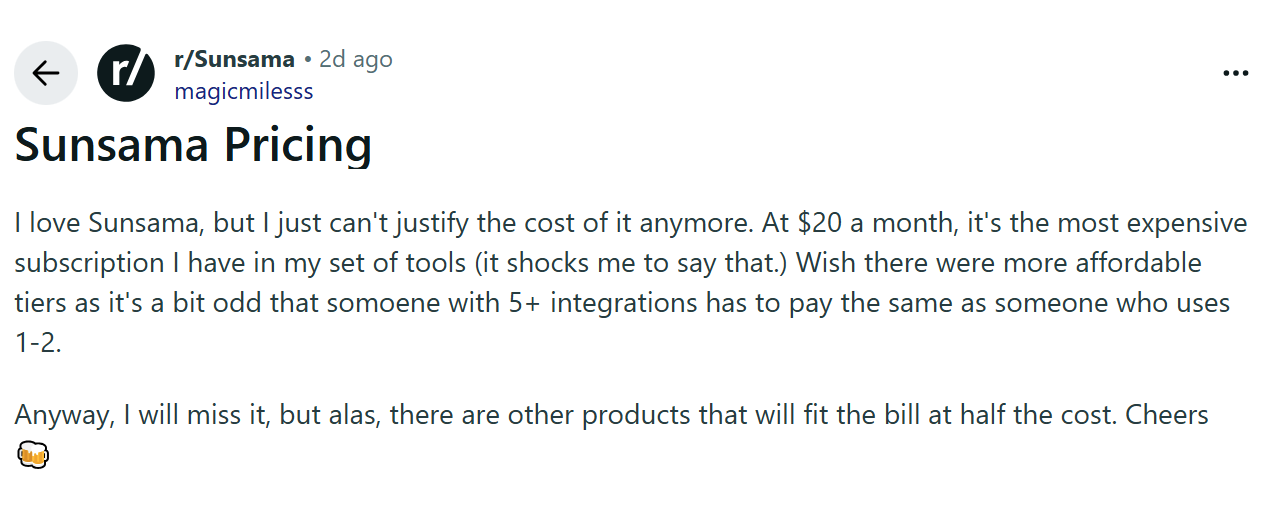
After the recent pricing change, this Redditor says, “I love Sunsama, but I just can't justify the cost of it anymore.”
Who Sunsama Is Best For
- Individuals who prefer manual planning: People who want to personally decide what gets scheduled and when by dragging tasks into time blocks
4. Fantastical: For Dragging and Resizing Events Across Apple Calendars

Fantastical is a calendar designed for Apple users who manage meetings and events. It helps you quickly drag, resize, and reposition events across your calendar.
Key Features
- Drag-and-drop event scheduling: Place your cursor where you want the event to start, then click and drag to the time you'd like it to end
- Calendar Sets: Group different task lists and calendars together via calendar sets to keep work and personal views separate
Pricing
| Plan | Monthly | Yearly |
|---|---|---|
| Free | $0 | $0 |
| Individual | $6.99/month | $4.75/month |
| Family (up to 5) | $10.49/month | $7.50/month |
| Team | $6.99/user/month | $4.75/user/month |
Where Fantastical Shines
- Task support: Fantastical supports iCloud Reminders, Todoist, and Google Tasks. Create tasks by starting sentences with "tasks," "todo," "reminder," or "remind me to"
- Visual planning across multiple calendar sources: Fantastical pulls Google, Outlook, and iCloud into one view
Where Fantastical Falls Short
- No native task drag-and-drop: Compared to most Fantastical competitors, there’s no built-in task inbox to pull from, so time-blocking tasks into your day turns them into events
- Tasks don't reconcile with your plan: Completing a time block on the calendar doesn't mark the underlying task as done, which adds manual cleanup to every planning session
Customer Reviews
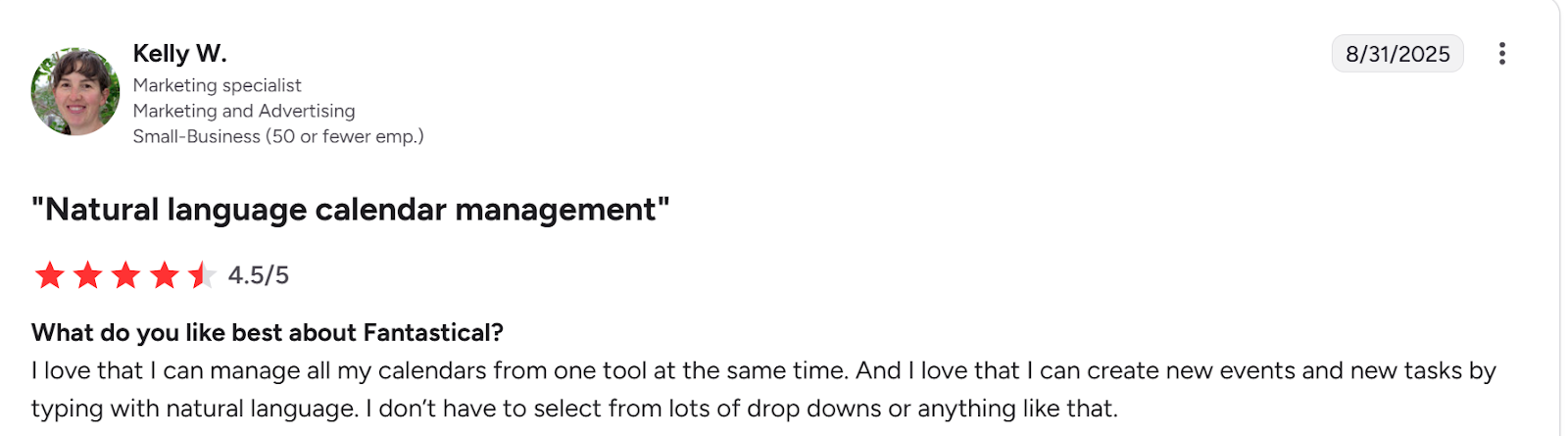
“I love that I can manage all my calendars from one tool at the same time,” shares Kelly W.
This user on Reddit shares that tasks scheduled on Fantastical become events automatically:

Who Fantastical Is Best For
- Apple-first individuals who want a visually clean, drag-and-drop calendar software that works seamlessly across Mac, iPhone, and iPad
5. Notion Calendar: For Dragging Database Tasks onto a Calendar
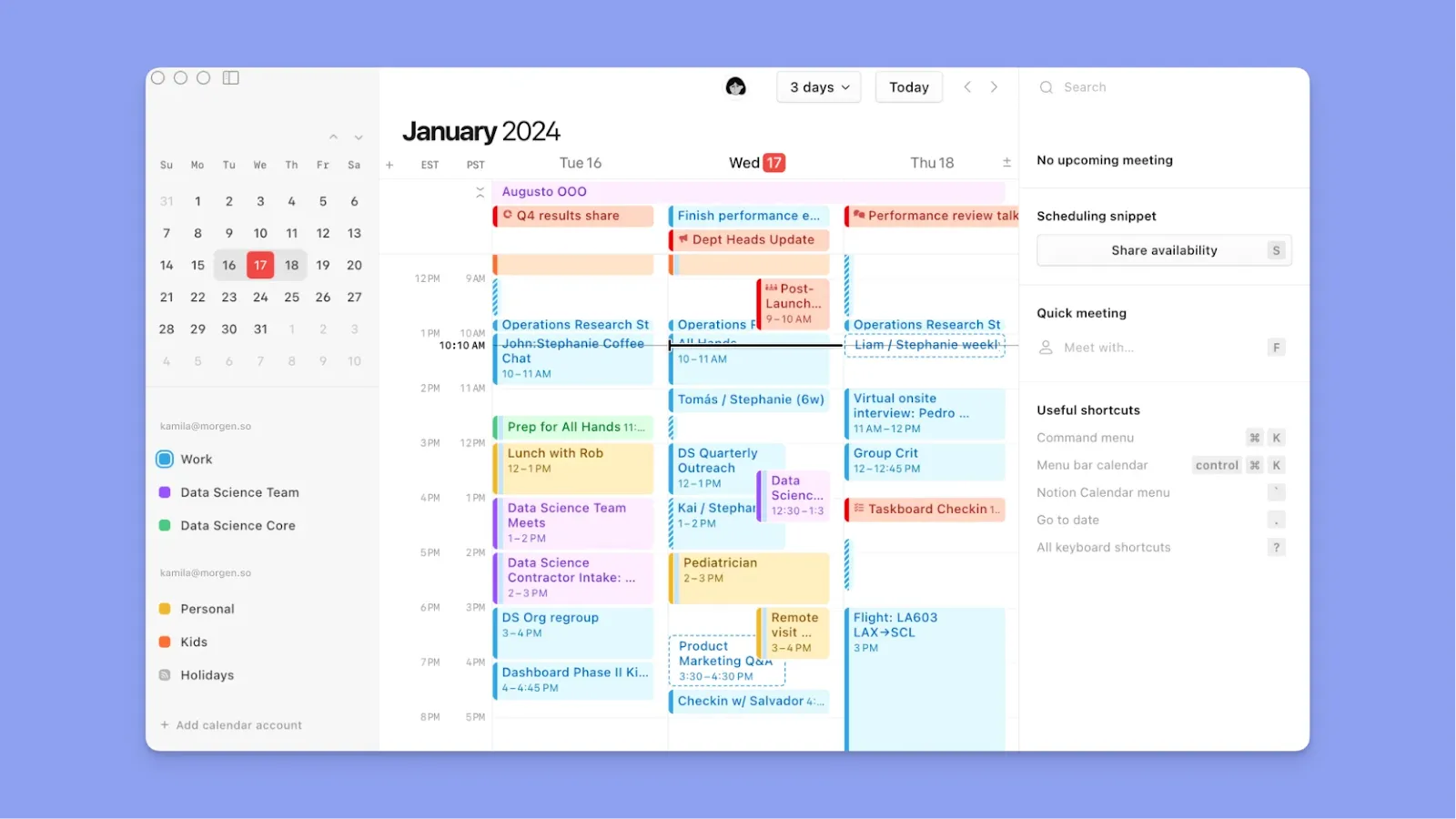
This calendar works if you work primarily in Notion. You can create task lists or project databases, then connect to Notion Calendar and drag them directly onto your calendar to time-block your day.
Pro tip: If you want to sync Notion data to more calendars, Morgen lets you create direct links
Key Features
- Drag-and-drop from Notion databases: You can drag and drop database items to specific times in the day
- Google Calendar and iCloud integration: Notion Calendar integrates and syncs with Google Calendar accounts and Apple iCloud-synced calendars
Pricing
Notion Calendar is free with any Notion plan.
Where Notion Calendar Shines
- Fast sync with Notion: Dragging a task onto a time slot updates the source database automatically
- Create events without leaving the calendar: You can click any open time slot directly in Notion Calendar and create an event on the spot. You can also create multi-day events by selecting a time slot and dragging it across the days the event will span
Where Notion Calendar Falls Short
- No AI-assisted rescheduling: Notion Calendar won't automatically schedule your tasks or help you plan your day
- Sync is unreliable: An event created in Notion Calendar may update in your connected calendar, but an edit in Google Calendar won't always push back into a Notion database
Customer Reviews
“The calendar feature is helpful,” shares Priya S on G2:

On Reddit, users share frustrations with Notion Calendar’s sync with GCal:

Who Notion Calendar Is Best For
- Notion users who want to drag tasks onto a calendar without rebuilding their system elsewhere
6. Structured: For Dragging Tasks Into a Visual Hour-by-Hour Timeline

Structured focuses on simple daily planning through a visual timeline. You drag tasks into hourly slots to organize your day without managing complex integrations or workflows.
- Long-press a task and drag it to a new time slot on the timeline
- Structured AI builds daily agendas through conversation and can digitize handwritten plans
- Syncs seamlessly with Google Calendar and Apple Reminders
7. ClickUp: A Drag-and-Drop Calendar for Project Workflow Scheduling
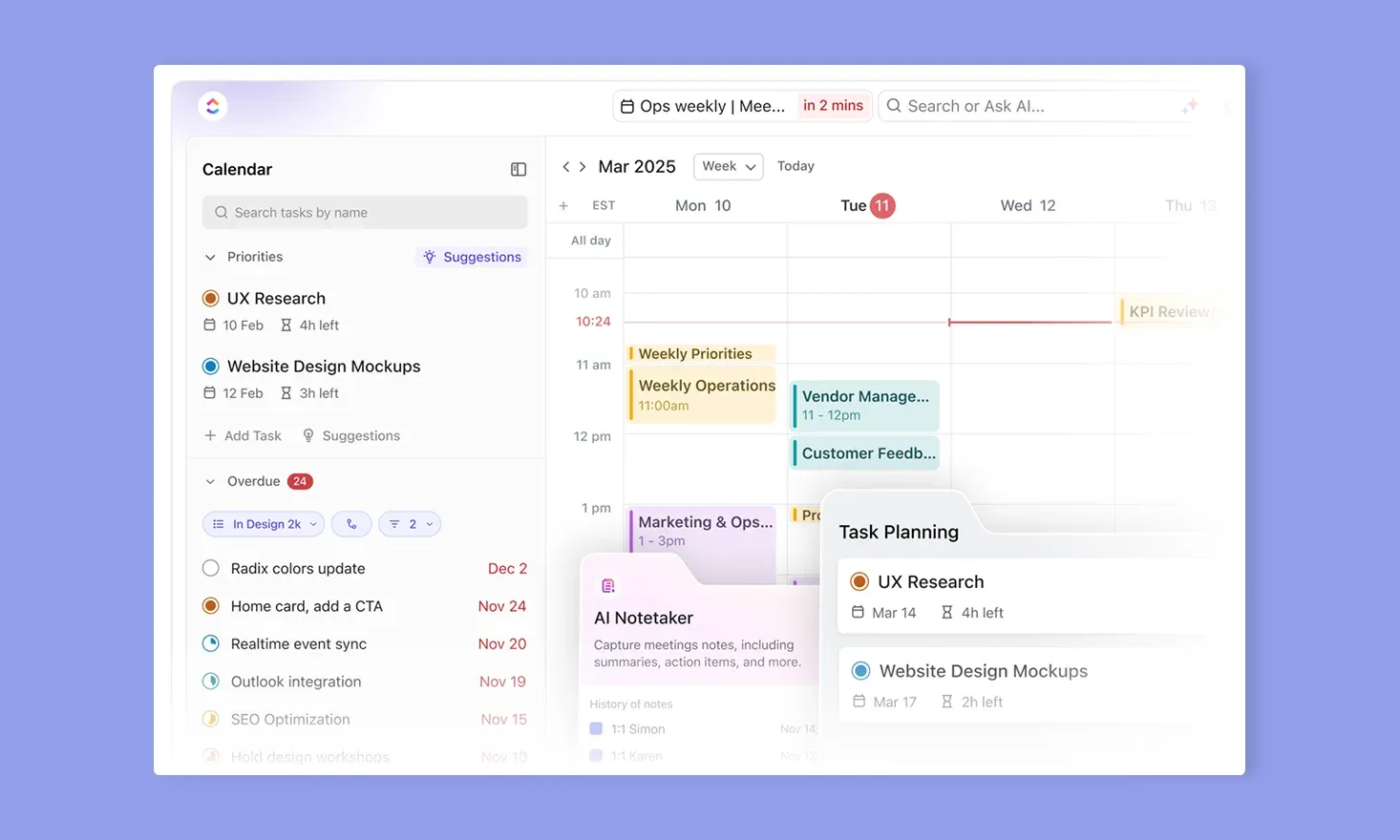
ClickUp’s Calendar view helps teams schedule and adjust project tasks visually. Tasks with start or due dates appear on the calendar, where you can drag them across days or time slots to quickly reschedule work.
- ClickUp AI highlights recommended times on the calendar based on task estimates. Confirm or decline each suggestion before anything gets scheduled
- Sync your ClickUp calendar with Google Calendar, and drag and drop existing tasks to change their dates
8. Monday: For Drag and Drop Scheduling Tasks in the Calendar View
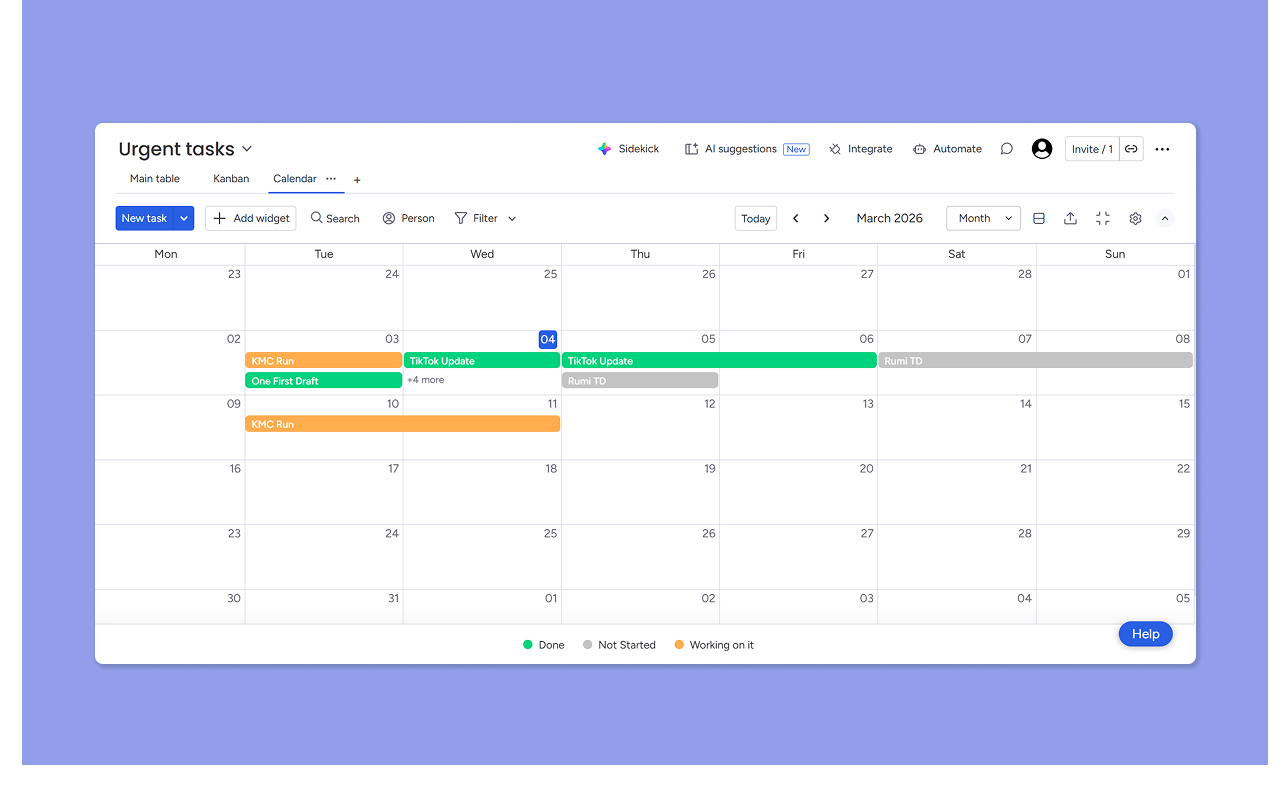
Monday provides a calendar view inside its project boards so teams can move tasks across dates. Dragging items across the calendar makes it easier to adjust deadlines and workloads.
You can add new tasks directly inside the calendar view and drag and drop them to new dates. Changes update across the project board
9. Routine: Best for Planning Across Tasks, Calendar, and Notes

Use Routine if you're an individual planner who wants tasks, a calendar, and lightweight notes in one planning interface.
You can drag a task directly onto your agenda or calendar, and synchronize personal and professional calendars to have a single view of your work and life
How to Choose a Drag and Drop Calendar Planner
70% of adults rely on a digital calendar to manage their day. When picking yours, look for drag-and-drop scheduling apps that offer:
Easy Scheduling
Setting a date, start time, end time, reminders, and a calendar category for every task is time-consuming.

With a drag-and-drop planner like Morgen, you pull a task from the sidebar and drop it onto any open slot on your calendar. Drag the edges to set how long it runs, and you have a schedule.
Note: Morgen sends automatic notifications before tasks begin. Control the lead time, from a few minutes to several days, so nothing catches you off guard.
Here’s how to use Morgen for task planning now.
An Intuitive Interface
You need an aesthetic calendar planner that brings everything into a single planning view.
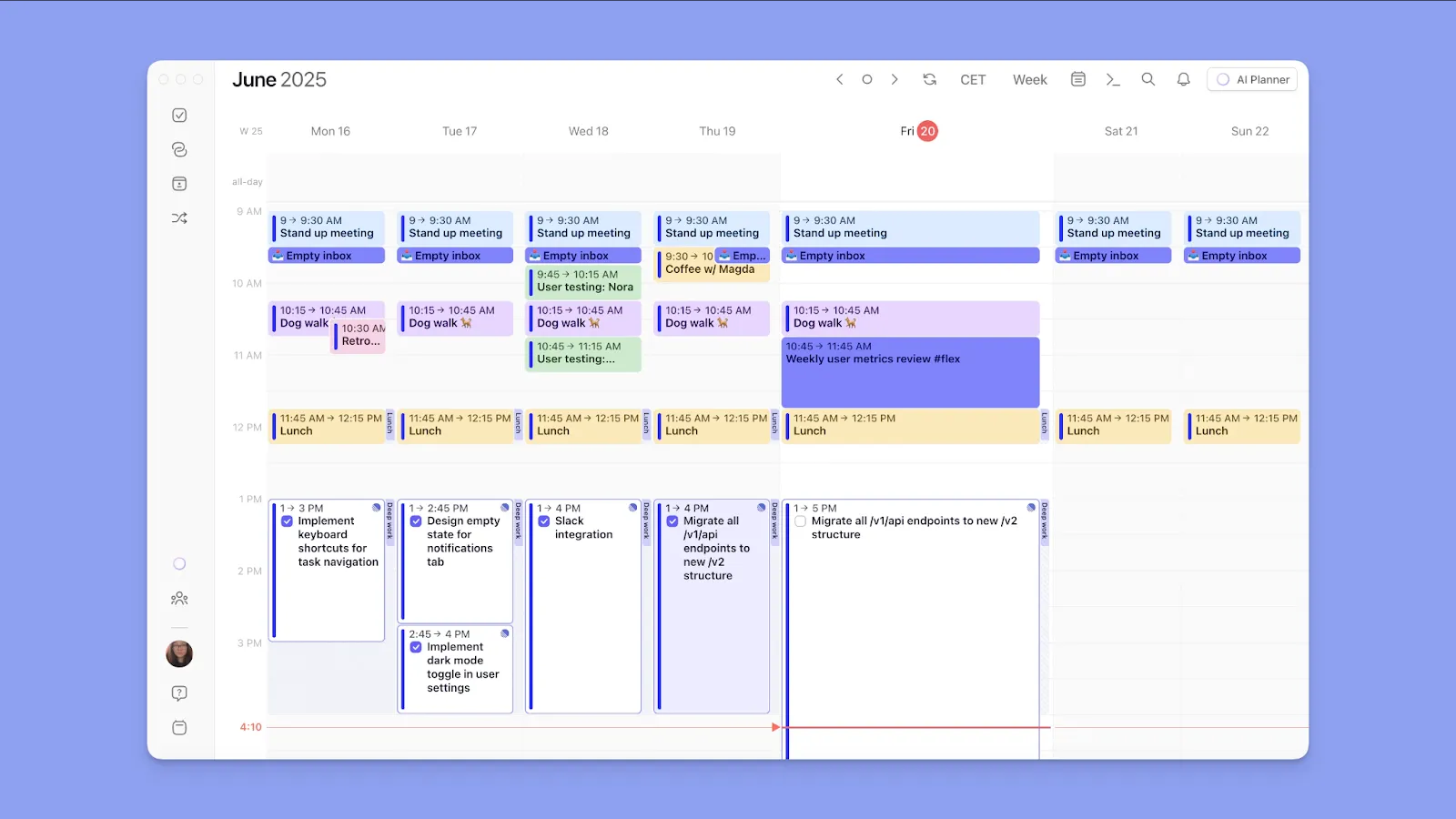
On Morgen, create routines, events, Frames, and tasks from the interface, then drag blocks into ideal time slots with real-time sync to connected calendars.
Note: You can also customize your Morgen theme and color-code task blocks to spot scheduling imbalances.
Conflict Resolution
When your day changes, your planner needs to keep up. Most native calendars won't flag a double-booking unless you catch it yourself.
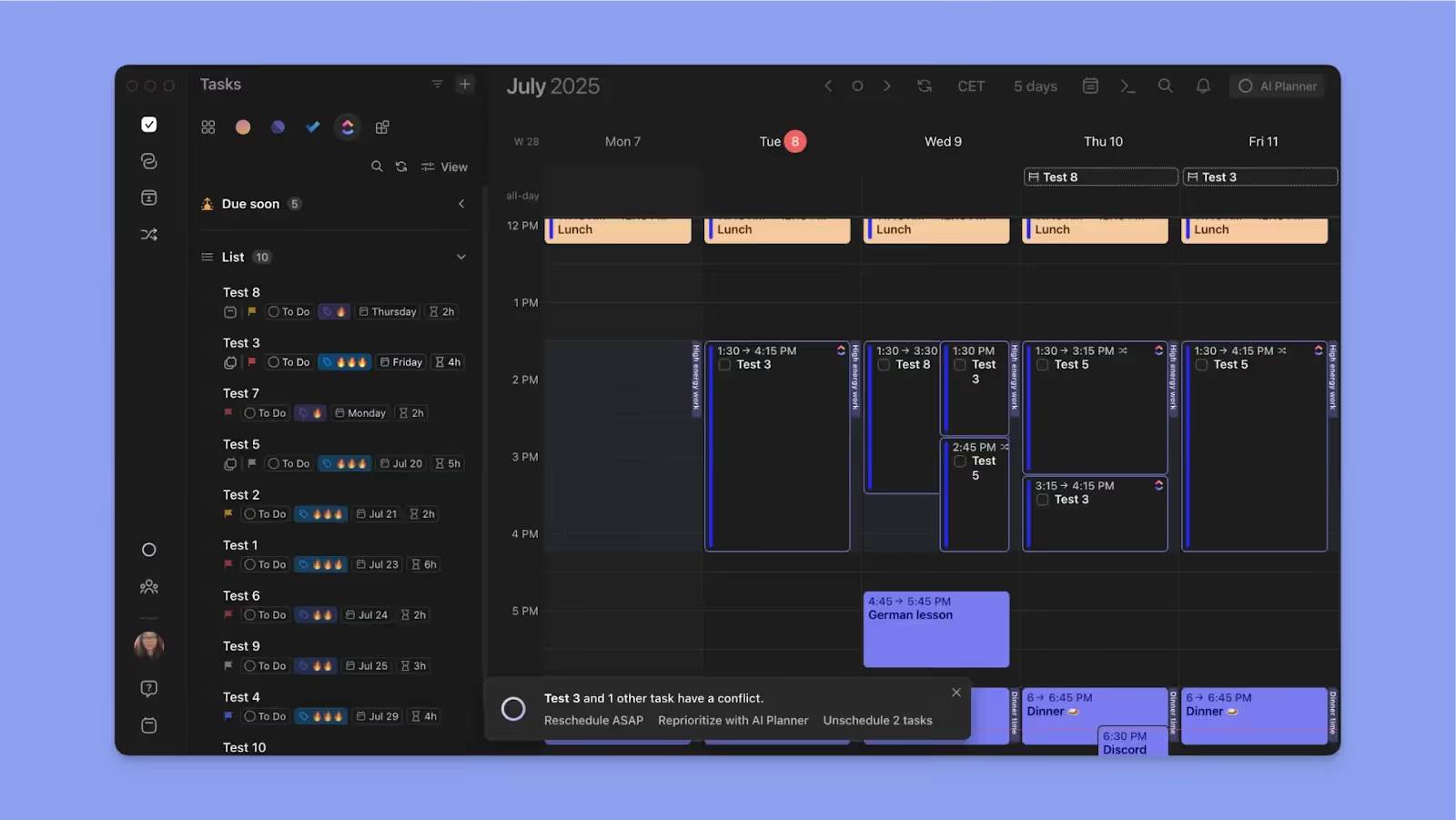
Morgen works on two levels: drag-and-drop with edge resizing for direct control, and AI features for conflict resolutions.
The AI Planners offer task reprioritization when you have scheduling conflicts, surfacing the next best time for the affected task. You approve the suggestion or drag the block yourself.
Read our guide on managing your day with the AI Planner.
Simplify Daily Task Scheduling With Morgen
With a drag-and-drop calendar app, planning no longer needs to be a time-consuming task. An app like Morgen simplifies planning through integrations that consolidate tasks and calendars in one view.
Drop tasks into free slots, resize blocks to set duration, and every connected calendar updates automatically. If you end up with a conflict, the AI Planner finds the next best schedule in one click, no manual reshuffling.
Download Morgen 4 on Mac, Windows, Linux, and mobile now.

.svg)
.webp)