.svg)
→ Choose Todoist if your struggle is capturing and organizing tasks across multiple projects: best for individuals who need a structured, cross-platform task system
→ Use Microsoft To Do if you need a clean daily GTD system: best for Microsoft 365 users who want a free tool to capture tasks, flag emails, and categorize with lists
→ Choose Morgen if you already use Todoist or Microsoft To Do and need an AI daily plannerthat schedules tasks into real calendar slots: best AI scheduling software for solopreneurs, developers, and freelancers who want time-blocking without losing control of their day
→ Recommended setup: Connect both both Todoist and Microsoft To Do to Morgen, then use the AI Planner to schedule tasks around your real calendar availability
Todoist and Microsoft To Do help you capture, organize, and track daily tasks across lists and simple workflows.
But are they enough for a busy individual who needs streamlined planning and clear execution time? We’ll compare features, pricing, and customer sentiment, then show where each task tool wins.
We'll also cover how solopreneurs and developers connect both tools to Morgen, an AI daily planner, for advanced AI task scheduling that places tasks into free calendar slots.
Todosit vs Microsoft To Do: A Brief Overview
Who Is Todoist Best For?
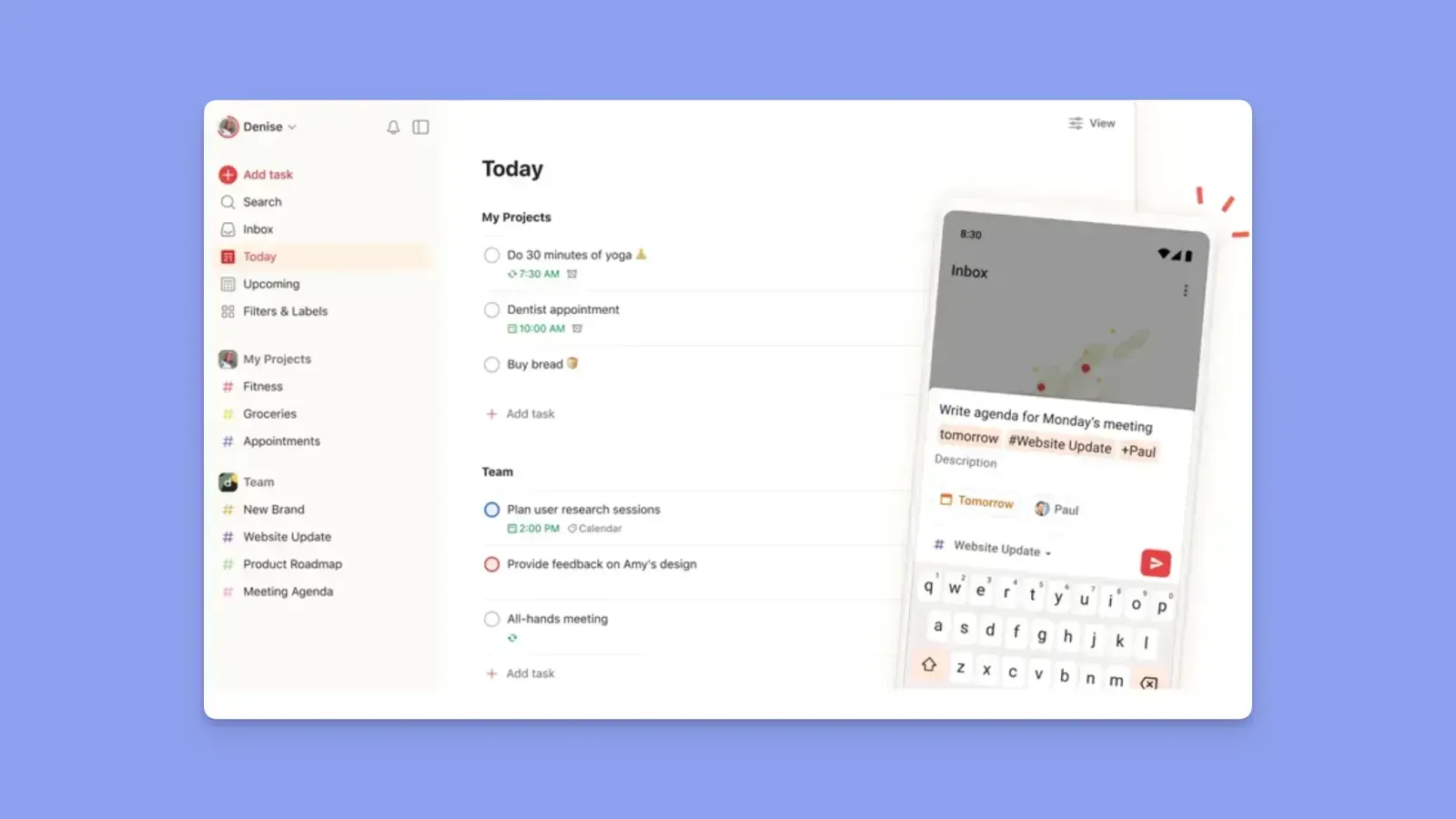
- Individuals who want a task system with natural language input and full control over how they organize their work
- Small teams and project planners who need shared projects, task assignment, and progress tracking in a lightweight setup
- People with ADHD who benefit from clear priority levels, recurring task logic, and a clean inbox-to-done workflow
Want to find a similar alternative for fast capture, planning, and more productivity features? Here’s Todoist vs TickTick.
Who Is Microsoft To Do Best For?
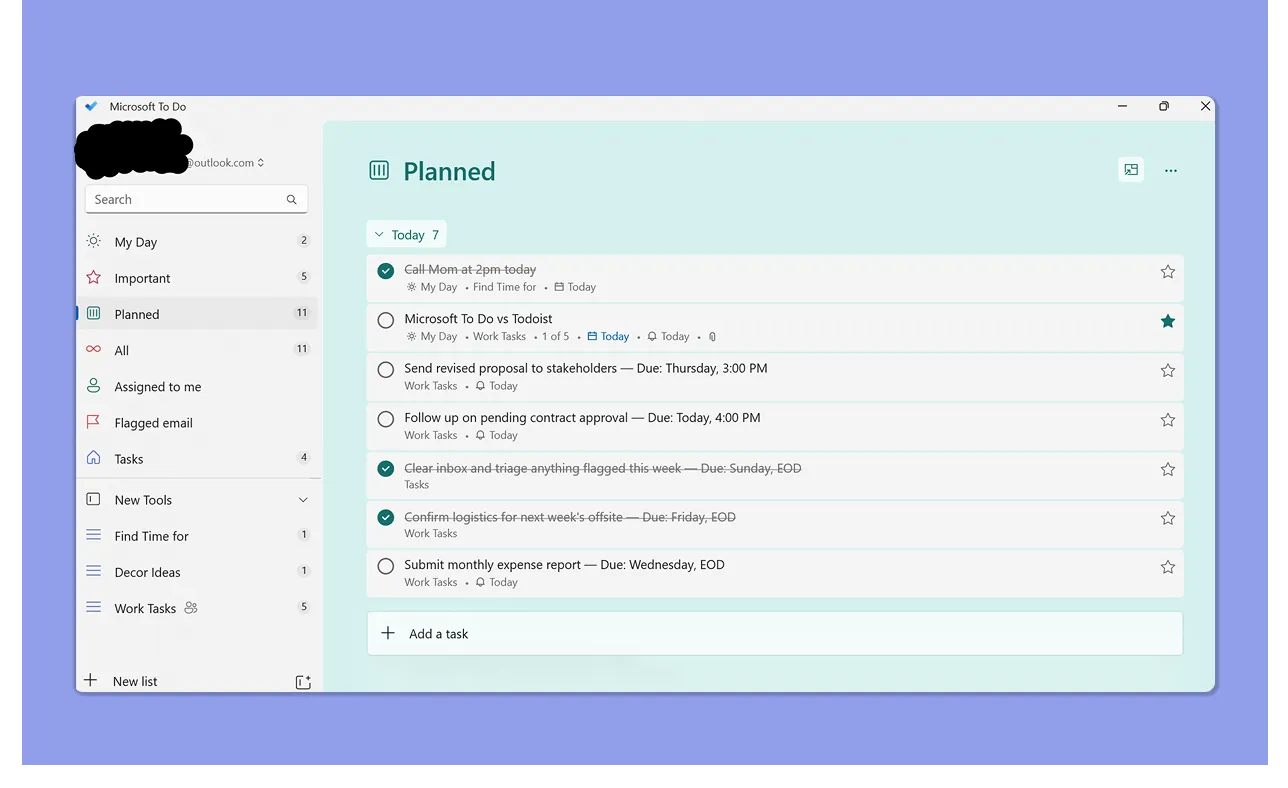
- Microsoft 365 users who want a free, no-friction task list that works alongside Outlook, Teams, and Planner
- People who flag emails in Outlook and want those to surface automatically as tasks without extra configuration
- Individuals managing personal or light work tasks without complex organizing needs
Morgen: An Advanced AI Planning Layer for Todoist and Microsoft To Do

You can use Morgen as an alternative to Todoist and Microsoft To Do, or alongside them to schedule existing tasks into your calendars. You get:
- A unified calendar planning view that shows your task list and available time slots
- Integrations to numerous calendars and external task tools to surface everything on your calendar and workflow
- An AI Planner that works in the background to suggest daily plans and resolve scheduling conflicts
- A modern, aesthetic planning interface that lets you create and schedule new tasks and events from scratch
- Cross-platform support, whether you need the web app, Windows, Mac, Linux, or mobile app
Download Morgen and start scheduling your tasks around real calendar availability.
Pricing
Todoist and Microsoft To Do are affordable daily planners for freelancers and busy individuals. Here’s how much they cost:
Todoist
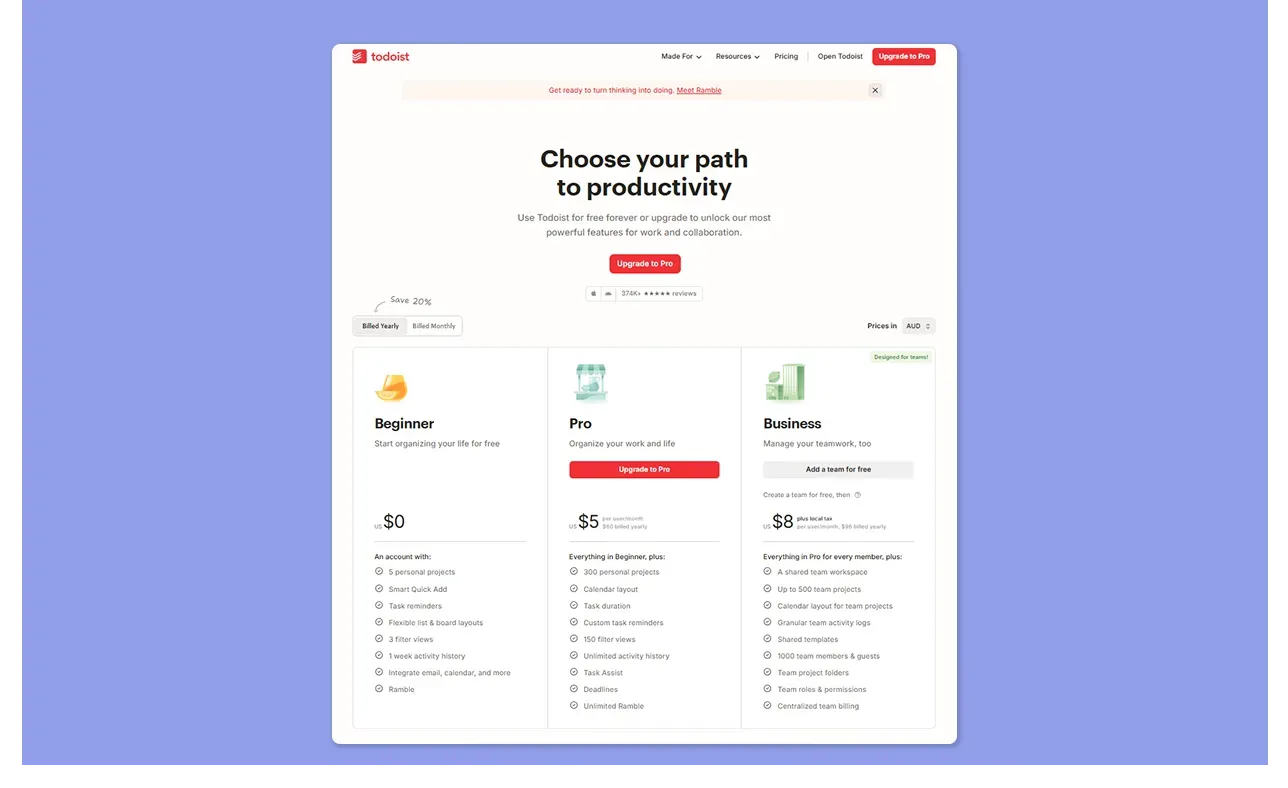
- You get a free plan, Pro at $7/month, and Business at $8/user/month
- Free is limited to 5 projects with no reminders or filters; Pro unlocks reminders, calendar view, and up to 300 projects; Business adds team workspaces and admin controls
- Ashish P. notes that pricing becomes steep when scaling across a larger team
Read more on Todoist Pricing in 2026.
Microsoft To Do
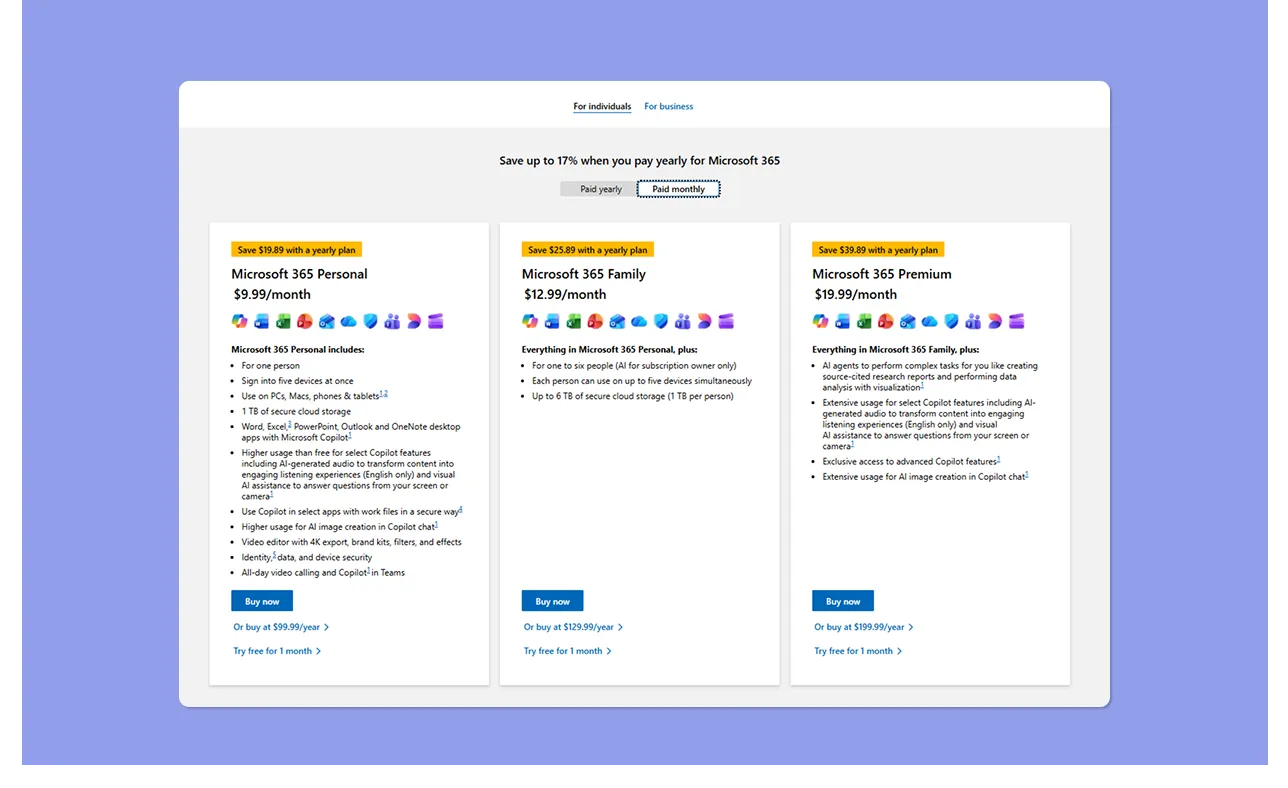
- Completely free with any Microsoft account (Outlook.com, Live, or Hotmail); no paid tiers, no feature limits for personal use
- Also included in Microsoft 365 Personal ($9.99/month) and Family ($12.99/month) plans if you already pay for the suite, no extra cost
- Free or bundled, you get the same features
Verdict
Microsoft To Do wins on price for personal use. Todoist's Pro plan is reasonable for individuals but the cost compounds fast for teams.
Task Capture and Management
According to Hubstaff, 20% of people regularly procrastinate their tasks. You solve that with Microsoft To Do or Todoist, but which one offers more features for time management?
Todoist
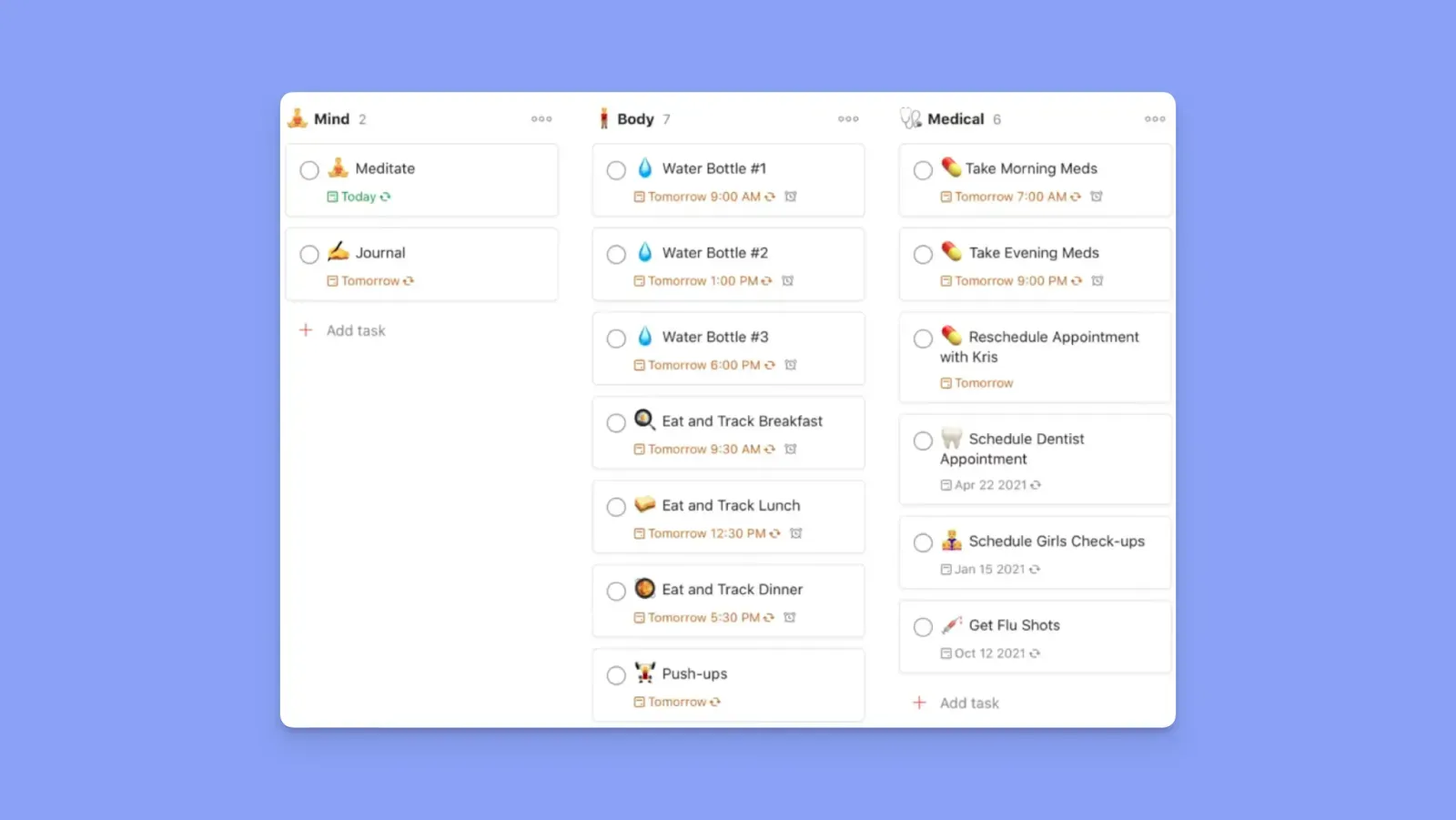
- Natural language input for fast capture, four priority levels (P1-P4), subtasks, labels, filters, and sections within projects
- Free users can't set time-based reminders, which limits Todoist as a daily planner without upgrading
- Tuvshinzaya A. notes that priority tags and the Ramble voice feature make it easy to add tasks and schedule days, while Amber G. flags the lack of email integration as a gap
Microsoft To Do
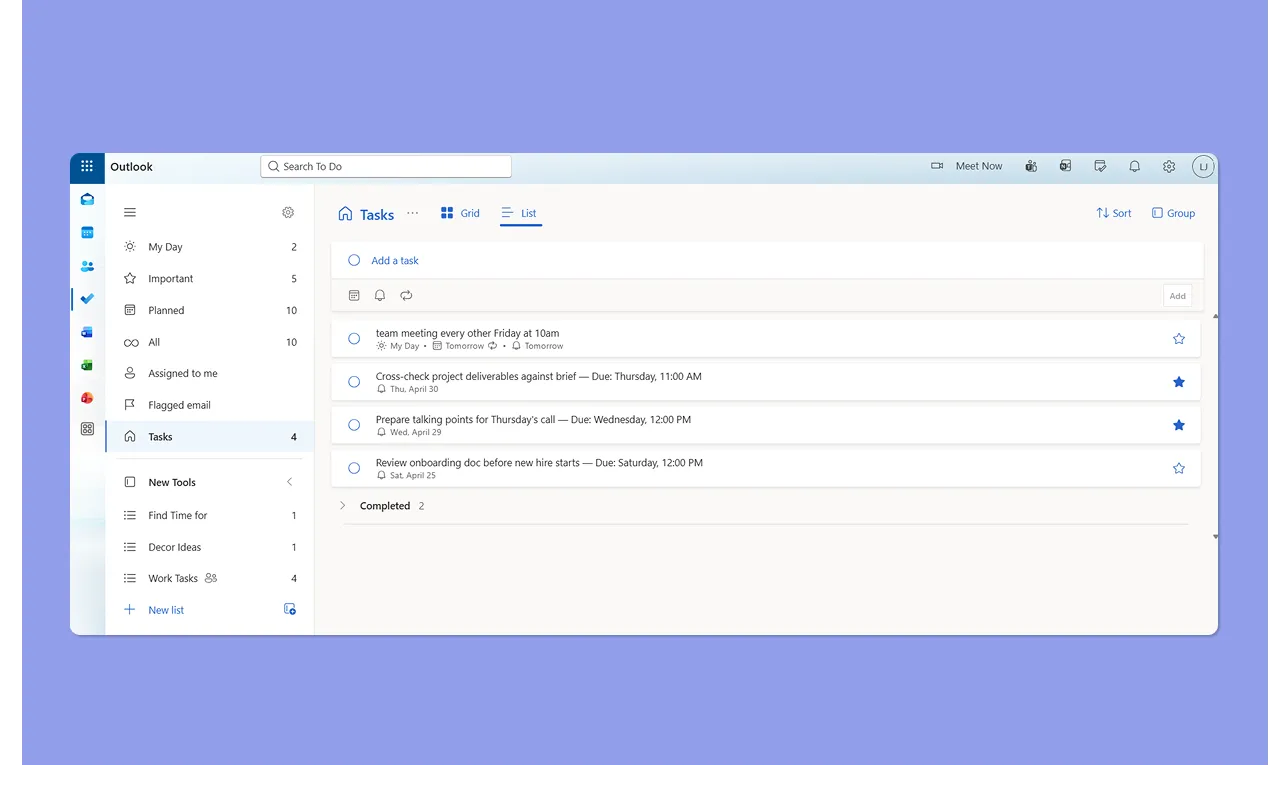
- Natural language input, recurring tasks, steps (you can promote them to tasks), and reminders
- No priority levels beyond starring, no labels, no filters, and no sections within lists
- Giacomo D. praises Microsoft To Do for keeping daily office tasks organized without feeling overwhelmed, but notes customization is limited and falls short for complex project needs
Verdict
Todoist handles more complex task organization, while Microsoft To Do covers the basics well and stays free.
Daily Planning
Here’s how you can plan and prioritize your tasks each day on Todoist or Microsoft To Do:
Todoist
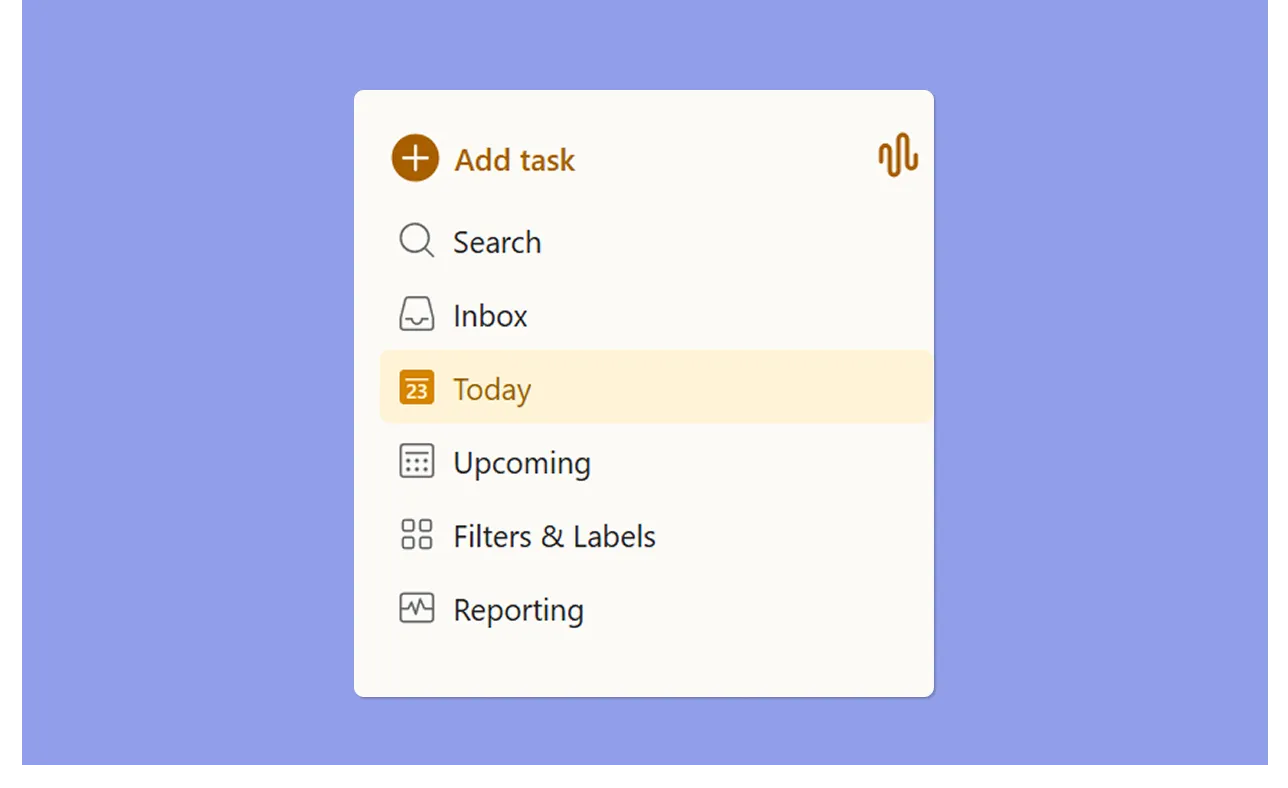
- Today and Upcoming views show tasks by due date; the Upcoming view doubles as a basic Kanban/calendar surface where you can drag tasks to reschedule across the week
- Calendar view is available on Pro and above, showing tasks plotted by time.
- After integrating calendars, you’ll see your events on Todoist lists, but you can’t mark them complete
- Aaron R. praises the Upcoming view for making it easy to organize the day and week, but notes that moving tasks around can be buggy, with tasks occasionally landing in the wrong time slot
Microsoft To Do
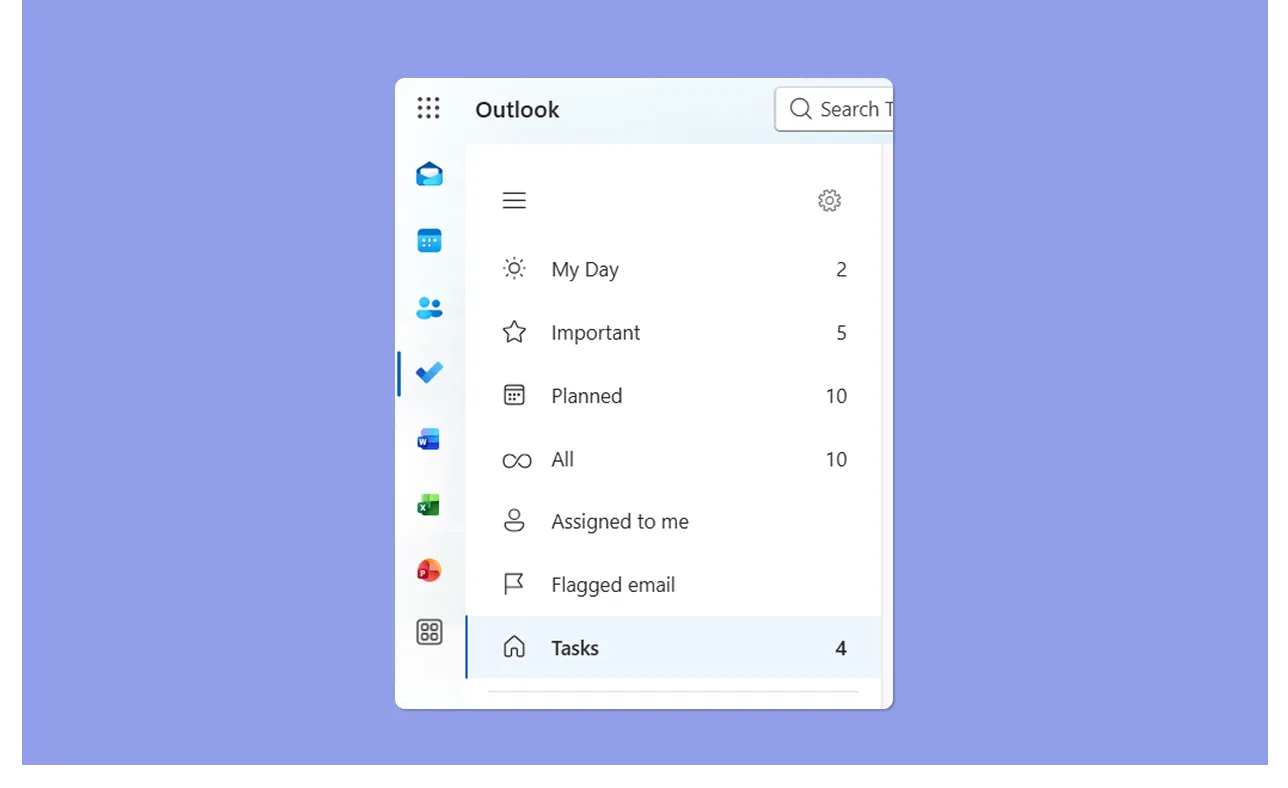
- My Day resets each morning as a blank slate where you manually pick tasks to focus on; Planned and Important views surface tasks by due date and priority star
- No calendar view at any plan level; you can't see tasks alongside your actual schedule without leaving the app
- You can manually drag tasks into Outlook Calendar, but they are recorded as events. Color-code them, add labels, and adjust durations
- A Reddit user reports that task order in My Day resets unexpectedly, despite turning off autosort
Verdict
Todoist's Upcoming view gives more structure for weekly planning, while Microsoft To Do's My Day works well for simple daily focus.
Integrations
Integrations decide how well each tool fits into your existing workflow without creating extra manual work. Here’s what you can add or view in Todoist and Microsoft To Do.
Todoist
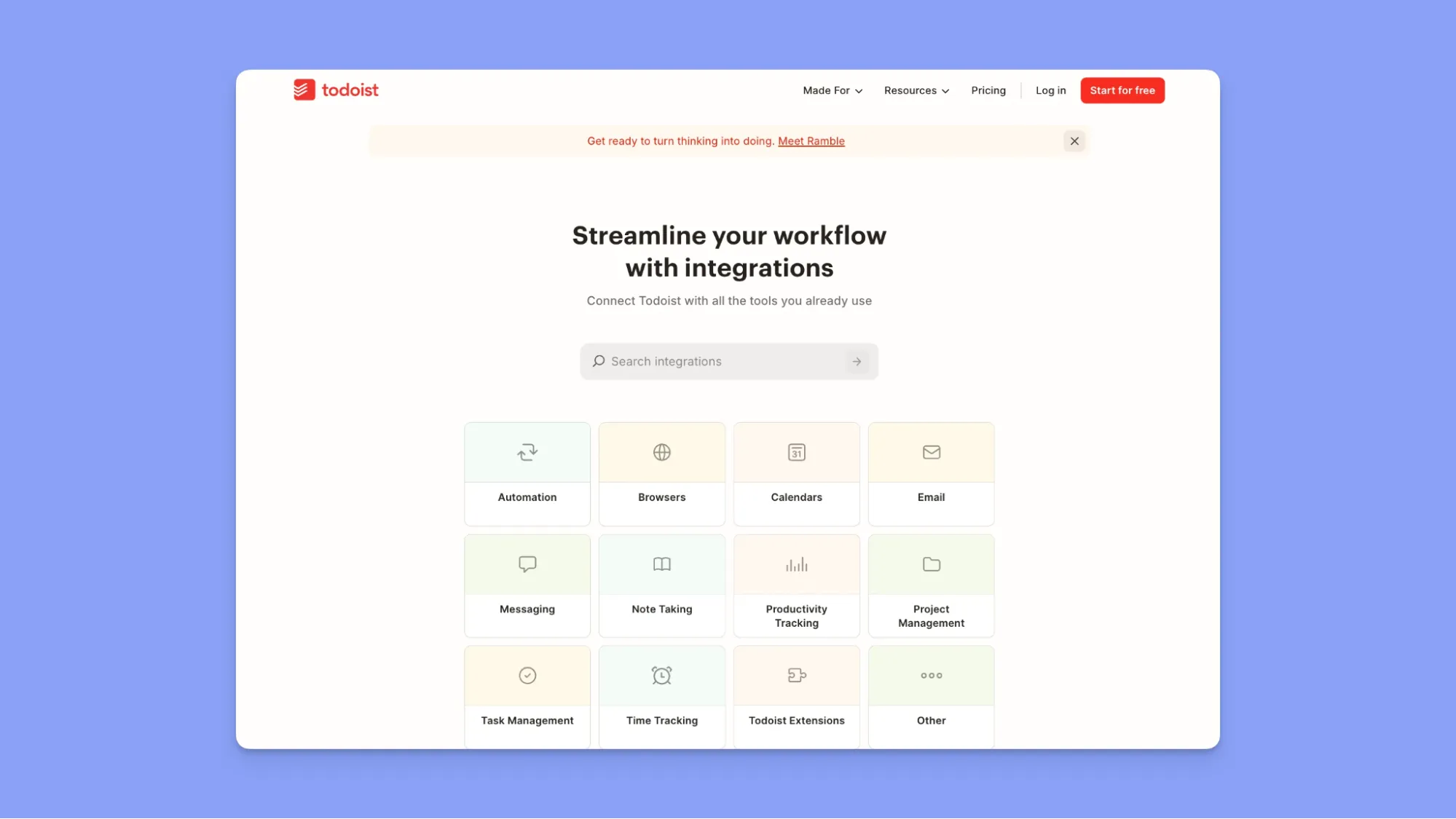
- Connects natively with Google Calendar, Outlook, Slack, Gmail, Microsoft Teams, and Zapier
- An in-app integration marketplace gives access to 80+ tools across productivity, communication, time tracking, and automation
- The calendar sync is one-way by default
Microsoft To Do
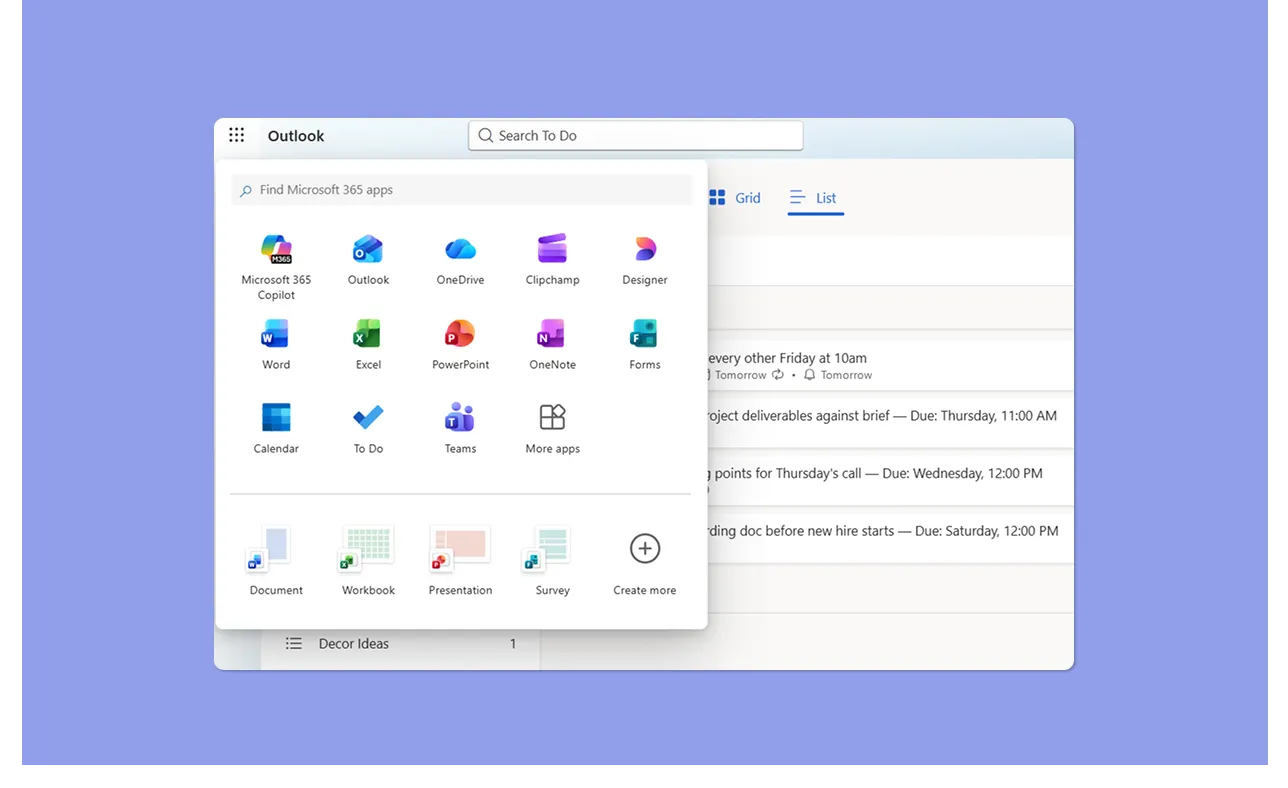
- Connected apps are limited to Microsoft Planner and flagged Outlook emails; no native third-party integrations outside the Microsoft ecosystem
- Works well if your entire workflow lives in Microsoft 365. Teams assignments and Planner tasks surface automatically without any setup
Verdict
Todoist wins on integration breadth by a wide margin. Microsoft To Do is a closed ecosystem play, powerful if you're already in Microsoft 365, limiting if you're not.
How to Choose the Best Task Manager
Choose a tool that lets you capture tasks quickly without breaking your workflow with this criterion today:
Fast Capture Across Platforms
Todoist's natural-language input lets you create a detailed task by typing the name, due date, priority, and recurrence on one line. Microsoft To Do handles basic NLP but does not support labels or priority tags inline.

Morgen's Command Bar works the same way. Type a task or event and place it directly into your calendar without switching screens.
Got tasks coming in as you work on Google Chrome? The Easy Tasks extension flags tasks and adds them to your task list.
Task Organization and Prioritization
In comparison, Todoist gives you more task prioritization features than Microsoft To Do. Meanwhile, the latter only lets you set deadlines and star tasks as important, which breaks down fast when you have more than a handful of tasks across multiple lists.
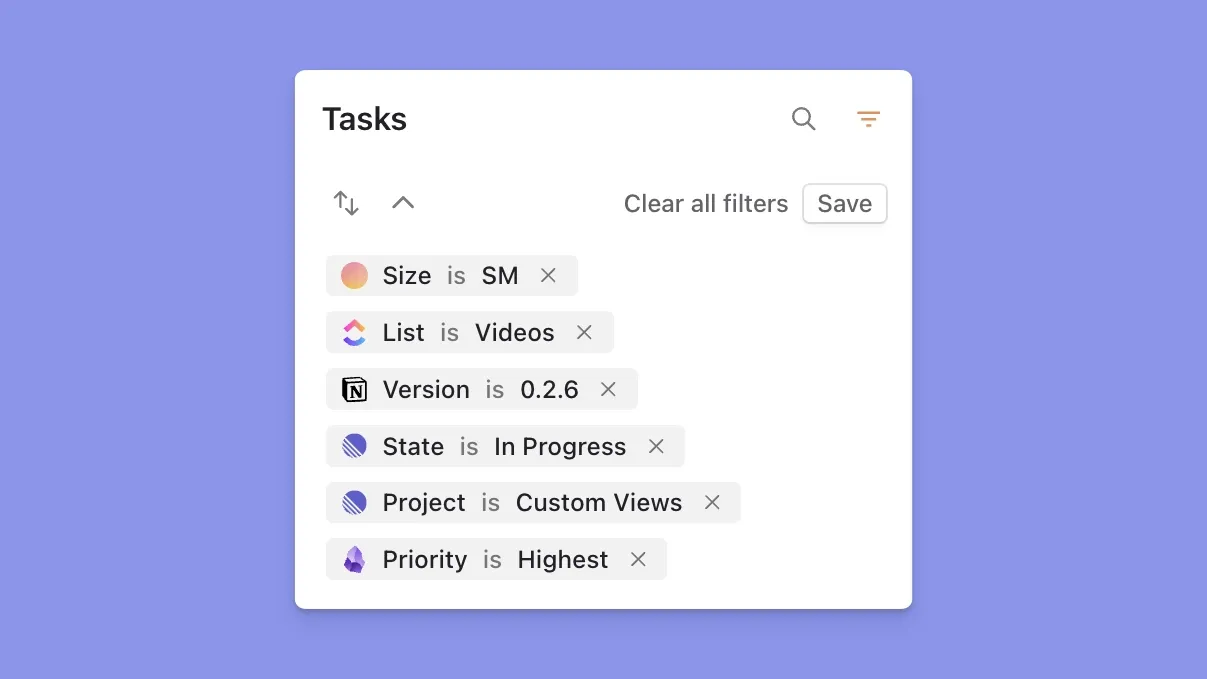
Morgen carries over priorities from connected tools, and also has prioritization and organization layers: task size (XS to L), importance level, due-date urgency, the Priority Factor, and task tags.
Focused Time Blocking
Todoist shows you what's due. Microsoft To Do shows you what you picked for today. Neither plans tasks around meetings or other engagements.
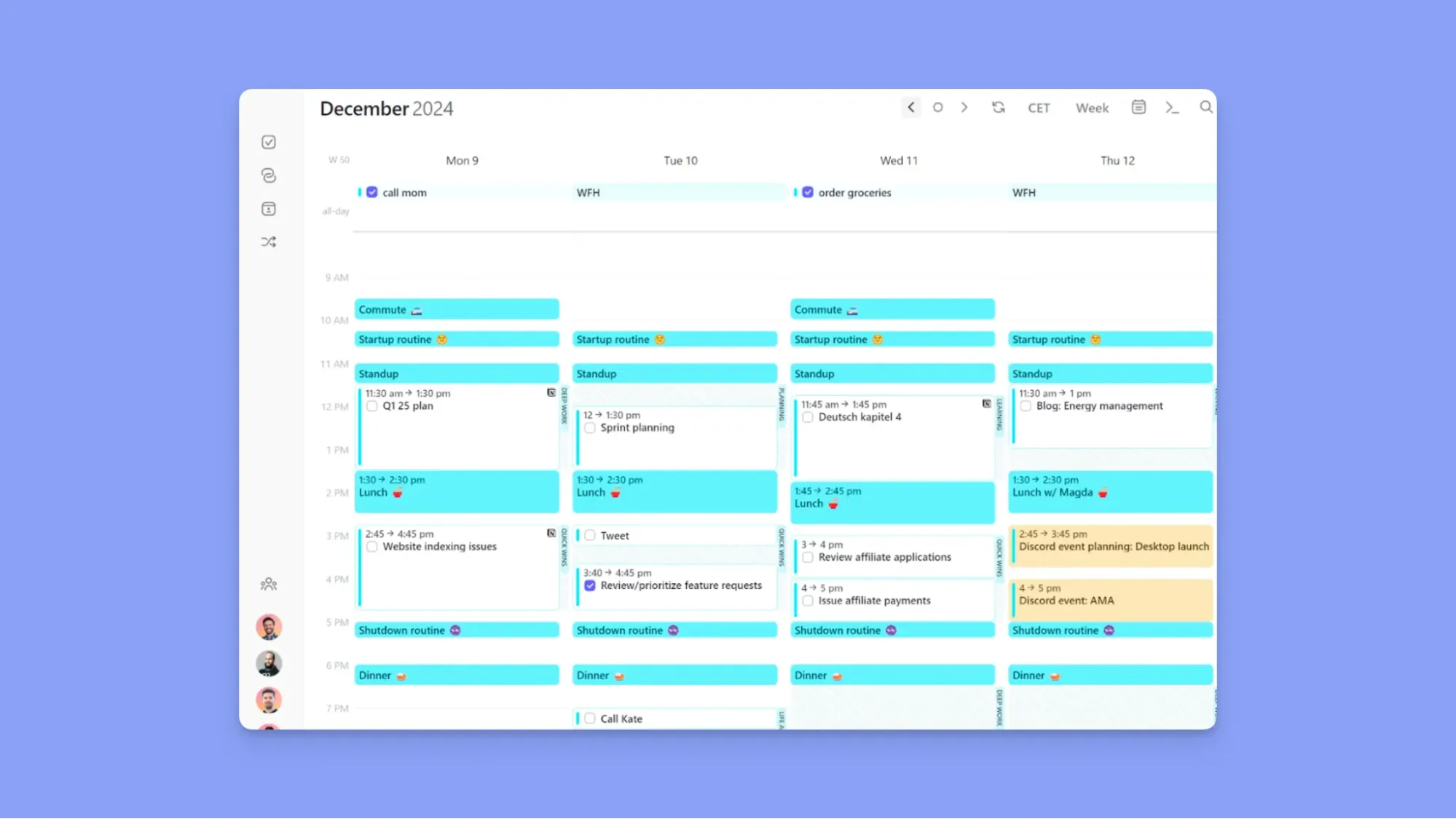
Morgen takes daily planning a level higher; letting you place tasks directly into your calendar as time blocks that sit alongside your events as protected time.
Use Morgen’s free Schedule Builder to get a feel of how timeblocking tasks works and improves productivity.
Alternative To Todoist and Microsoft To Do: Morgen as an AI Scheduling App for Creating Achievable Daily Plans
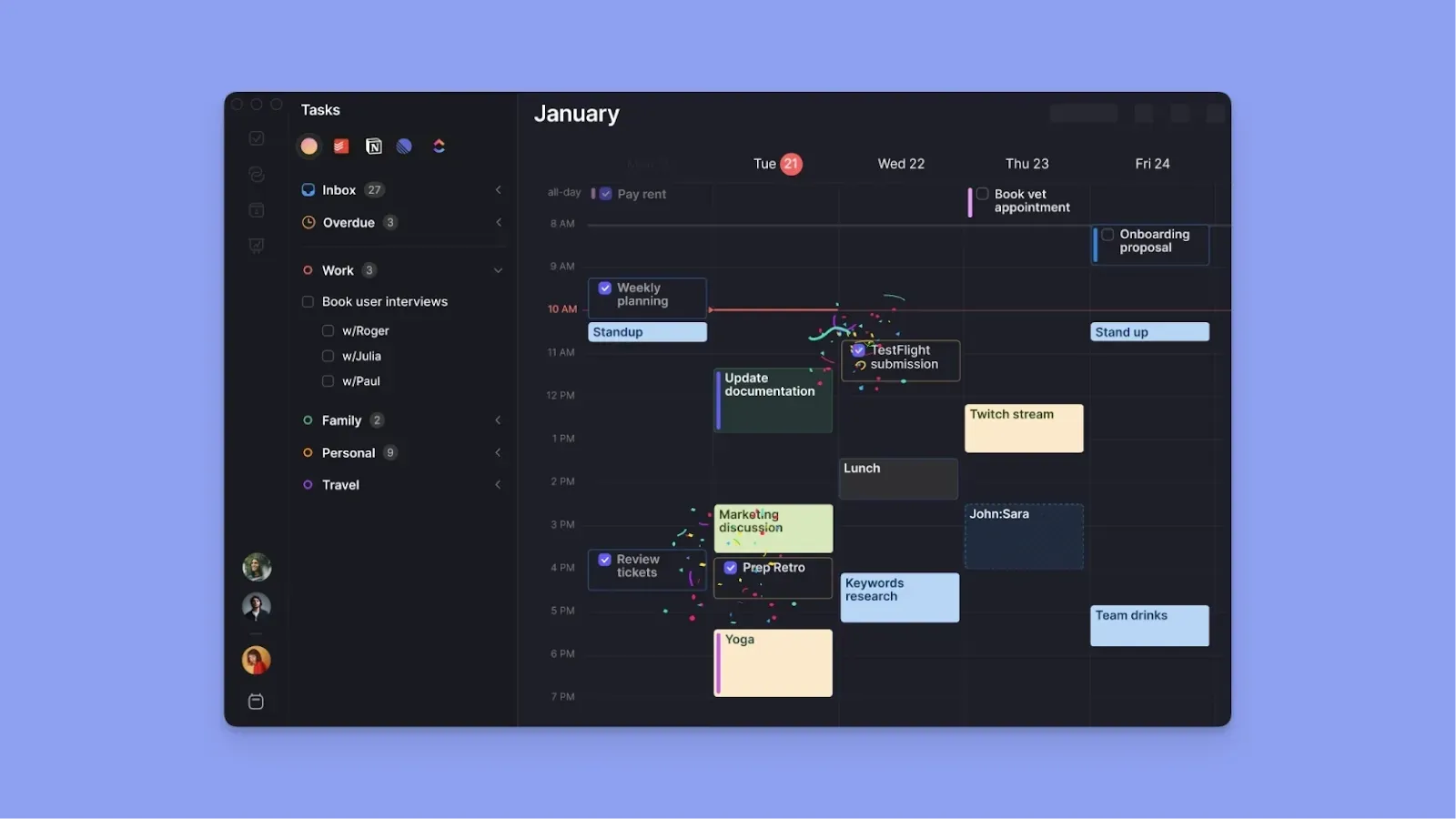
If you want a tool that tells you what time to complete each task, Morgen is the strongest companion to Todoist and Microsoft To Do.
Morgen Key Features
Morgen helps you create an achievable, calendar-aware schedule with:
Calendar and Task Tool Integrations
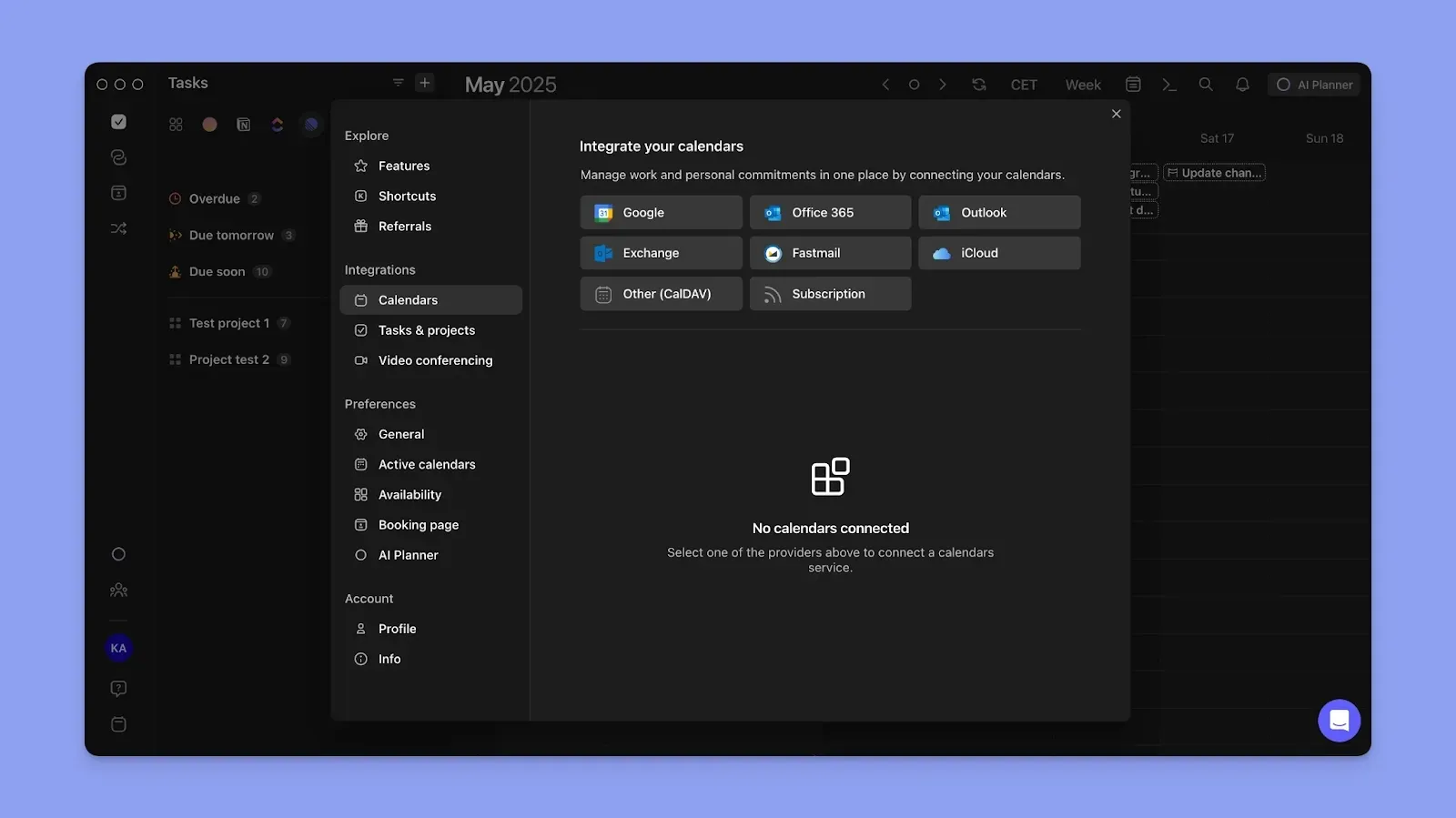
Connect Todoist and Microsoft To Do to Morgen, alongside Google Calendar, Microsoft Outlook, iCloud, Fastmail, Linear, Notion, ClickUp, Obsidian, Google Tasks, Apple Reminders, and Outlook Email.
Tasks from every source appear in the calendar view. You can also create direct connections such as Todoist + Google Calendar, Todoist + Apple Reminders, Microsoft To Do + iCloud, or Microsoft To Do + ClickUp to combine tasks or view them in specific calendars.
Propagate schedules across all connected calendars to prevent double-booking when working from work or personal calendars.
Task Planning with AI + Frames
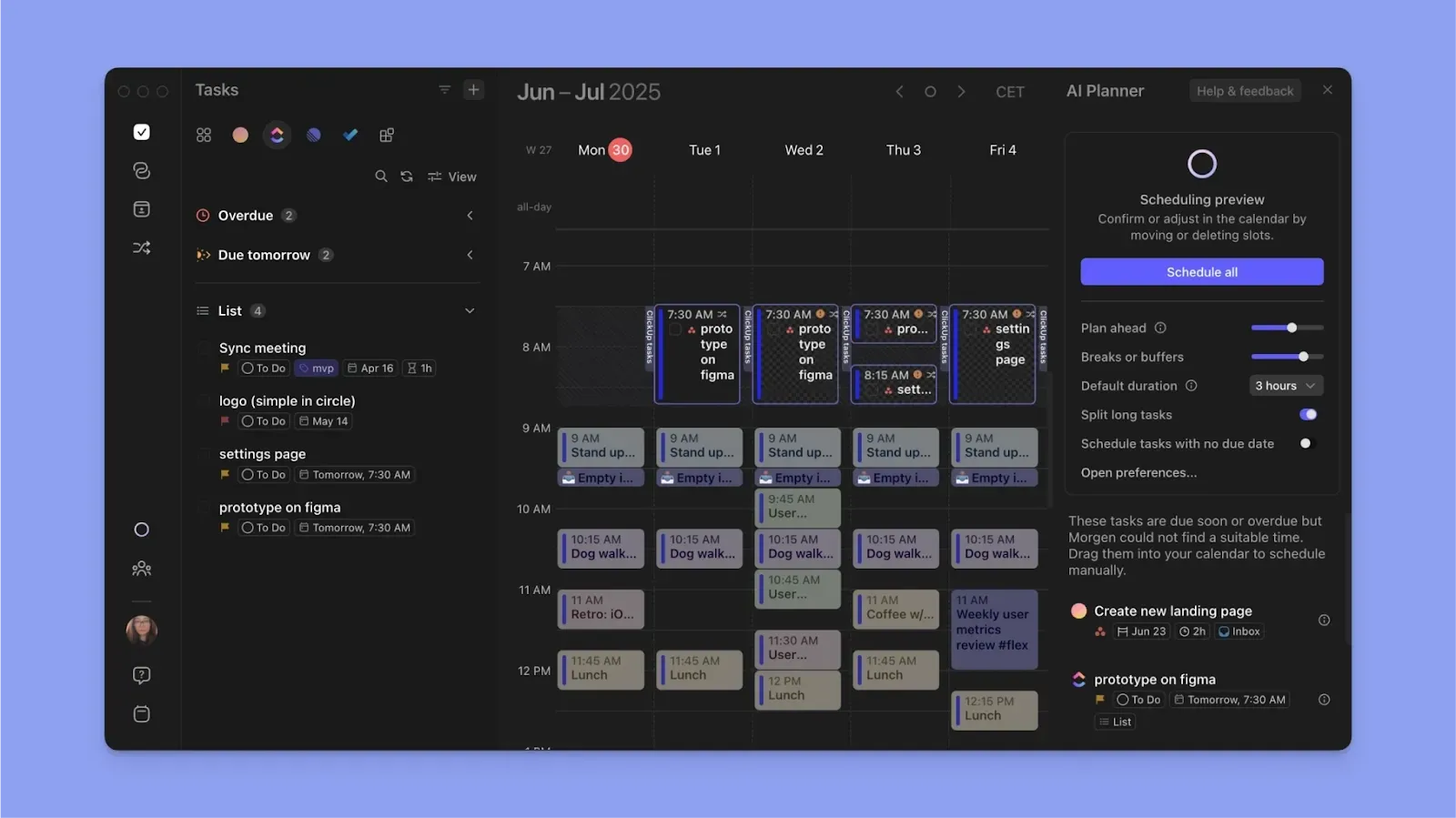
The AI Planner reads your entire task list alongside your calendar events, then suggests where to schedule each task. You confirm, adjust, or ignore each suggestion before anything lands on your calendar.
You can also create Frames to schedule certain types of work together and create filters for the tasks to schedule then. The AI planner understands Frame filters and can suggest which unscheduled tasks to add to the focused blocks.
Events and Routines Planning
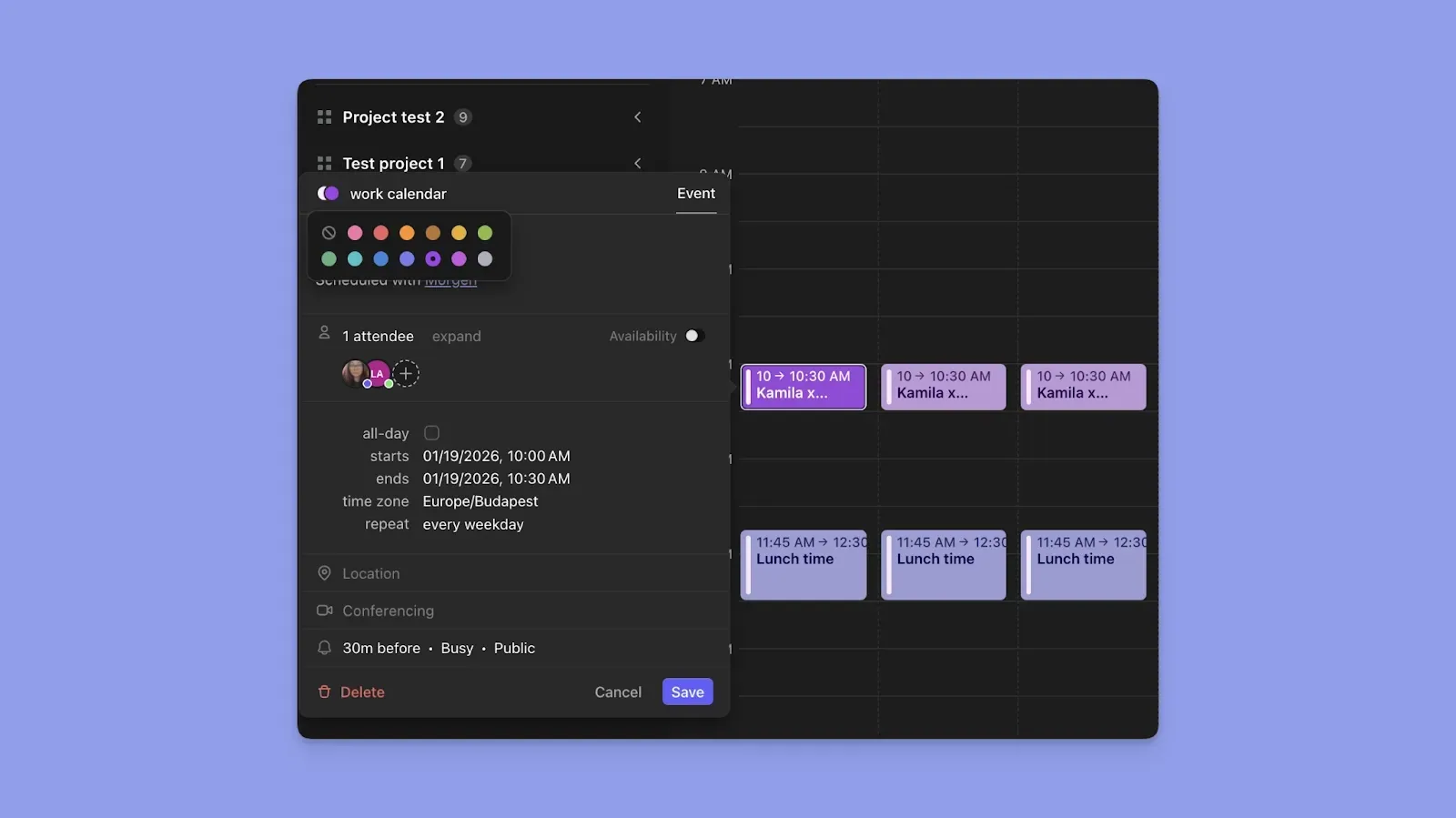
You can create new events on Morgen, then assign them to a specific calendar. Schedule them, add automatic workflows like travel and buffer times, and the AI Planner will not suggest editing those blocks.
To track habits, create Morgen Routines, and schedule them as recurring blocks on specific calendars.
Morgen Pricing
Get your 35% discount (annual plan) if switching from Clockwise, or 15% off the first year switching from Motion, Fantastical, or Sunsama.
Where Morgen Shines
- A unified planning layer: Create calendar-aware schedules built around your actual workload and availability across every connected tool
- Color coding for visual planning: Color-code calendars, scheduled task blocks, and task tags to read your day at a glance
- Keyboard shortcuts for fast navigation: Switch views, move between days, and plan without touching your mouse
- Meeting planning built in: Create a team, share availability, and let others book time through scheduling links and booking pages
Where Morgen Falls Short
- Not a project management tool: Morgen is designed for personal scheduling and task planning, not managing projects, boards, or team workflows
Customer Reviews
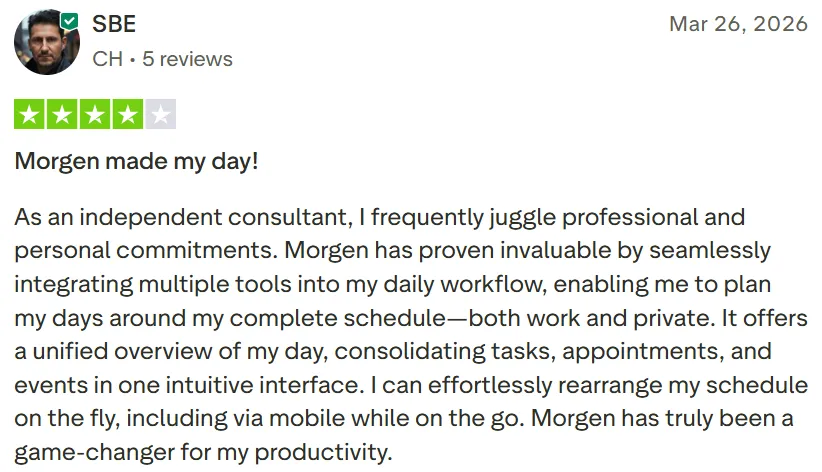
“Morgen has truly been a game-changer for my productivity,” shares SBE on Trustpilot.
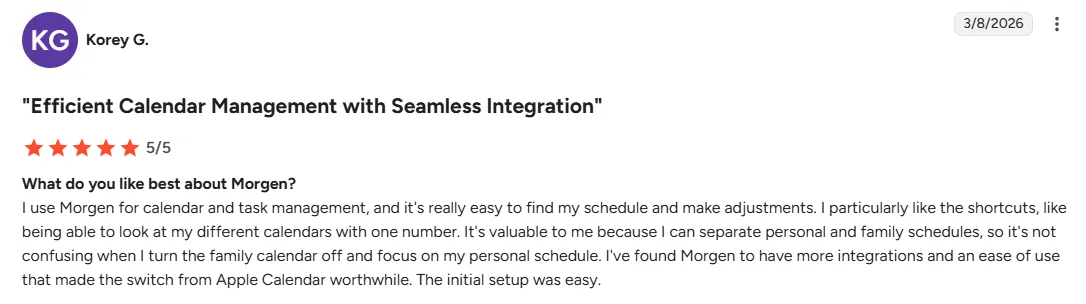
“I use Morgen for calendar and task management, and it's really easy to find my schedule and make adjustments,” says Korey G on G2.
Who Morgen Is Best For
- Freelancers, developers, marketers, and solopreneurs managing tasks across multiple tools who need a single place to plan and schedule their day
- Individuals with ADHD who benefit from structured time blocks, visual clarity, and AI suggestions that reduce daily planning decisions
Who Morgen Is Not Fit For
- Teams that need project boards, task dependencies, or workload tracking across multiple people
Here’s how to get started with Morgen, connecting tools, and surfacing daily schedule suggestions.
Todoist vs Microsoft To Do vs Morgen: Which One Should You Choose?
Choose Todoist for structured task management with fast capture and broad integration, or Microsoft To Do if you're in Microsoft 365 and need a free, no-setup daily list.
If you use either and want tasks scheduled into your actual calendar, add Morgen on top. Start creating achievable daily plans on Morgen with a 14-day free trial of Morgen.

.svg)
.webp)